

API keys let you integrate with the Dsposal APIs programmatically. You can create keys scoped to specific APIs -- the Waste Thesaurus or the Compliance Directory -- and restrict them to allowed domains for additional security.
Prerequisites
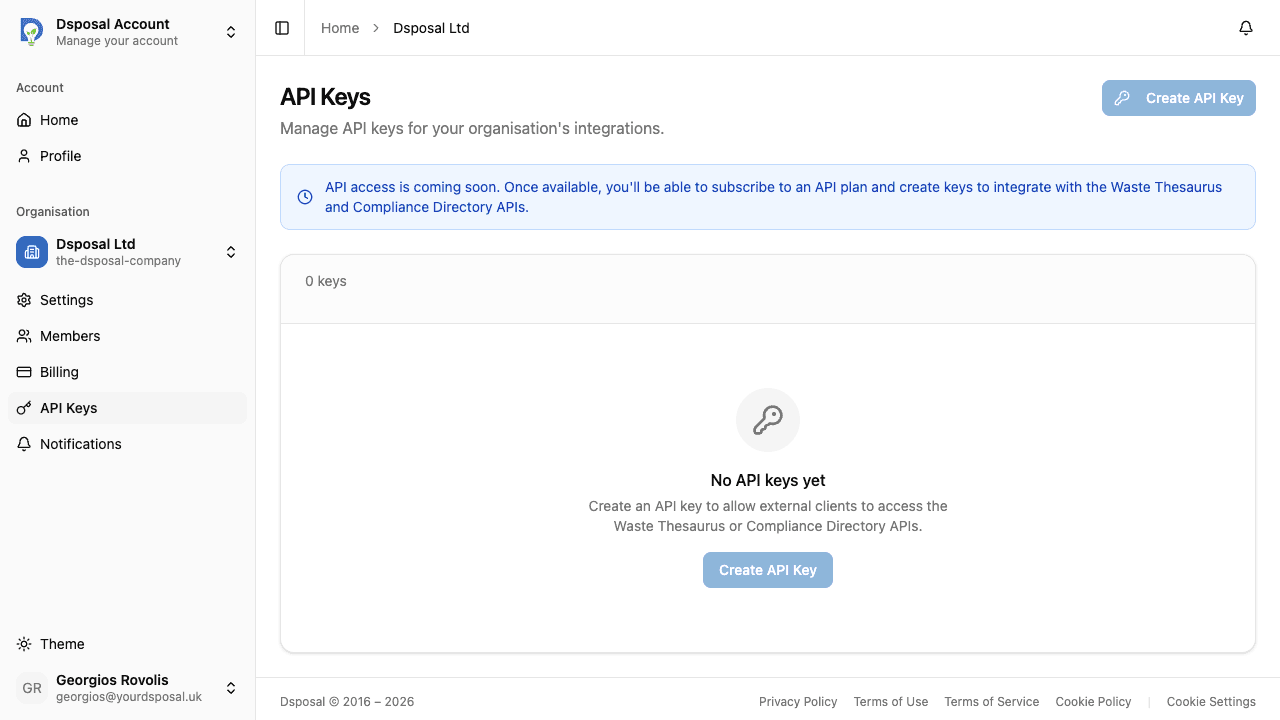
Before you can create API keys, your organisation needs an active API subscription. If you don't have one, you'll see an informational banner on the API Keys page and the Create API Key button will be disabled.
To add an API subscription, visit the Billing page and purchase an API add-on.
Creating an API key
Navigate to API Keys in the sidebar
In the Account app, select your organisation and click API Keys in the sidebar. You'll see a list of your existing keys (if any) and a count of total keys.
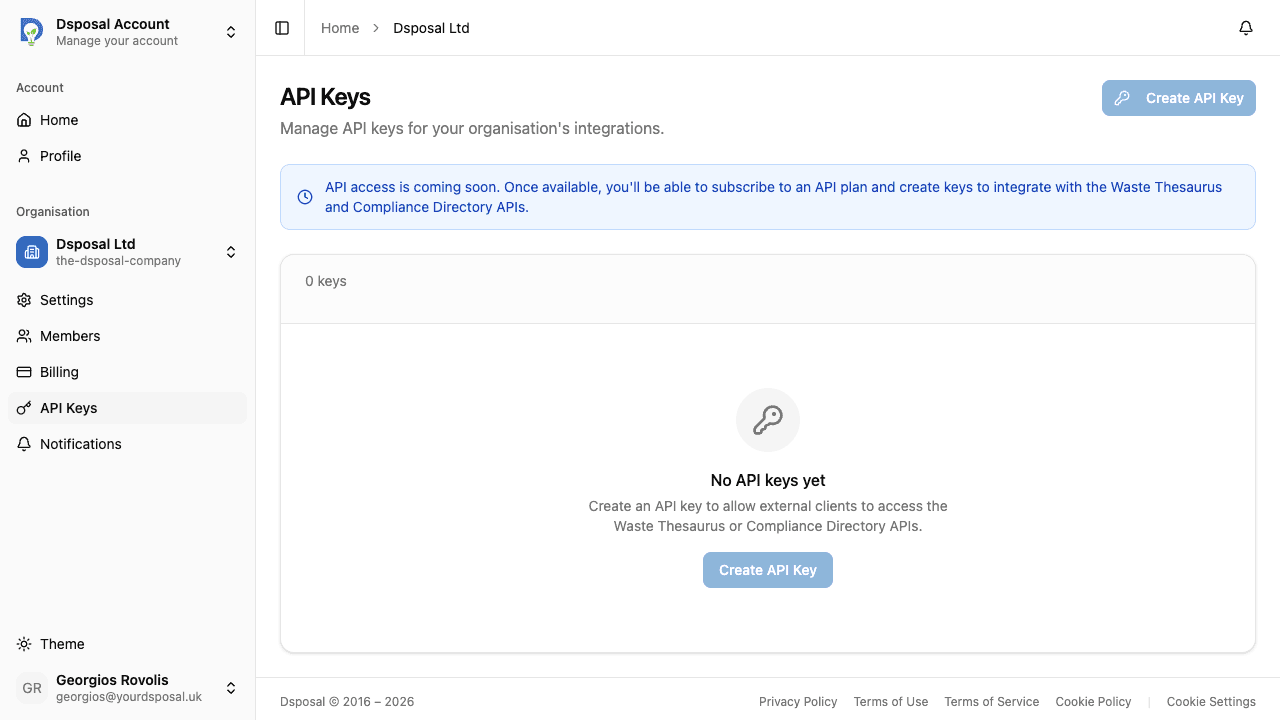
Click Create API Key
Click the Create API Key button in the top-right corner to open the creation dialog.
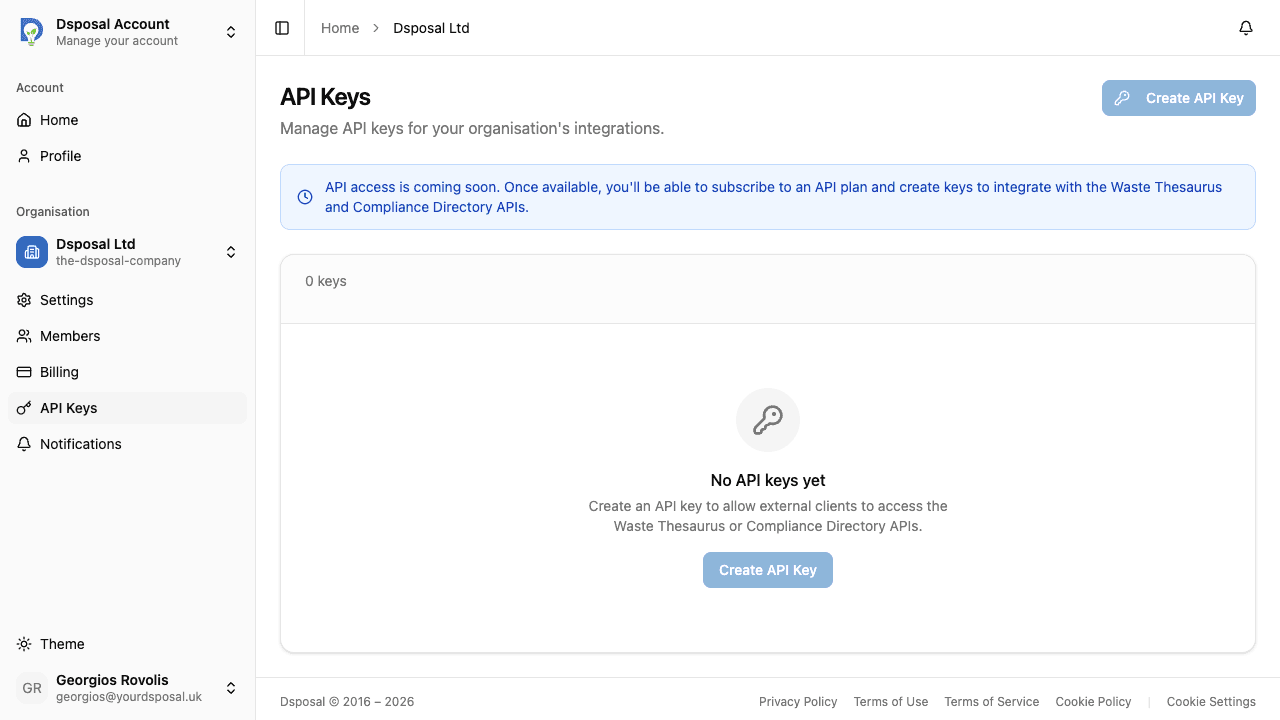
Enter a name and contact email
Give your key a descriptive Name (e.g. "Production Frontend" or "Analytics Integration") and provide a Contact Email for the key's point of contact.
Select a scope
Choose which API the key will have access to:
- Waste Thesaurus -- access to EWC codes, recovery/disposal codes, and hazardous property classifications
- Compliance Directory -- access to the searchable database of licensed waste operators
Optionally add domain restrictions
In the Allowed Domains field, enter a comma-separated list of domains that are permitted to use this key (e.g. *.example.com, app.example.com). Leave this empty to allow all origins.
Copy the full key
After clicking Create, the dialog will show your full API key. This is the only time the complete key will be displayed.
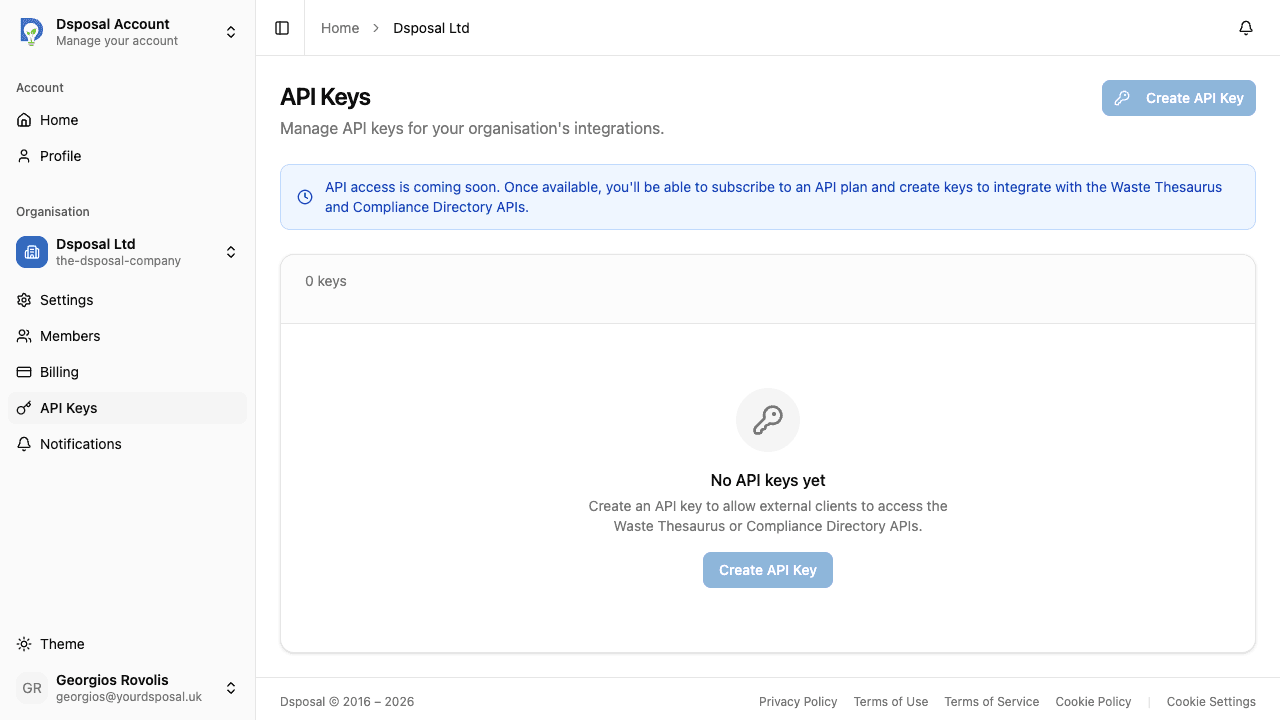
Click the copy button to copy the key to your clipboard, then click Done to close the dialog.
Managing your keys
Your API keys are displayed in a table showing:
- Name -- the descriptive name you gave the key
- Prefix -- the first few characters of the key for identification
- Scope -- which API the key accesses (Waste Thesaurus or Compliance Directory)
- Status -- whether the key is active or revoked
- Created -- when the key was created
- Last used -- the most recent time the key was used
Editing a key
Click the actions menu (three-dot icon) on a key row and select Edit to update the key's name or allowed domains.
Revoking a key
To permanently deactivate a key, click the actions menu and select Revoke. A confirmation dialog will appear -- click Confirm to proceed. Revoked keys cannot be reactivated.
Security best practices
- Store keys securely -- never commit API keys to version control or share them in plain text
- Use domain restrictions -- set allowed domains for production keys to limit where they can be used
- Rotate keys periodically -- create new keys and revoke old ones on a regular schedule
- Revoke unused keys -- if a key is no longer needed, revoke it promptly to reduce risk
- Use separate keys per environment -- create different keys for development, staging, and production
Keep moving
Next steps
Explore further