

Keeping certificates, insurance policies, and registrations up to date is essential for compliance. Dsposal automatically tracks expiry dates across all your documents, shows their status with colour-coded badges, and notifies you when action is needed. This guide covers how to use the Documents page to stay on top of your compliance.
Understanding document statuses
Every document in Dsposal is assigned a status based on its expiry date:
| Status | Badge colour | Meaning | |---|---|---| | Active | Green | The document is current — more than 30 days until expiry, or no expiry date set | | Expiring Soon | Amber | The document expires within the next 30 days — time to renew | | Expired | Red | The expiry date has passed — immediate attention required | | Archived | Grey | The document has been manually archived and is hidden from the default view |
Viewing your documents
Go to the Documents page
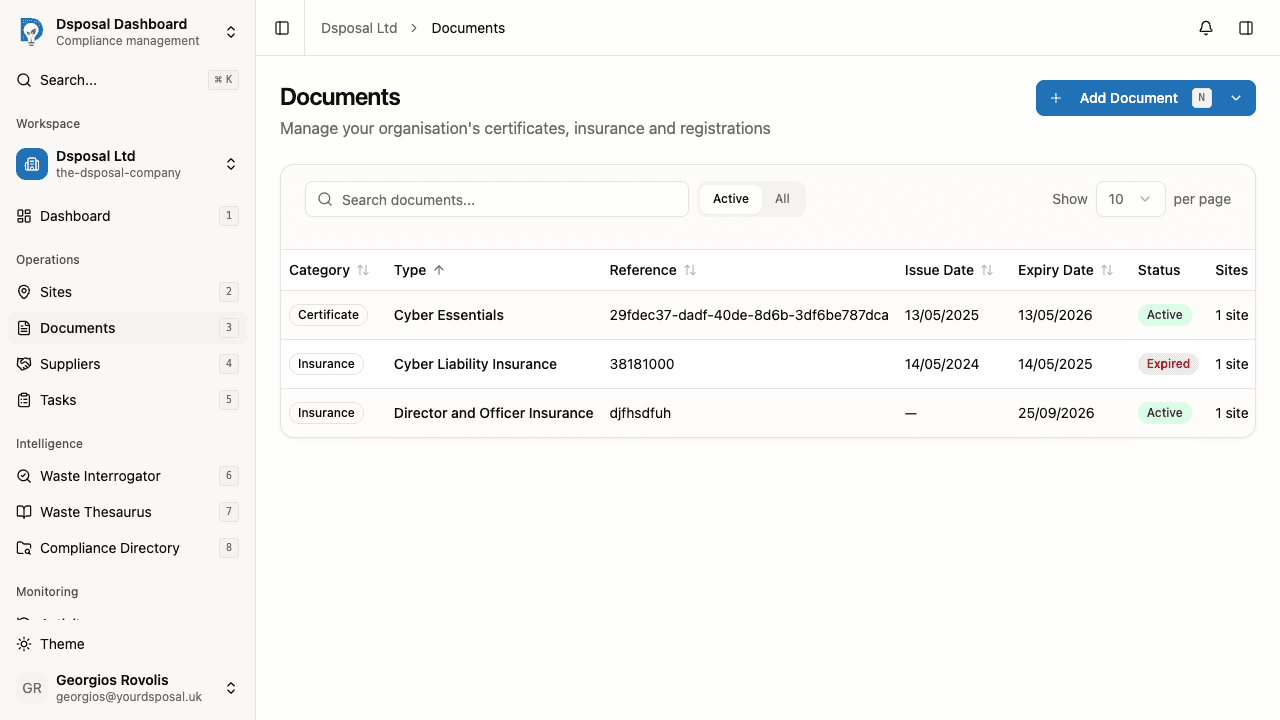
In the Dashboard, click Documents in the main navigation. You'll see a table listing all your certificates, insurance policies, and registrations.
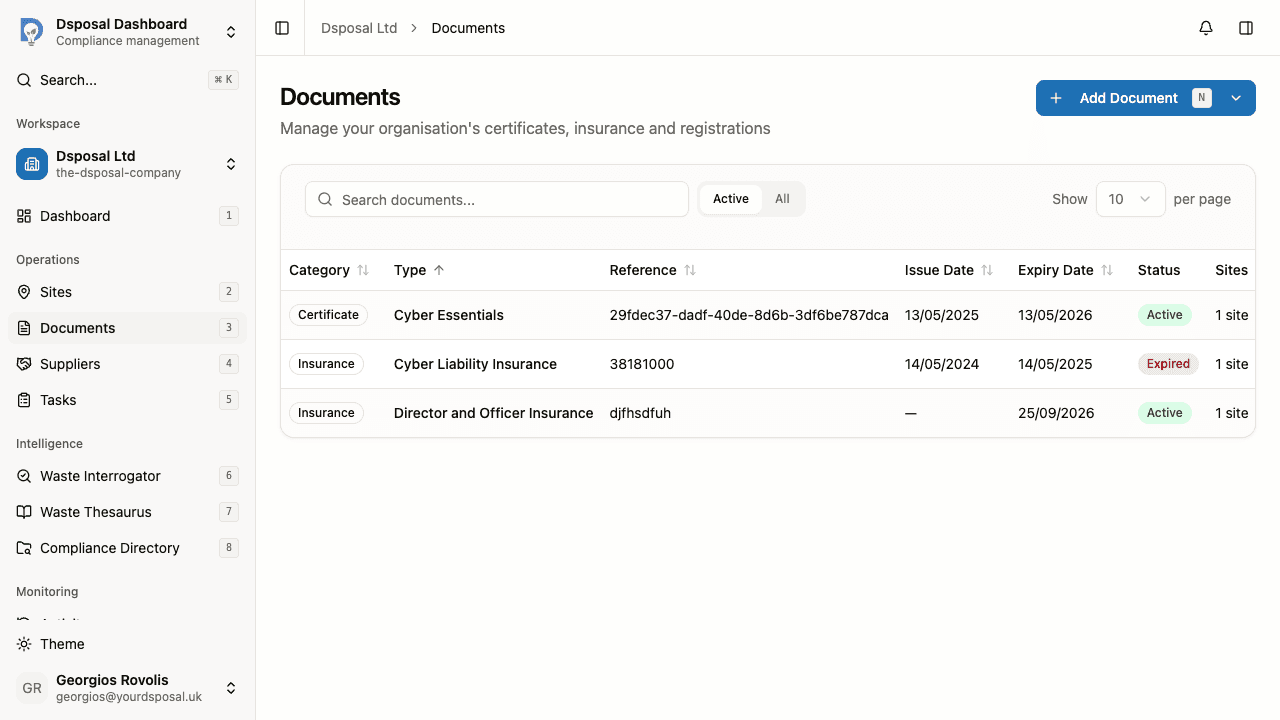
The table shows columns for Category, Type, Reference, Issue Date, Expiry Date, Status, Sites, and Actions.
Check status badges
The Status column shows colour-coded badges that give you an immediate sense of each document's state:
- Green (Active) — no action needed
- Amber (Expiring Soon) — plan to renew within 30 days
- Red (Expired) — take immediate action
Filter by tab
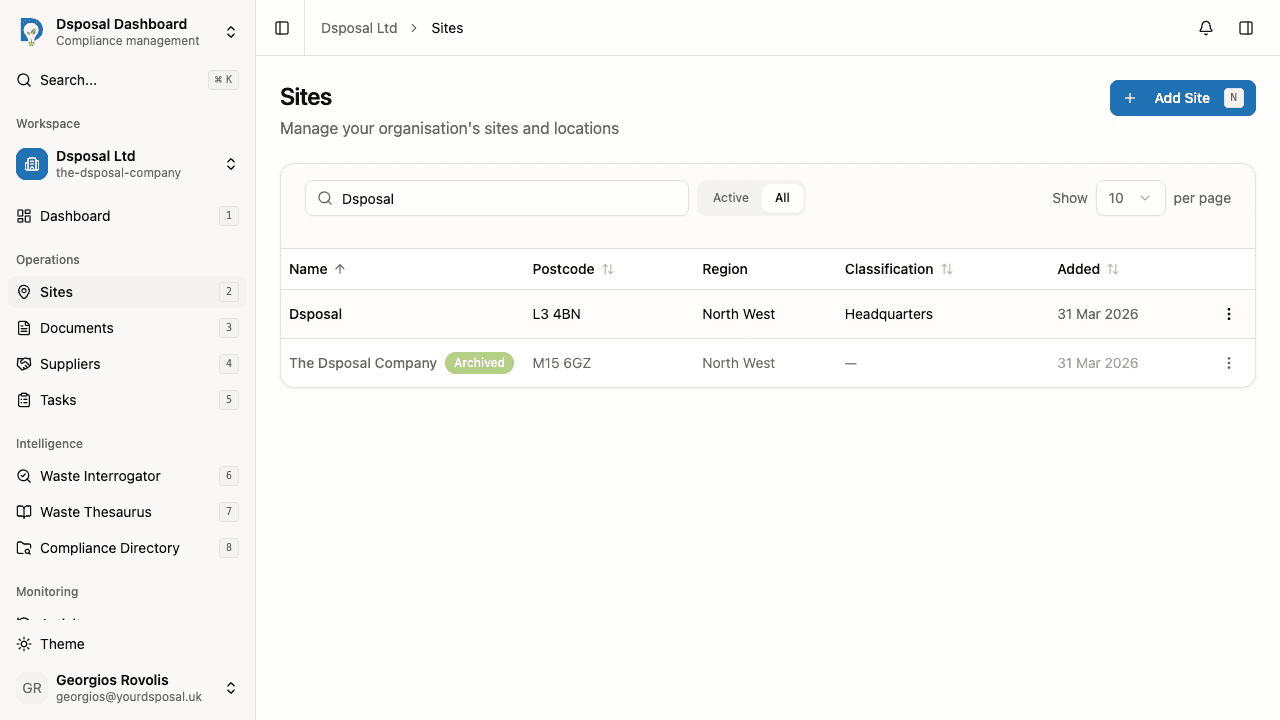
Use the tabs at the top of the table to switch between views:
- Active — shows only current, non-archived documents (the default view)
- All — shows all documents, including archived ones
Search and sort
Use the search bar at the top of the table to find specific documents by name, type, or reference number.
Click any sortable column header — Category, Type, Reference, Issue Date, or Expiry Date — to sort the list. Click the same header again to reverse the sort direction.
Expiry notifications
Dsposal runs a daily check across all organisations to identify documents approaching expiry. When a document enters the 30-day expiry window, the system automatically:
- Updates the document's status to Expiring Soon in the Documents table
- Creates a notification for organisation owners
- Flags the document on the compliance dashboard in the expiry horizon widget
Archiving expired documents
Once a document has been renewed and you've added the new version, you can archive the old one:
- Find the document in the table
- Click the actions menu (three-dot icon)
- Select Archive
Archived documents move out of the Active tab and are only visible when you switch to the All tab. You can always Unarchive them later using the same actions menu.
Best practices for staying compliant
- Set accurate expiry dates when adding certificates and insurance — this is the foundation of the tracking system
- Review the Documents page regularly — sort by expiry date to see what's coming up next
- Archive rather than delete — keep a historical record of past documents for audit purposes
- Link documents to sites — this ensures compliance status is tracked at the site level, not just the organisation level
- Check the compliance dashboard — the expiry horizon widget shows upcoming expirations at a glance, grouped by urgency
- Refresh registrations periodically — registrations from the EA register can change status, so use the refresh button to stay current
Keep moving
Next steps
Explore further
Related Guides
Upload and manage compliance certificates for your organisation
Upload and manage insurance policies for your organisation
Import and manage registrations from the EA Public Register
Learn how to read the compliance widgets on your Dashboard home page