

The kanban board gives you a visual overview of your tasks organised by status. Drag and drop cards between columns to update their progress without opening each task individually.
Switching to kanban view
Navigate to Tasks
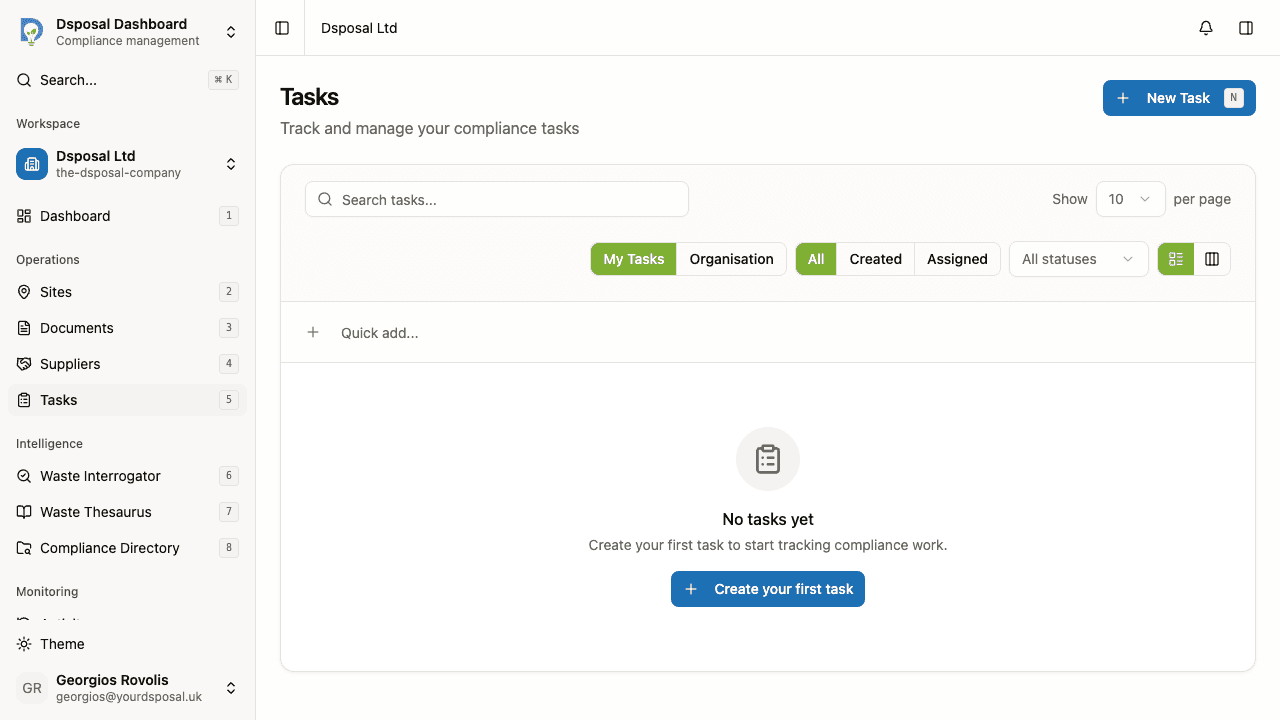
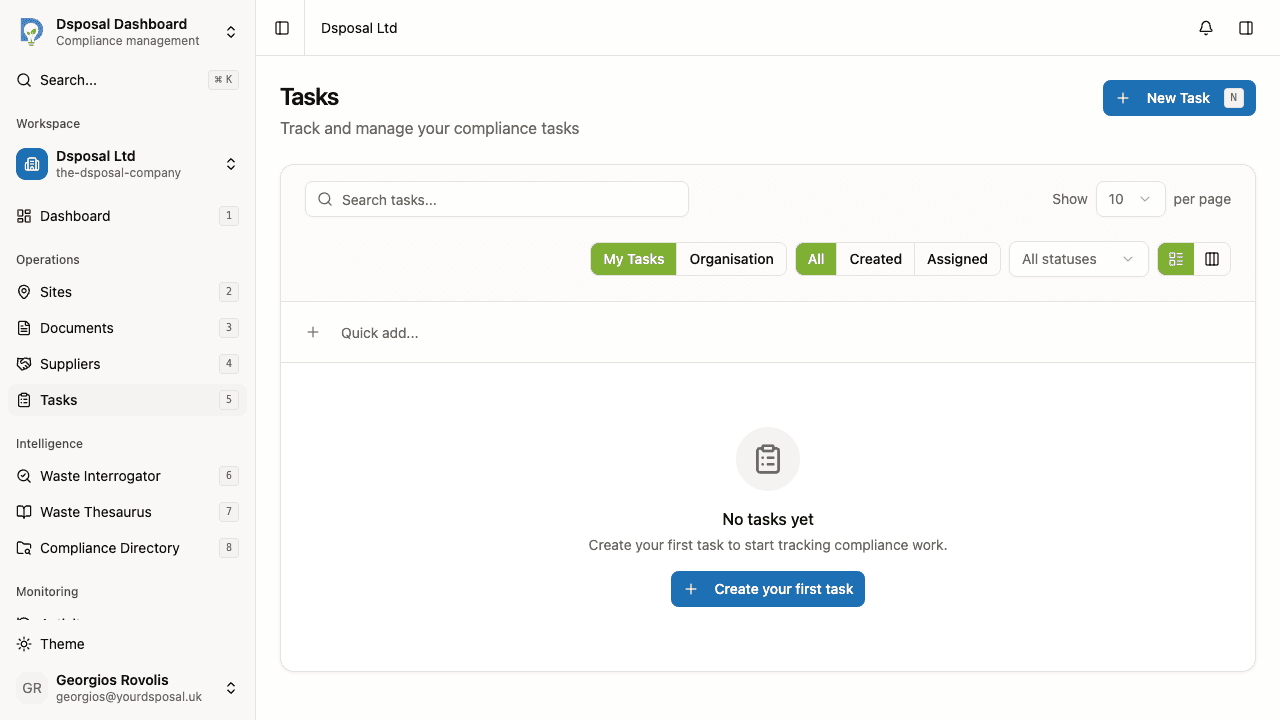
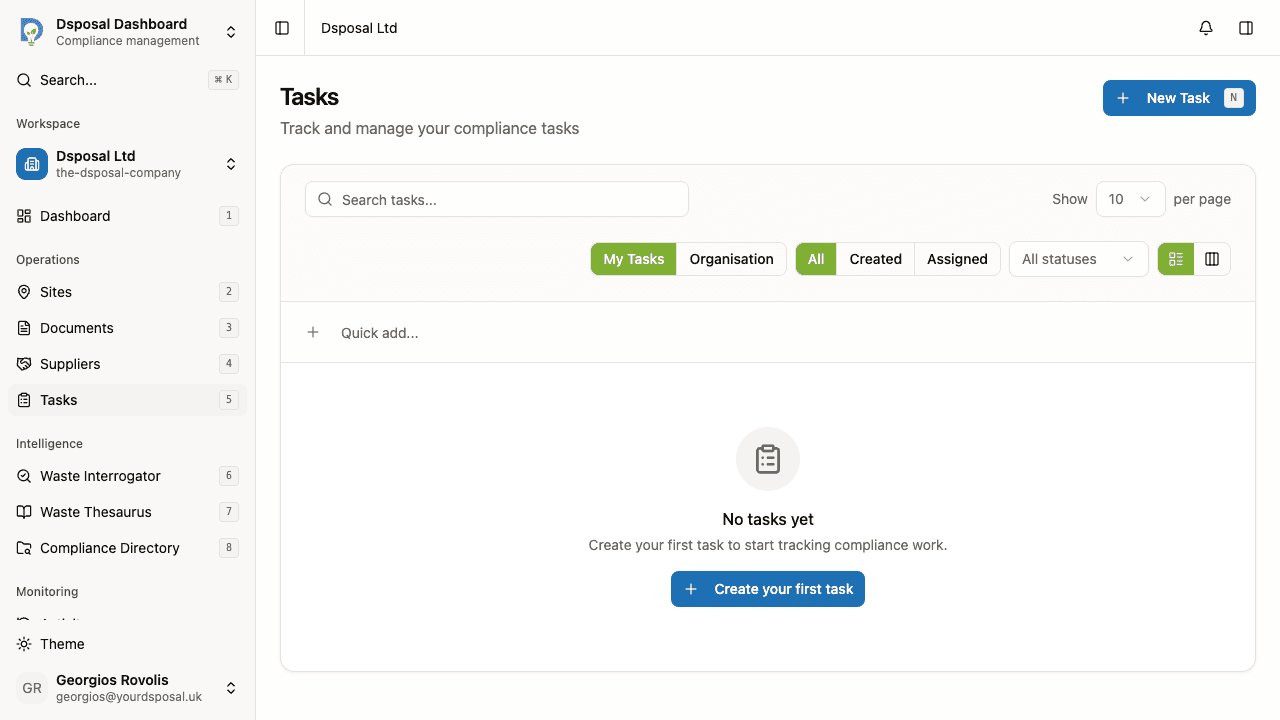
In the Dashboard, click Tasks in the sidebar. By default, tasks are displayed in a table view.
Click the Board view toggle
In the toolbar area, find the view toggle with two icons — a list icon for table view and a columns icon for board view. Click the columns icon to switch to the kanban board.
Understanding the kanban columns
The board is divided into three columns representing task statuses:
| Column | Description | |--------|-------------| | To Do | Tasks that have not been started yet | | In Progress | Tasks currently being worked on | | Done | Completed tasks |
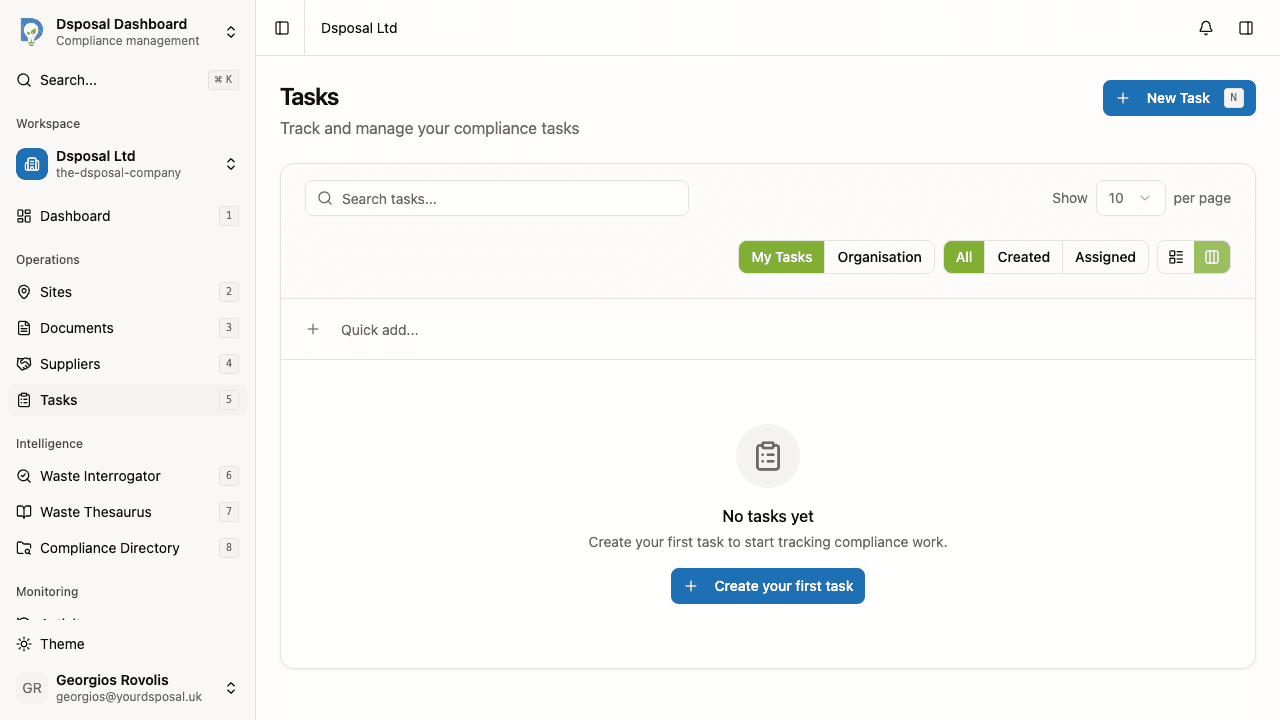
Each column header displays the column name and the number of tasks in that status.
Reading a kanban card
Each card on the board shows key information at a glance:
- Title — the task name
- Priority badge — colour-coded indicator (Urgent, High, Medium, or Low)
- Due date — shown with a calendar icon; turns red if overdue
- Assignee — an avatar with the assignee's initials
- Tags — coloured badges if tags have been applied
- Checklist progress — if the task has a checklist, a progress indicator shows completed versus total items
- Drag handle — a grip icon appears when you hover, indicating the card can be dragged
Working with the board
Drag and drop
To change a task's status, click and hold a card, then drag it to a different column. Release the card to drop it in the new column. The task's status updates automatically.
Reordering within a column
You can also drag cards within the same column to change their order. This is useful for prioritising tasks — drag the most important ones to the top.
Opening task details
Click a card (without dragging) to navigate to the full task detail page where you can edit all fields, add descriptions, and view the activity history.
Creating tasks from a column
Click the + button at the top of any column to create a new task with that column's status pre-set. For example, clicking + in the "In Progress" column opens the creation sheet with the status already set to In Progress.
When to use board vs table view
| Use the board when... | Use the table when... | |-----------------------|----------------------| | You want a visual overview of task progress | You need to see detailed information like dates and assignees | | You are moving multiple tasks between statuses | You need to sort by priority, due date, or creation date | | You prefer a Kanban-style workflow | You need to search for specific tasks | | You are running a team standup or status review | You are working with a large number of tasks |
What to do next
- Create and manage tasks for the full guide on task features
- Set up task tags to categorise tasks on your board
Keep moving
Next steps
Explore further