

Dsposal sends you notifications when important events happen in your organisation -- such as document expiries, site changes, task assignments, and membership updates. You can customise which notifications you receive and manage them from the notification inbox.
Understanding notification types
Notifications are grouped into five categories:
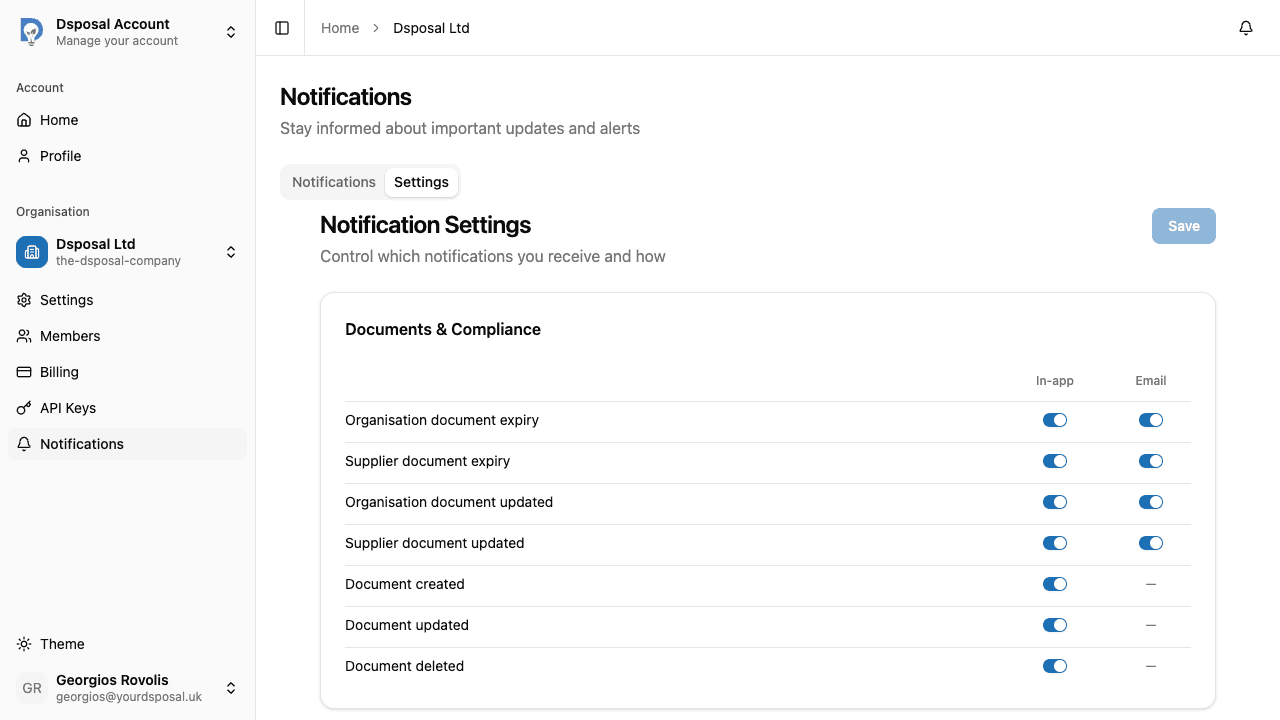
- Documents & Compliance -- organisation document expiry, supplier document expiry, document created, updated, or deleted
- Sites -- site created, updated, archived, or unarchived
- Tasks -- task assigned to you, task completed
- Membership -- member removed, invitation accepted, membership updated, member left, organisation updated
- Data & Privacy -- GDPR request acknowledged, completed, or rejected
Configuring preferences
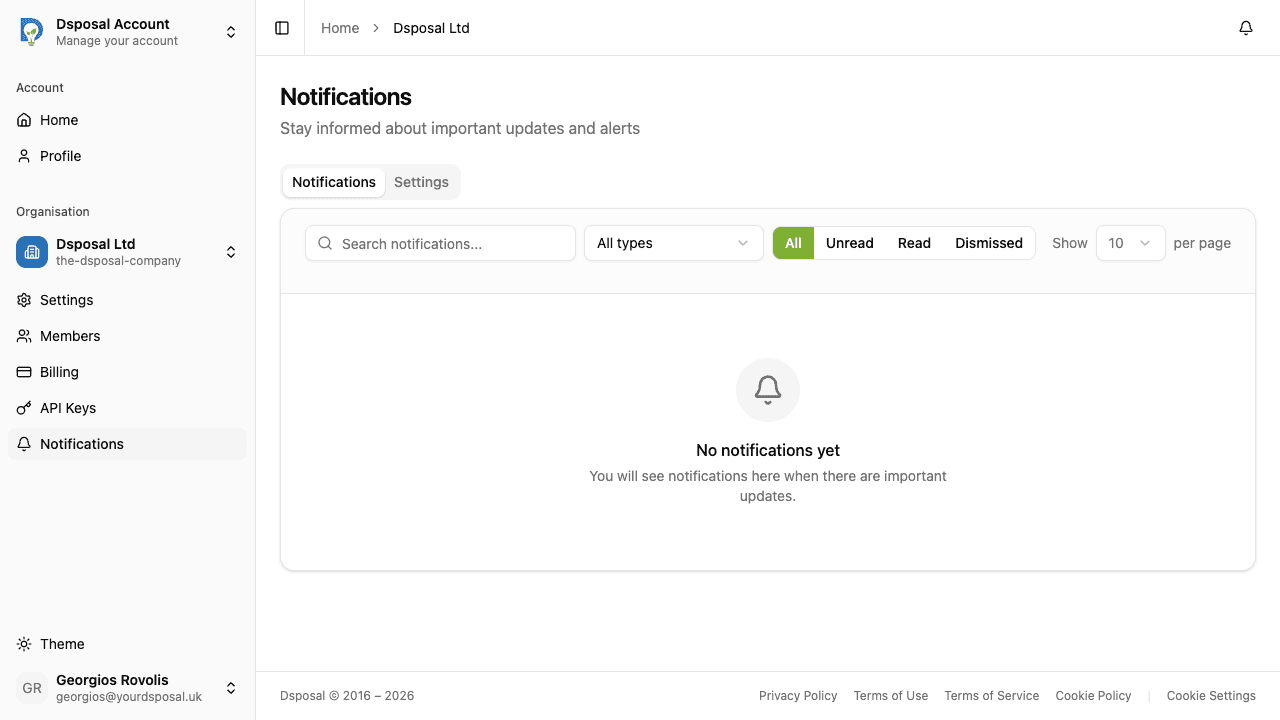
Navigate to Notifications in the sidebar
In the Account app, select your organisation and click Notifications in the sidebar.
Go to the Settings tab
Click the Settings tab at the top of the Notifications page to view your notification preferences.
Toggle notifications by category
Each notification type has a toggle switch. Turn individual notification types on or off based on your needs. The types are grouped by category for easy browsing:
- Toggle on the notifications you want to receive
- Toggle off the ones you don't
Save preferences
Click Save preferences to apply your changes. Your notification settings take effect immediately.
Viewing your notifications
The Notifications tab shows your notification inbox, where you can browse and manage all your notifications.
Filtering notifications
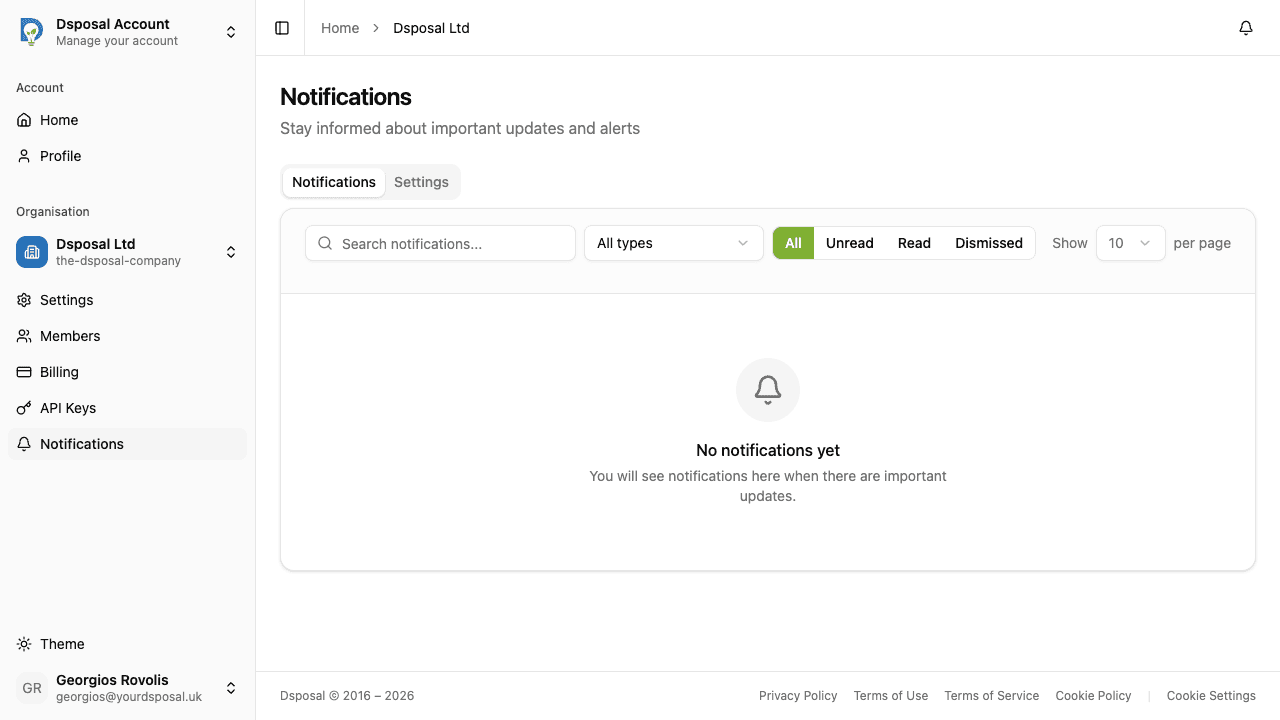
Use the status filter to narrow down your inbox:
- All -- every notification
- Unread -- notifications you haven't viewed yet
- Read -- notifications you've already seen
- Dismissed -- notifications you've dismissed
You can also search notifications by title and sort by type, title, or date.
Managing individual notifications
Use the actions menu (three-dot icon) on each notification row to:
- Mark as read -- mark an unread notification as read
- Dismiss -- hide the notification from your default view
Clicking on a notification title navigates you to the relevant item in the Dashboard or Account app (for example, clicking a document expiry notification takes you to that document).
Marking all as read
Click the Mark all as read button at the top of the notifications list to mark all current unread notifications as read at once.
Keep moving
Next steps
Explore further