

Your Dsposal profile contains your personal information and email addresses. You can update these at any time from the Account app. This guide covers editing your name and managing your email addresses.
Updating your personal information
Navigate to Profile
In the Account app, click Profile in the sidebar. You'll see the Personal information card at the top of the page.
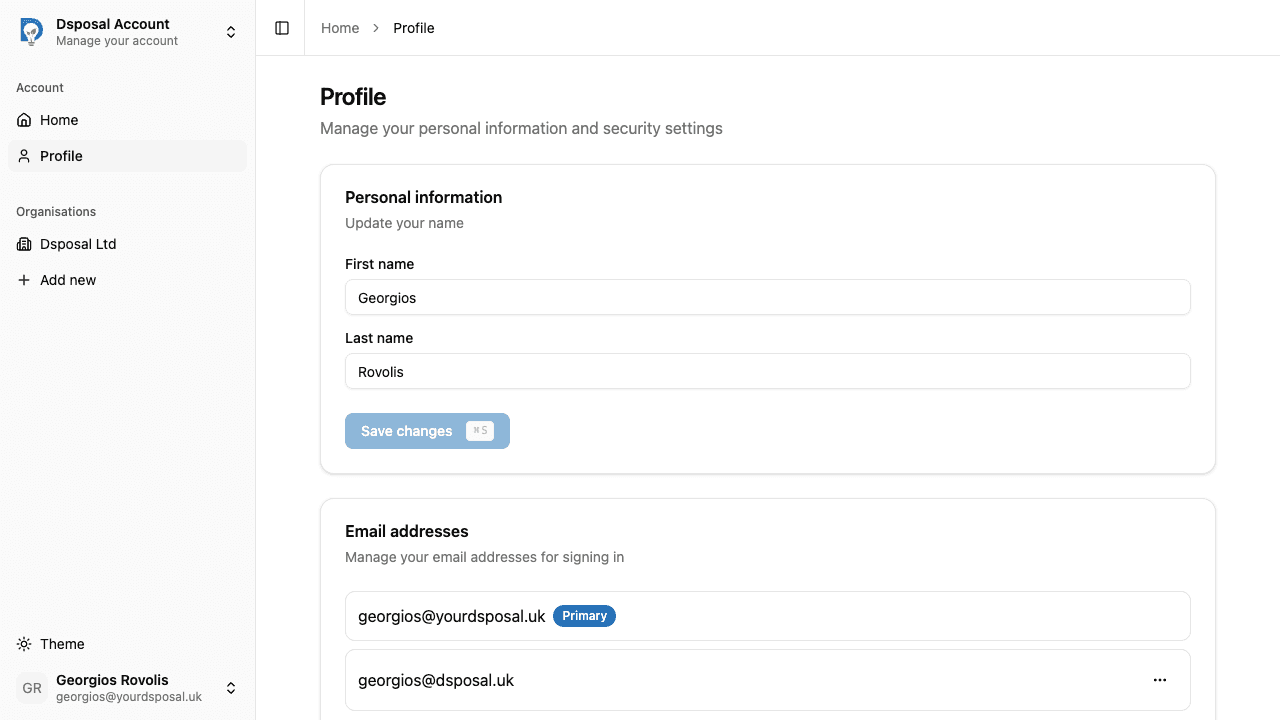
Edit your first name and last name
Update the First name and Last name fields as needed. The Save changes button will become active once you've made a change.
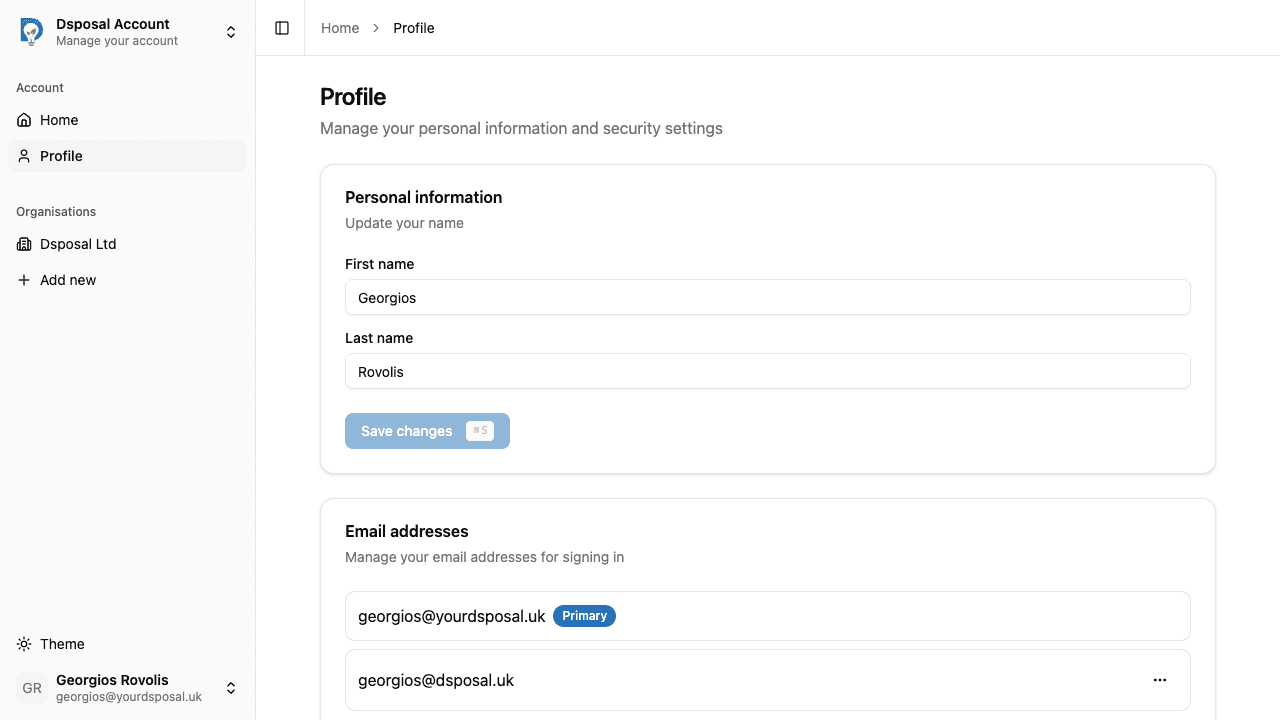
Save changes
Click Save changes to update your profile. You'll see a confirmation notification once the update is complete.
Managing email addresses
Your email addresses are shown in the Email addresses card on your Profile page. You can have multiple email addresses linked to your account, but one must always be set as your primary email.
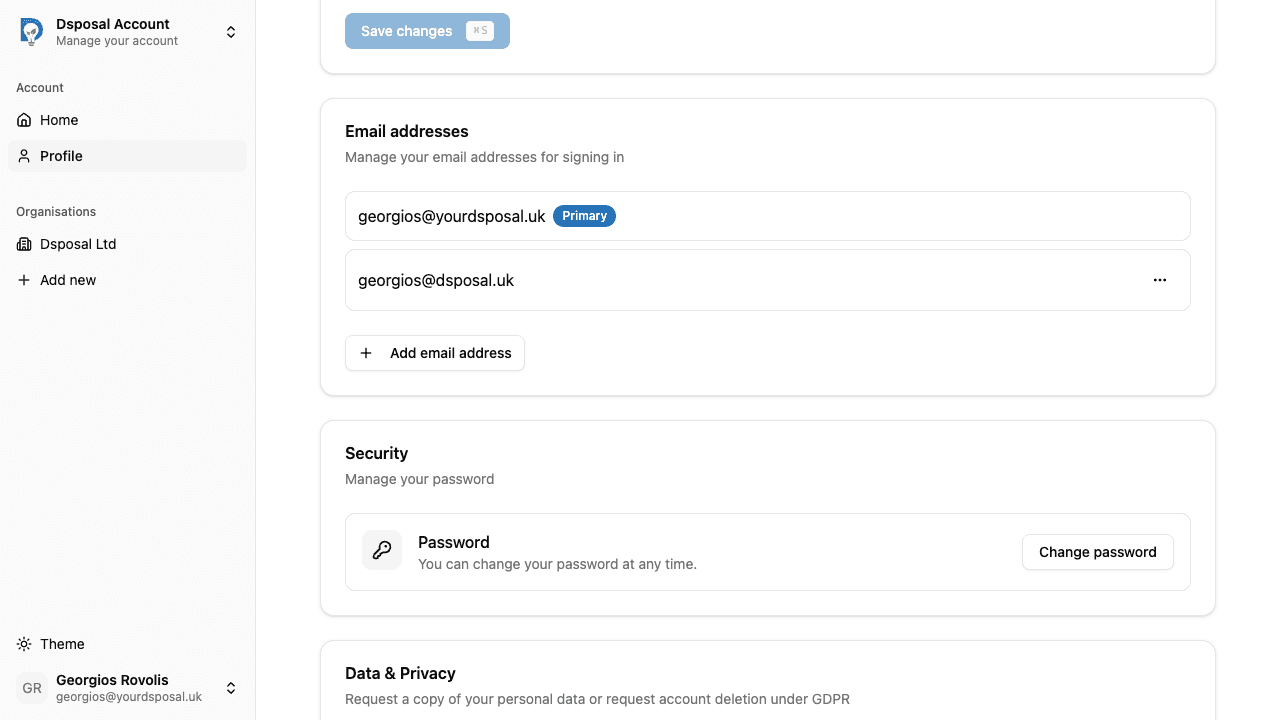
Adding a secondary email
Open the add email form
Click the Add email address button at the bottom of the Email addresses card.
Enter and verify the new email
Type the new email address and follow the verification steps. You'll need to enter a code sent to the new email to confirm ownership.
Setting a different primary email
To change your primary email, click the actions menu (three-dot icon) on any verified secondary email and select Set as primary. Your primary email is the one used for signing in and receiving notifications.
Removing a secondary email
To remove an email, click the actions menu on a secondary email and select Remove. You cannot remove your primary email -- you'll need to set a different email as primary first.
Keep moving
Next steps
Explore further