

Dsposal lets you define opening hours for each of your sites using a flexible season-based system. You can set up a single "All Year" season for sites with consistent hours, or create multiple seasons (such as summer and winter hours) to reflect seasonal changes. This guide explains how to configure opening times for your sites.
Understanding seasonal opening hours
Opening hours in Dsposal are organised into seasons. Each season covers one or more months of the year and defines the opening hours for each day of the week.
- Single season — most sites only need one season (e.g., "All Year") covering all 12 months
- Multiple seasons — sites with seasonal variations can have separate seasons (e.g., "Summer Hours" covering April to September and "Winter Hours" covering October to March)
Each season contains a weekly schedule where you configure the hours for Monday through Sunday. For each day, you can set it as Closed, 24hrs (open all day), or define specific opening and closing periods.
Adding a season
Navigate to your site's Opening Times tab
From the Dashboard, go to Sites and click on the site you want to configure. Use the navigation tabs at the top of the page to switch to the Opening Times tab.
Add your first season
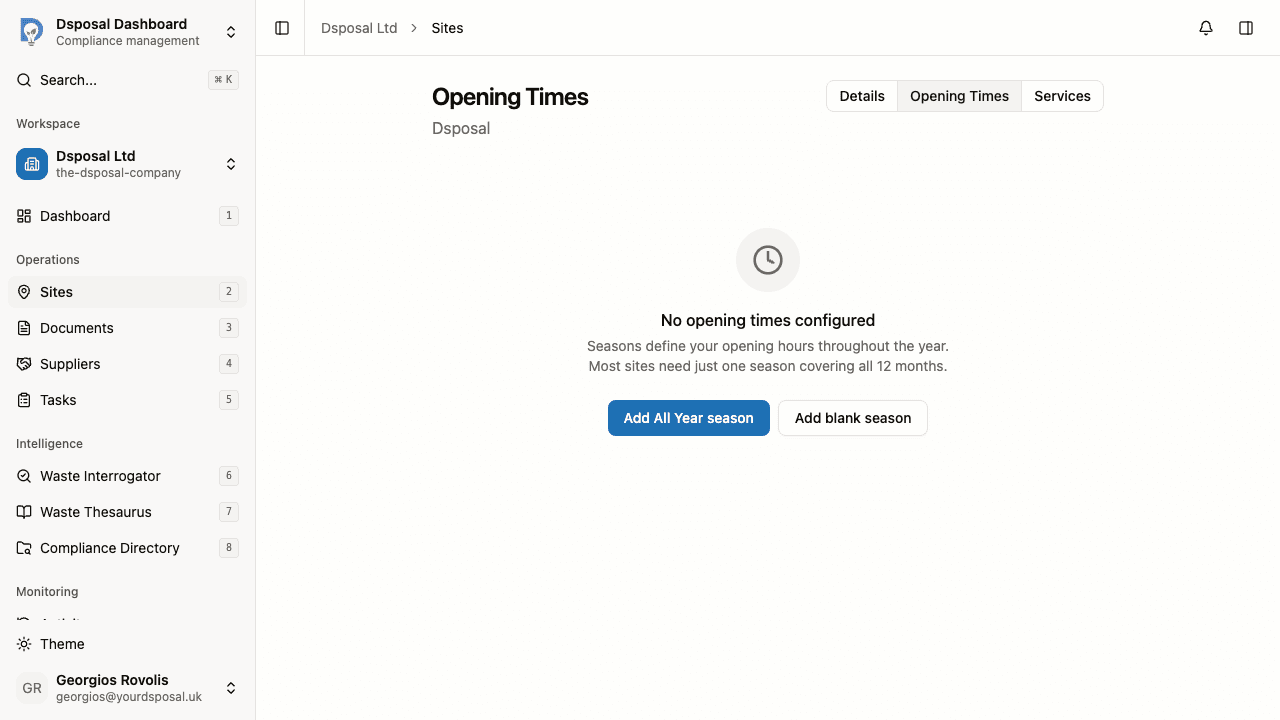
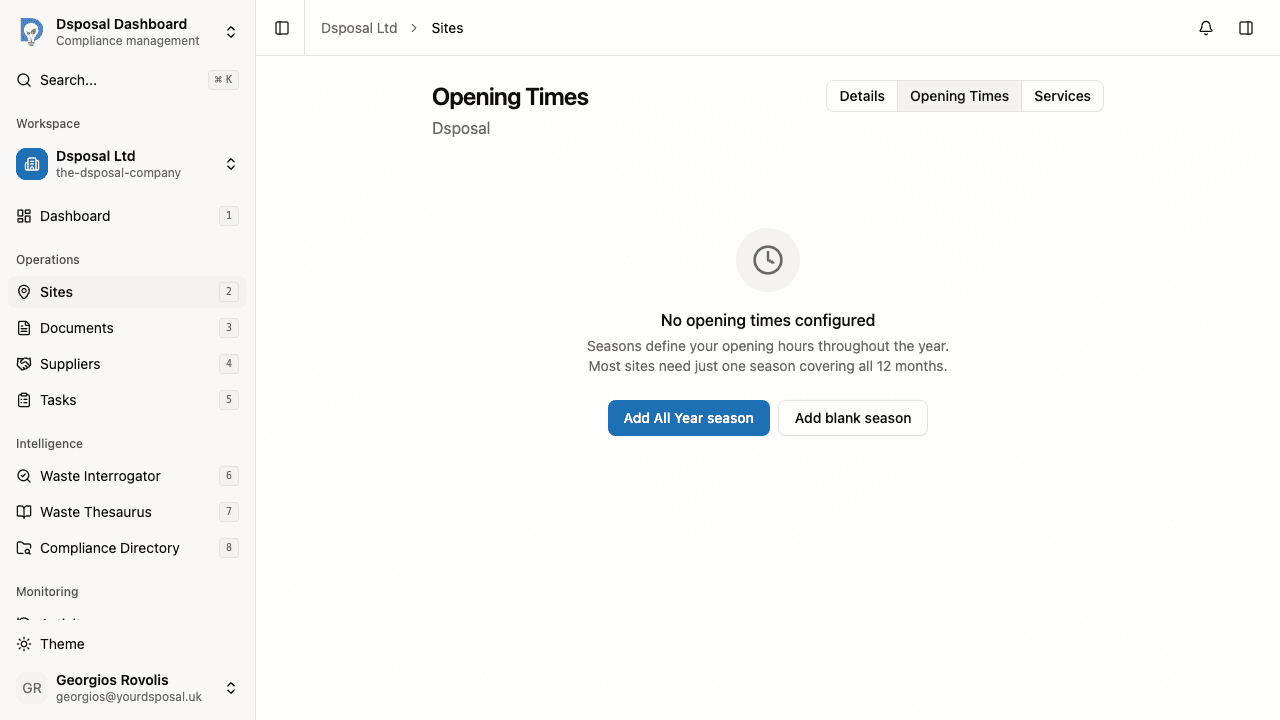
If no opening times are configured yet, you'll see an empty state with two options:
- Add All Year season — creates a season covering all 12 months with a Monday-to-Friday 9am-5pm template pre-filled
- Add blank season — creates an empty season with all days set to closed, ready for manual configuration
Click Add All Year season to get started quickly, or choose Add blank season if you need a custom setup.
Configure the season details
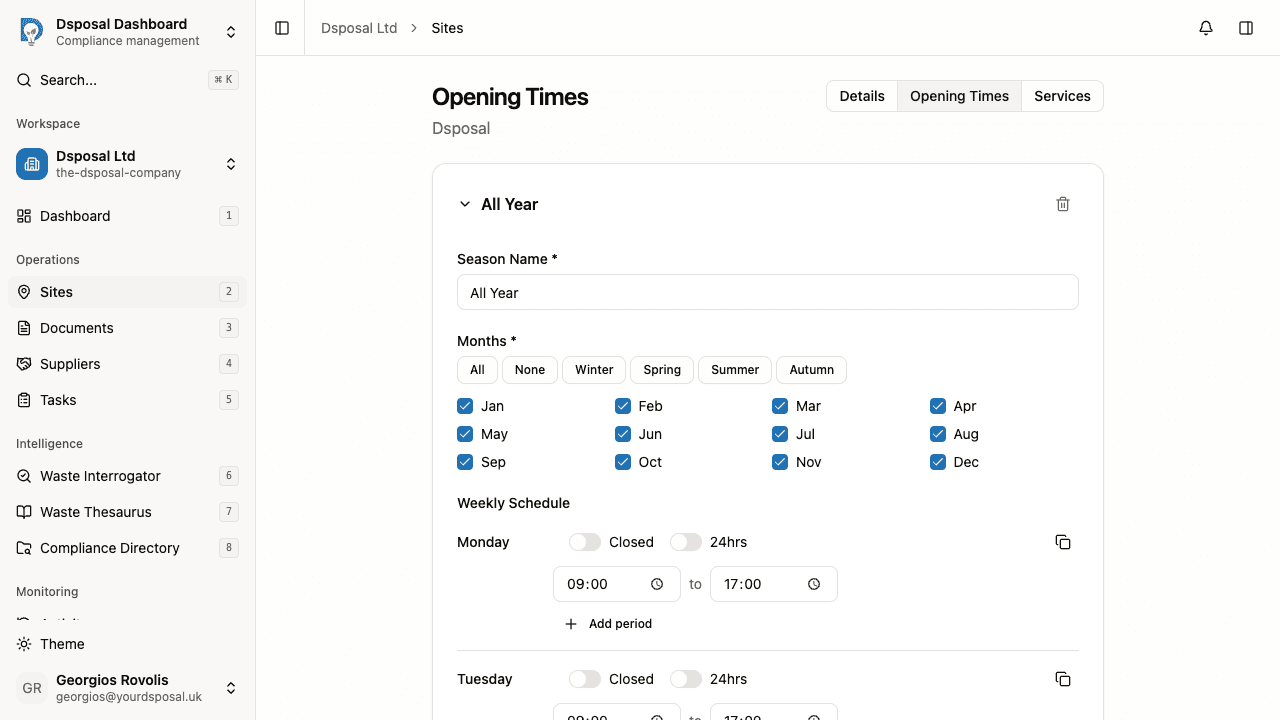
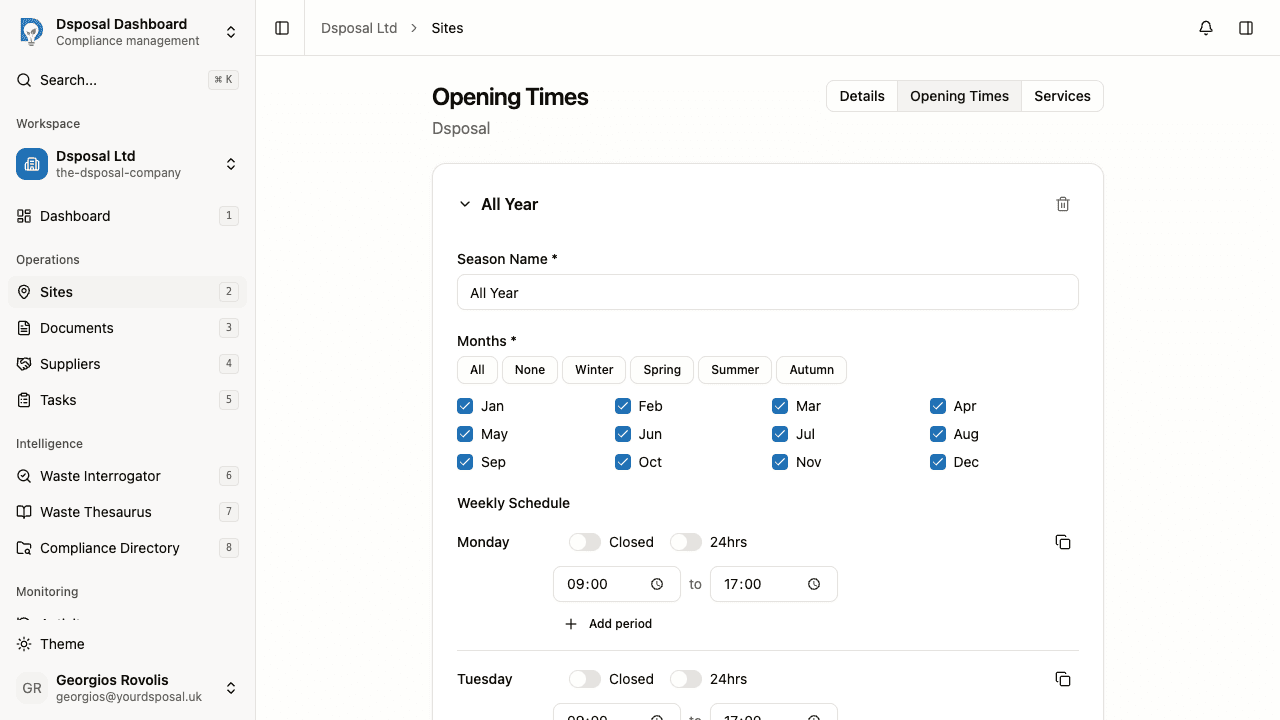
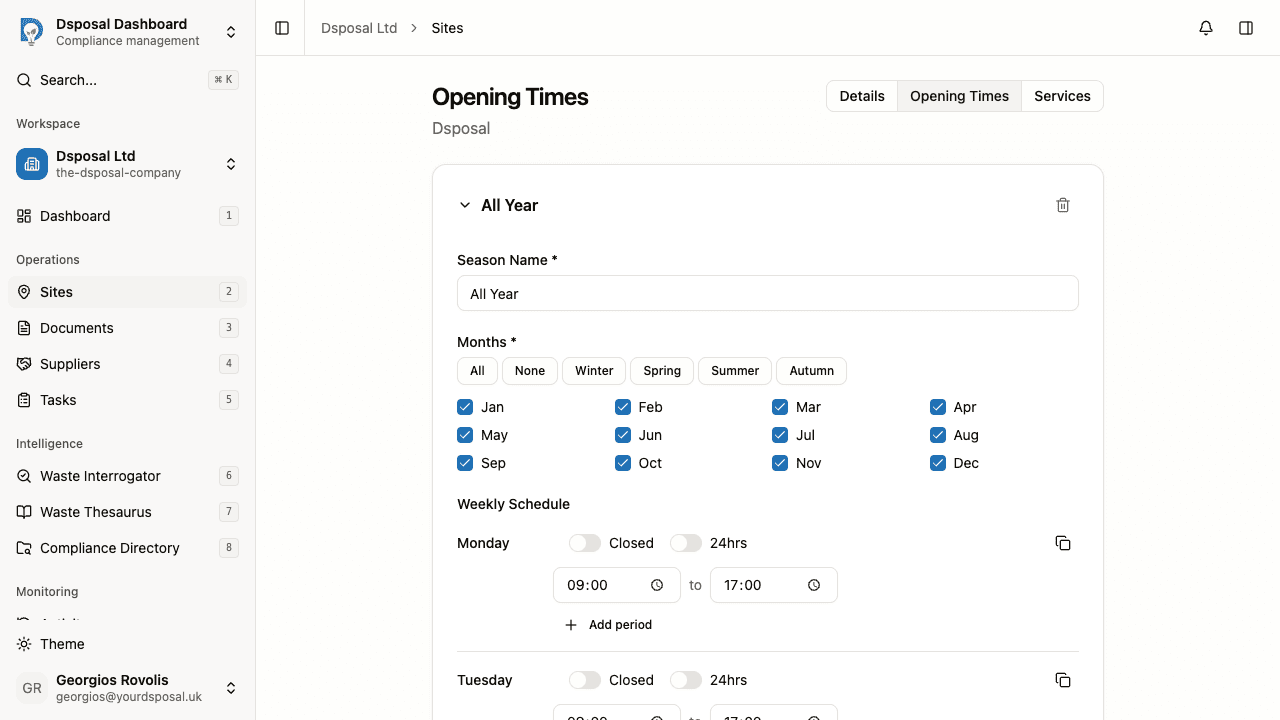
Each season card has three sections:
Season Name — give the season a descriptive name (e.g., "All Year", "Summer Hours", "Winter Hours")
Months — select which months this season covers using the month selector. Click individual months to toggle them on or off.
Weekly Schedule — configure the hours for each day of the week (Monday through Sunday).
Configuring daily hours
Set each day's availability
For each day of the week (Monday to Sunday), you have three options:
- Closed — toggle the Closed switch to mark the day as closed
- 24hrs — toggle the 24hrs switch to mark the day as open around the clock
- Specific periods — leave both switches off and enter opening and closing times
Add multiple time periods
If your site closes for a break during the day (for example, a lunch break), you can add multiple time periods to a single day. Click Add period below the existing time slots to create an additional opening period.
For each period, enter the opening time and closing time using the time inputs.
Copy hours to other days
To save time, you can copy one day's schedule to other days. Click the copy icon on the right side of a day row to open the copy menu:
- Copy to weekdays — applies the schedule to Monday through Friday (available when copying from a weekday)
- Copy to weekend — applies the schedule to Saturday and Sunday (available when copying from a weekend day)
- Copy to all days — applies the schedule to every day of the week
Using pre-built templates
When adding additional seasons, click the Add new season button below the existing seasons. A dropdown menu offers four templates:
| Template | Description | |---|---| | Mon-Fri 9-5 | Weekdays open 9am-5pm, weekends closed | | Mon-Sat 9-5 | Weekdays and Saturday open 9am-5pm, Sunday closed | | Every day 9-5 | All days open 9am-5pm | | Blank | All days closed — configure manually |
Saving your changes
Save or discard
After making changes to your opening times, click Save Opening Times or press Cmd+S (or Ctrl+S on Windows) to save. If you've made changes you don't want to keep, click Discard changes or press Esc to revert.
An Unsaved changes indicator appears whenever your current configuration differs from what's saved.
Managing multiple seasons
You can reorder seasons using the up and down arrow buttons on each season card. The order determines which season takes priority when months overlap.
To remove a season, click the delete icon on the season card. A confirmation dialog will appear — deleting a season removes all its days and exceptions and cannot be undone.
Keep moving
Next steps
Explore further