

Dsposal uses a centralised authentication system, so you only need one account to access all Dsposal apps -- Dashboard, Account, and YourDsposal. This guide walks you through creating your account, whether you're signing up directly or joining via an invitation from a colleague.
Creating your account
Go to the sign-up page
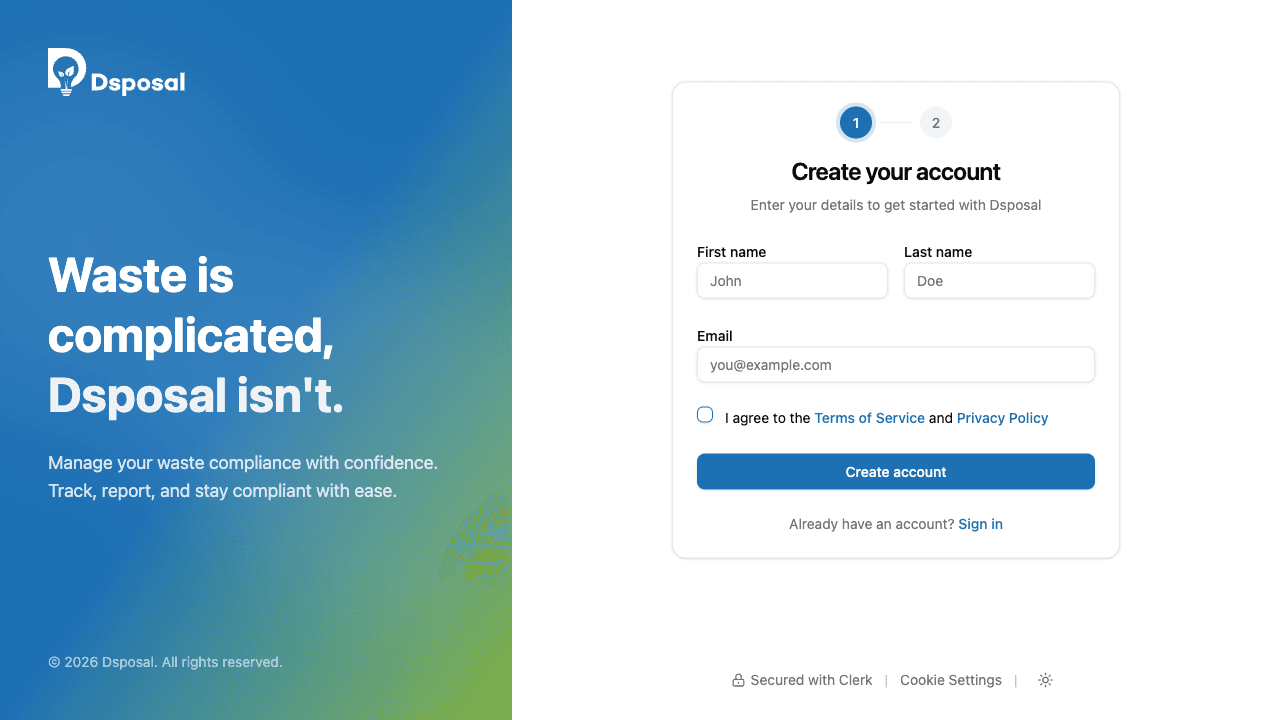
Visit auth.dsposal.uk/sign-up or click Get started from any Dsposal page. You'll see a two-step sign-up form.
Enter your details
Fill in your First name, Last name, and Email address. You must also tick the checkbox to agree to the Terms of Service and Privacy Policy before continuing.
Once everything is filled in, click Create account.
Verify your email
Dsposal will send a 6-digit verification code to the email address you provided. Enter the code in the verification screen to complete your account.
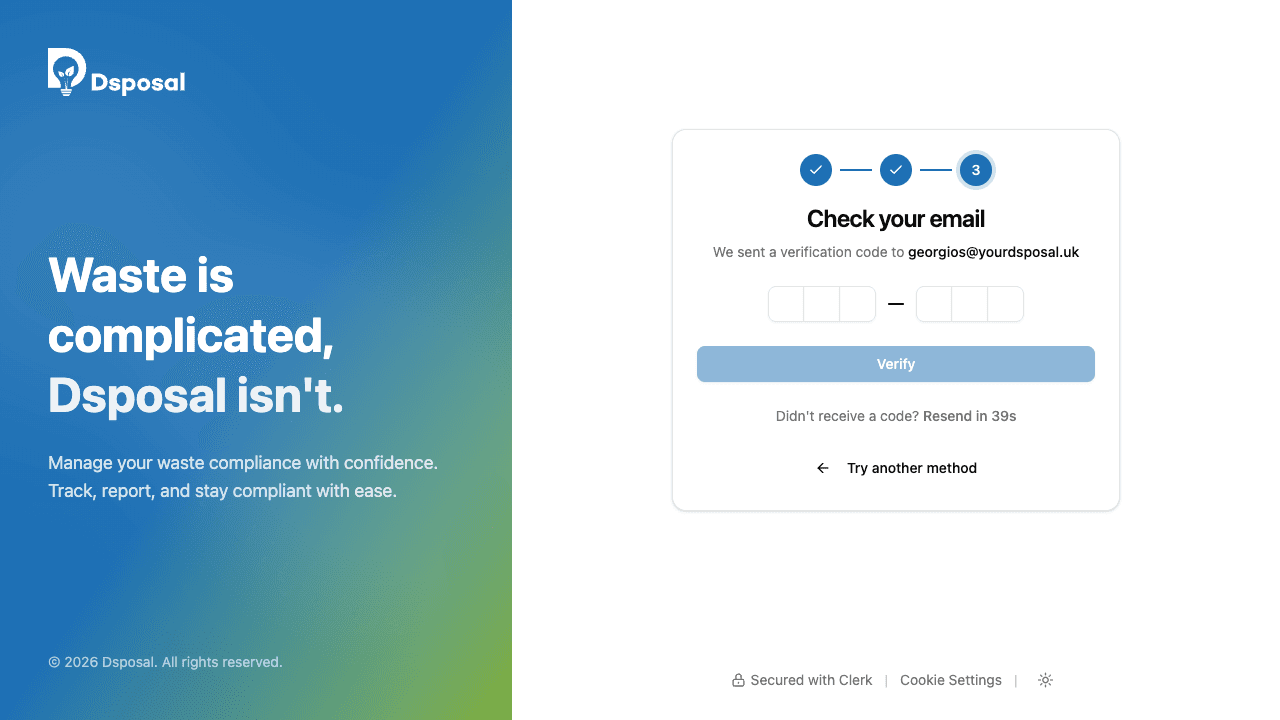
The code auto-submits once you've entered all six digits, so there's no need to click a button.
Signing up via an invitation
If a colleague has invited you to join their organisation, you'll receive an email with a special sign-up link. The invitation flow works slightly differently from standard sign-up.
Click the invitation link
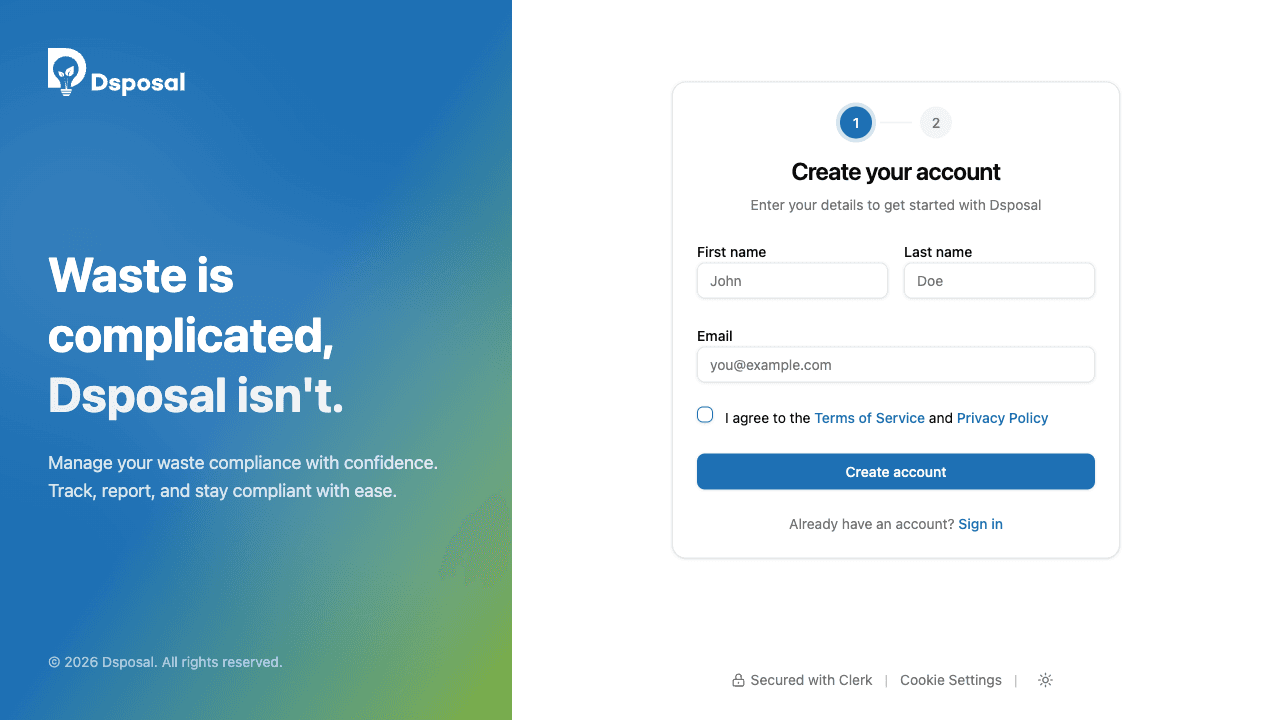
Open the invitation email and click the link to sign up. You'll be taken to the sign-up page with your email address already filled in and locked. You'll also see a welcome card showing the organisation name and an Invited badge.
Complete your details
Enter your First name and Last name, accept the Terms of Service and Privacy Policy, then click Create account. Because you're using an invitation ticket, your email is verified automatically -- there's no separate OTP step.
What happens after sign-up
Once your account is created, you'll be signed in and redirected to Dsposal automatically. From there, you can:
- Claim your organisation to start managing compliance
- Sign in on other devices using your new account
Keep moving
Next steps
Explore further