

Dsposal takes data privacy seriously and provides tools for you to exercise your rights under GDPR. You can download a copy of your personal data, request account deletion, and (if you're an Owner) manage your organisation's data privacy requests.
Your data rights
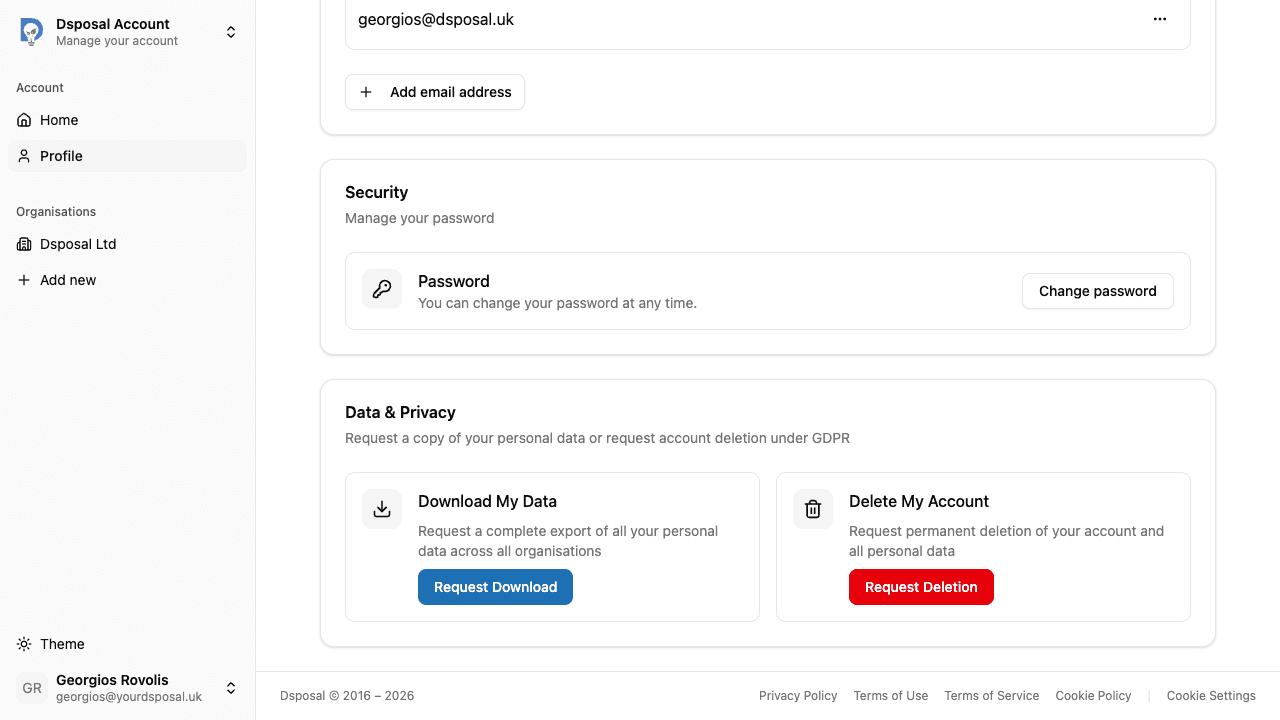
The Data & Privacy card on your Profile page gives you two options:
- Download My Data -- request a complete export of all your personal data across all organisations
- Delete My Account -- request permanent deletion of your account and all personal data
Downloading your personal data
Navigate to the Data and Privacy card
In the Account app, click Profile in the sidebar and scroll down to the Data & Privacy card.
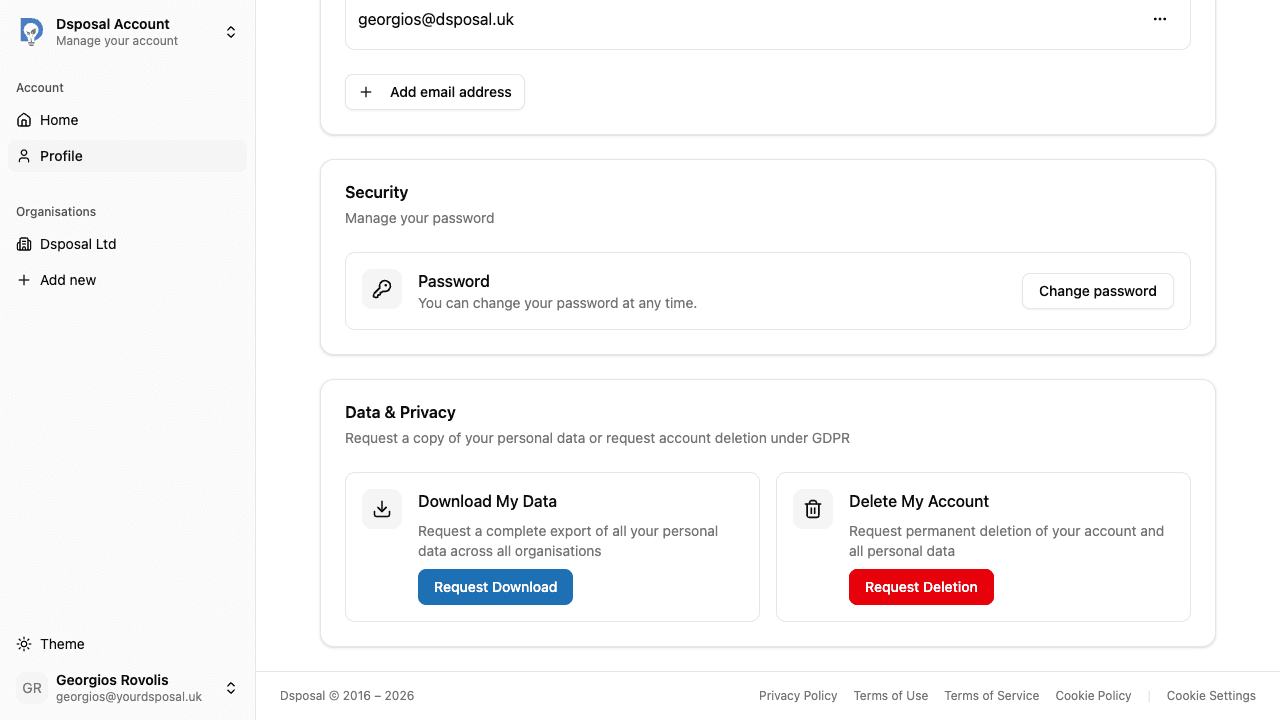
Click Request Download
Click the Request Download button under the "Download My Data" section. A confirmation dialog will appear.
Confirm and wait for processing
Click Confirm to submit your request. You'll see a status banner showing the request is being processed.
Once the export is ready, the banner will change to show a green Ready badge with a Download button and an expiry date. Click Download to save your data.
Requesting account deletion
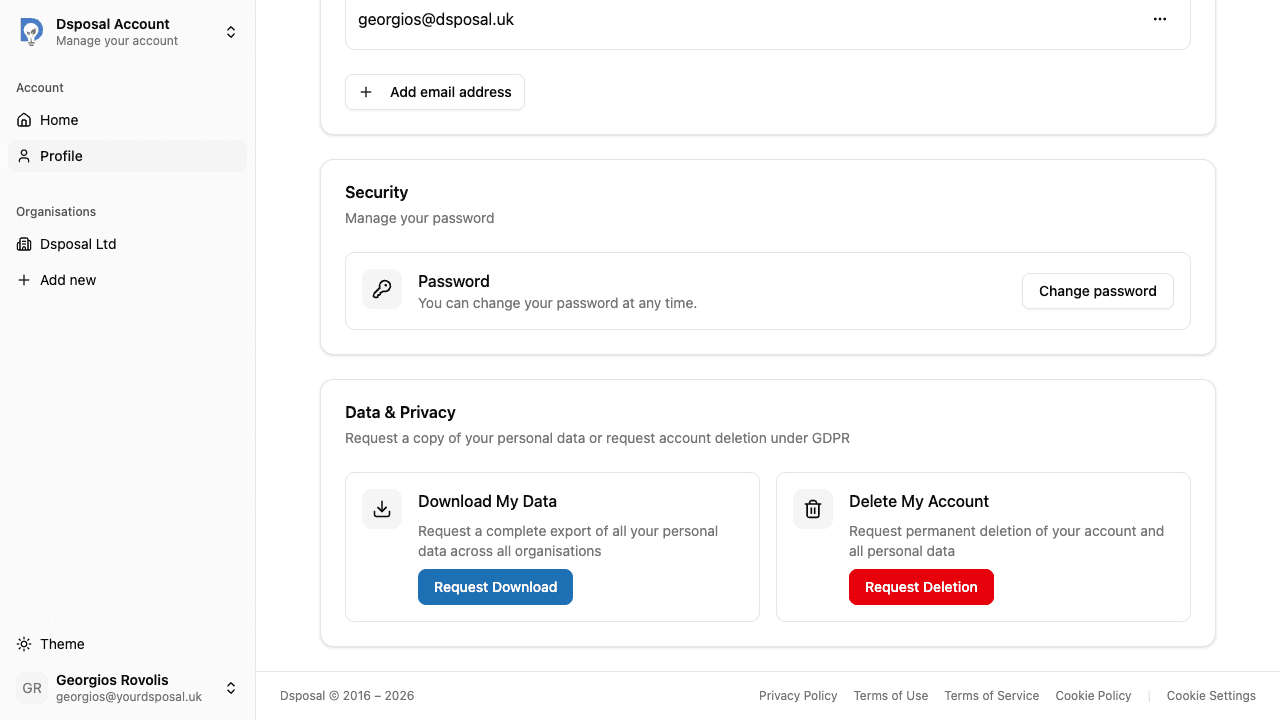
Click Request Deletion
In the Data & Privacy card, click the Request Deletion button under the "Delete My Account" section.
Review the implications
A confirmation dialog will explain that this will submit a request for permanent deletion of your account and all personal data, and that the action cannot be undone once processed.
Confirm the request
Click Confirm to submit the deletion request. Your request will be reviewed and processed by the Dsposal team.
Managing active requests
Once you've submitted a request, it appears as a status banner at the top of the Data & Privacy card. You can:
- View the request type and status (Submitted or In Review)
- See when the request was submitted
- Click Cancel Request if you change your mind (only available while the request is still being processed)
Past requests (completed, rejected, or cancelled) are shown in a collapsible Past requests section below the action buttons.
Organisation-level GDPR requests
If you're an Owner of an organisation, you can also manage data privacy requests at the organisation level from the Settings page.
Navigate to your organisation's Settings
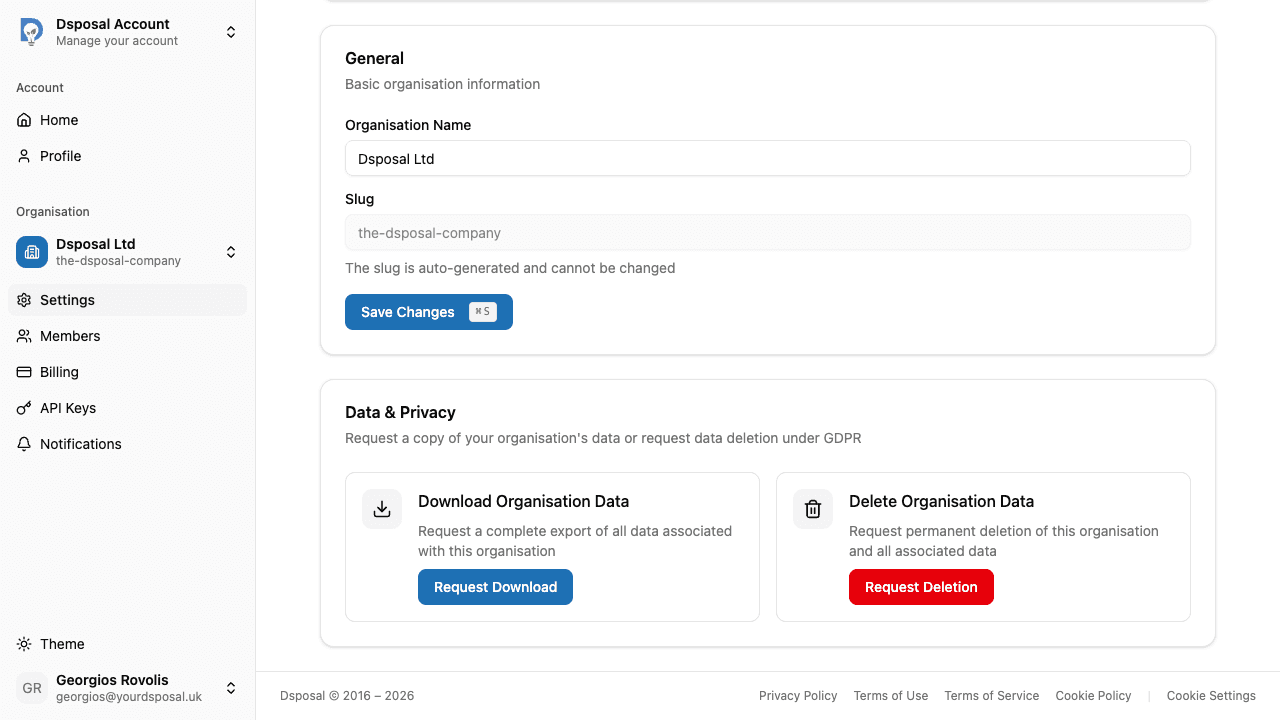
In the Account app, select your organisation and click Settings in the sidebar. Scroll down to the Data & Privacy card.
Request organisation data download or deletion
You'll see two options:
- Download Organisation Data -- request a complete export of all data associated with this organisation
- Delete Organisation Data -- request permanent deletion of the organisation and all associated data
The process works the same as personal requests: click the button, confirm in the dialog, and wait for processing.
Keep moving
Next steps
Explore further