

Roles control what your team members can do in the Dashboard. Dsposal comes with four built-in system roles, and you can create custom roles tailored to your organisation's needs.
Understanding the permission system
Dsposal's permission system is built around 8 modules, each with 4 possible actions:
Modules: Sites, Documents, Suppliers, Tasks, Roles, Members, Tags, Compliance
Actions: View, Create, Edit, Delete
This gives a total of 32 individual permissions. Each role is a collection of these permissions that you can assign to team members.
Default system roles
Dsposal provides four system roles that cannot be edited or deleted:
| Role | Permissions | Best for | |------|------------|----------| | Owner | All 32 permissions | Organisation owners and administrators | | Admin | All 32 permissions | Trusted team leads who need full access | | Editor | View, Create, and Edit (no Delete) | Team members who create and update data | | Viewer | View only | Read-only access for auditors or observers |
Creating a custom role
Navigate to Roles
In the Dashboard, open the Organisation section in the sidebar and click Roles & Permissions. You will see a table listing all existing roles.
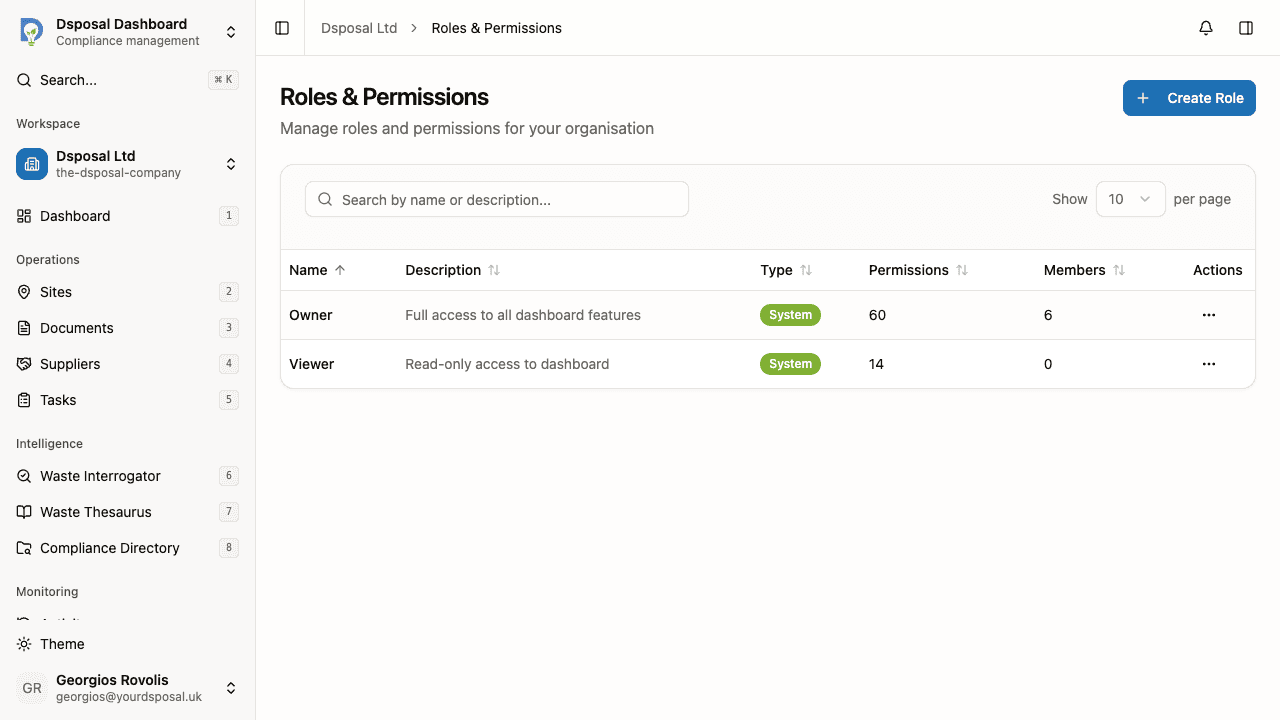
Click Create Role
Click the Create Role button in the top right corner. A sheet slides open on the right side of the screen.
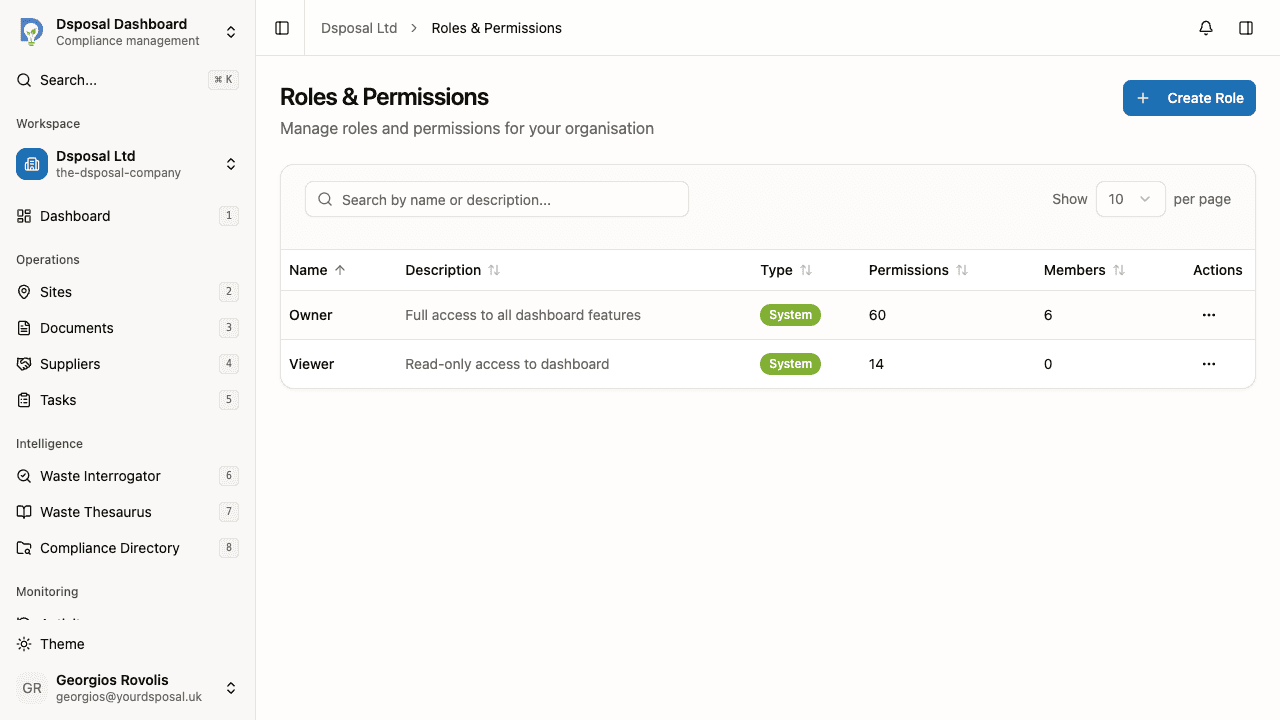
Enter a name and description
Give your role a clear, descriptive name (e.g. "Site Manager" or "Document Reviewer") and an optional description explaining what this role is for.
Configure the permissions grid
The permissions grid shows all 8 modules as rows and all 4 actions as columns. Check individual permissions to build the role's access level.
- Check a column header to select or deselect an entire action across all modules (e.g. check "View" to grant view access to everything)
- Check a row header to select or deselect all actions for a single module
- Check individual cells for fine-grained control
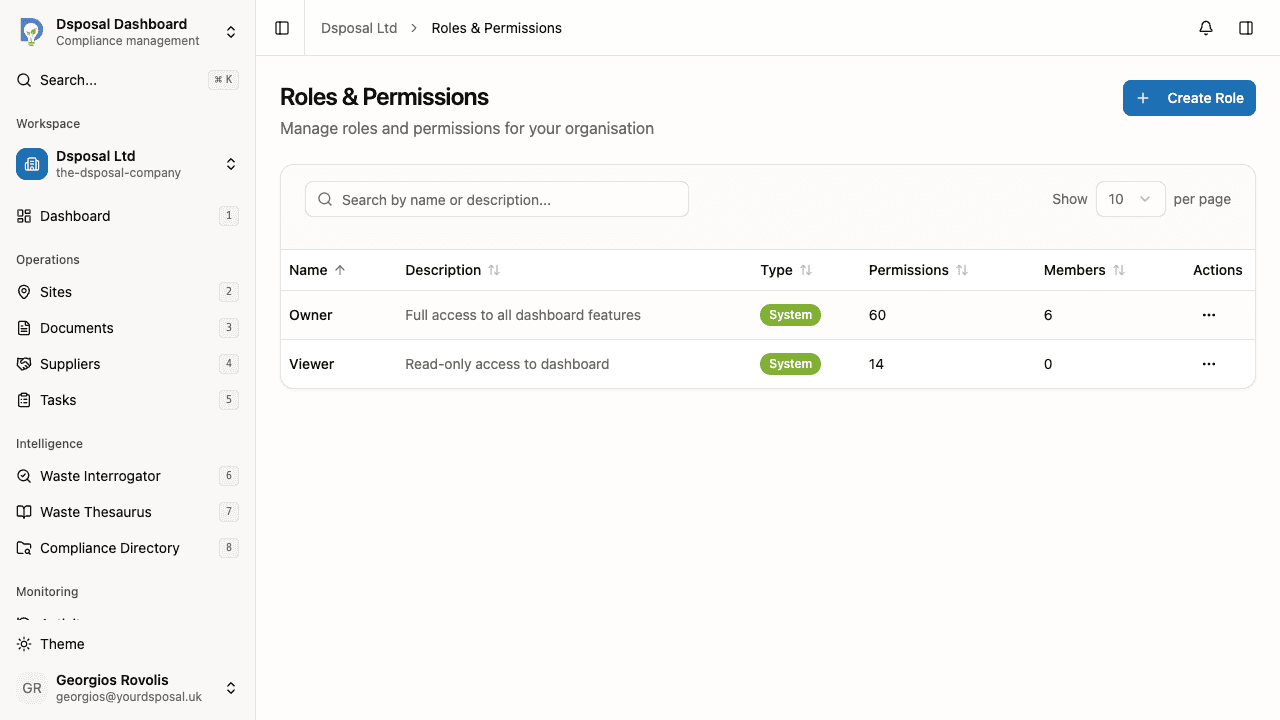
Save the role
Click Create to save the new role. It will appear in the roles table with a Custom badge.
Editing a custom role
Find the role in the table
Locate the custom role you want to modify. You can search by name or description using the search field at the top of the table.
Open the editor
Click the three-dot actions button on the role's row and select Edit. The same sheet used for creating roles will open with the current settings pre-filled.
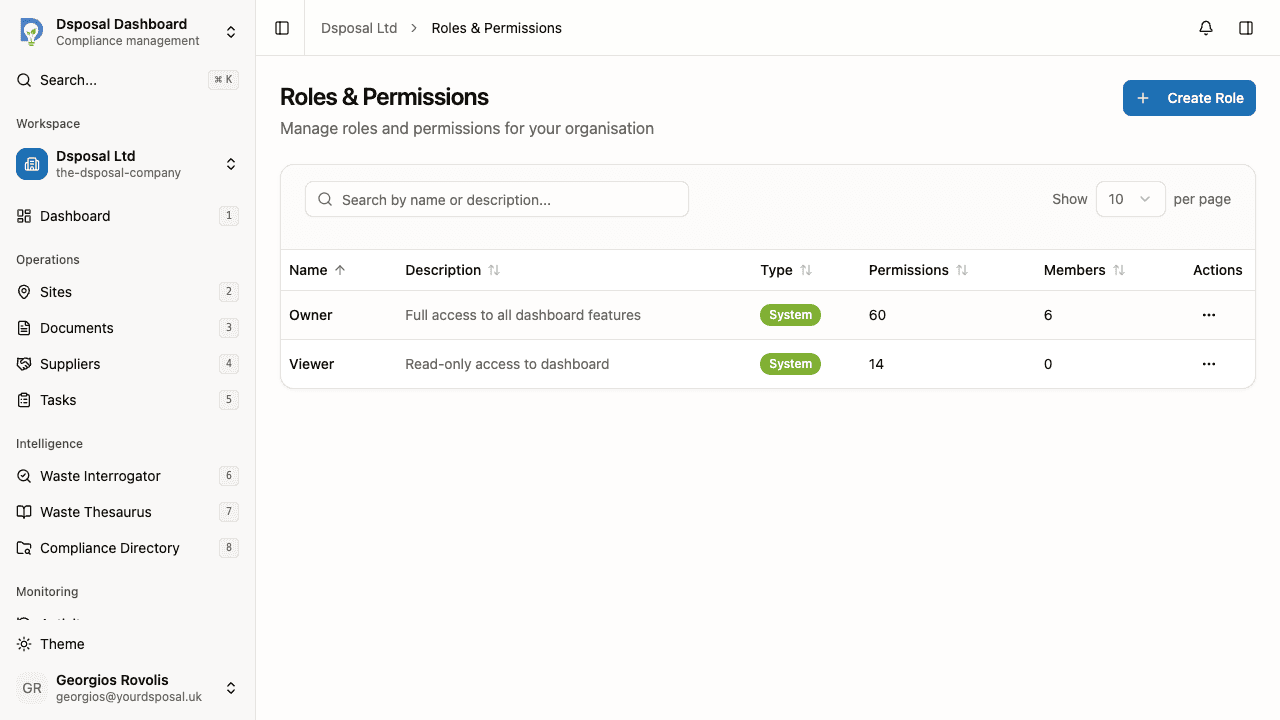
Update the name, description, or permissions as needed, then click Save.
Deleting a custom role
Click the three-dot actions button on a custom role and select Delete. A confirmation dialog will ask you to confirm before the role is permanently removed.
Viewing role details
For system roles, click the actions menu and select View to see the role's permissions in read-only mode. This is useful for understanding exactly what a system role grants before assigning it.
The roles table also shows useful summary information for each role:
- Type — System or Custom
- Permissions — the total number of permissions granted
- Members — how many organisation members currently hold this role
What to do next
- Assign roles to your team members to put your role configuration into practice
- Manage your members to see who is in your organisation
Keep moving
Next steps
Explore further