

If you've forgotten your password or need to change it outside your account settings, you can reset it using a verification code sent to your email. This guide walks you through the process step by step.
Starting a password reset
Go to the forgot password page
Visit auth.dsposal.uk/forgot-password directly, or click the Forgot password? link from the sign-in password screen.
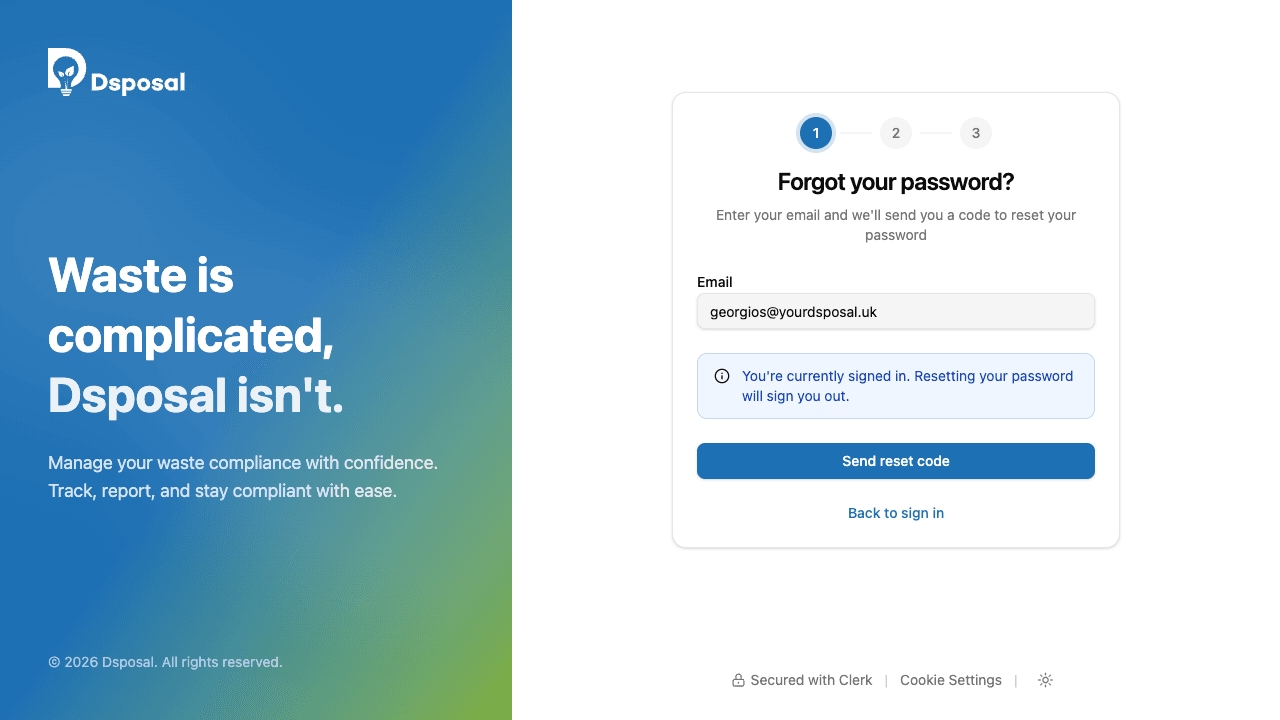
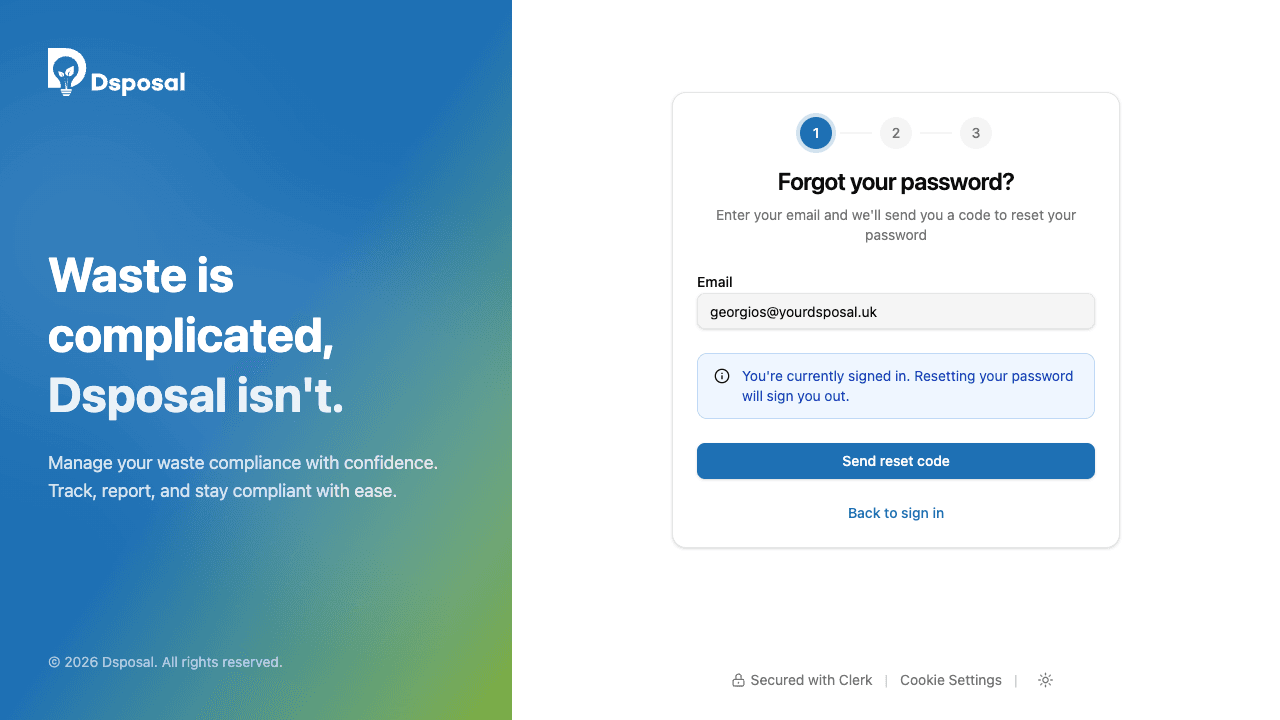
Enter your email
Type your email address and click Send reset code. Dsposal will send a 6-digit verification code to your inbox.
Setting a new password
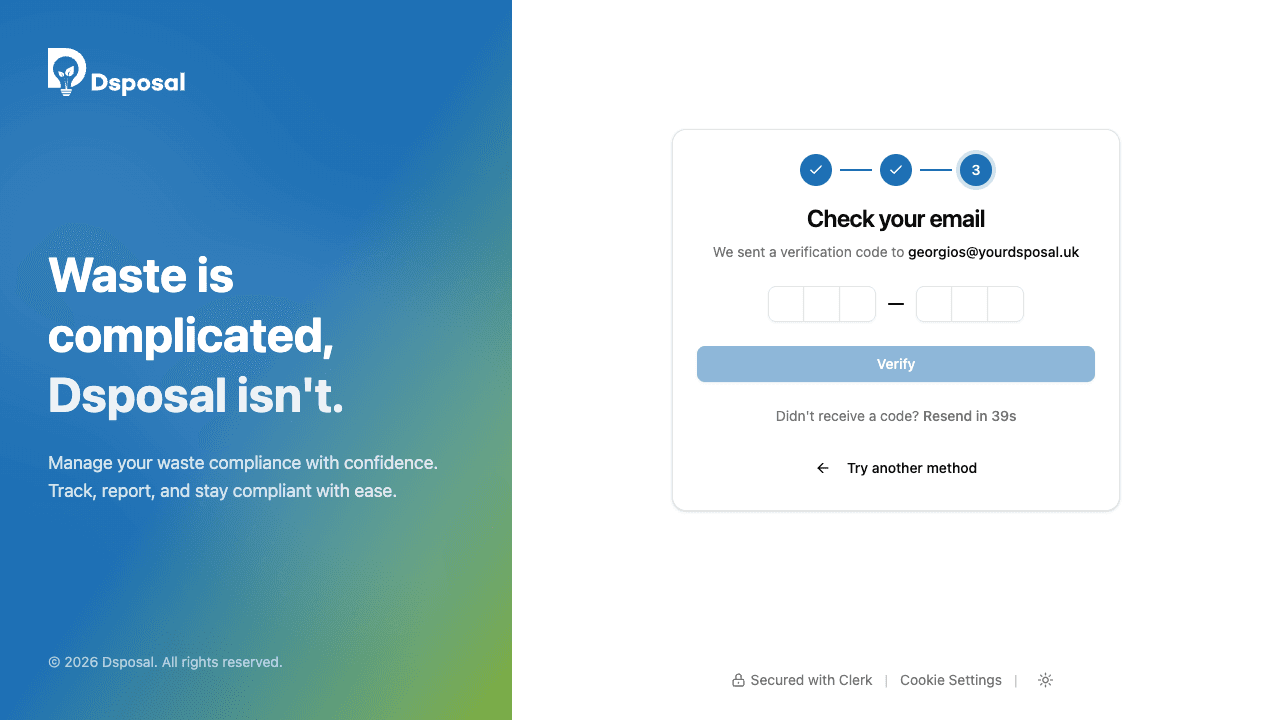
Enter your reset code and new password
On the next screen, you'll need to provide three things:
- Verification code -- the 6-digit code sent to your email
- New password -- must be at least 8 characters
- Confirm new password -- re-enter to make sure it matches
Click Reset password once everything is filled in. The button remains disabled until your code is complete, both password fields meet the minimum length, and the passwords match.
Device verification after reset
In some cases, Dsposal may need to verify the device you're resetting from. If this happens, you'll see a "Verify your device" step with a new 6-digit code sent to your email. Enter the code to complete the reset.
Success
Once your password has been reset, you'll see a confirmation screen with a green tick and the message "Your password has been reset successfully." You'll be automatically redirected to Dsposal after a few seconds, or you can click Continue to go immediately.
Keep moving
Next steps
Explore further