

As a waste producer, you have a duty of care to ensure the organisations handling your waste are properly licensed and compliant. Dsposal helps you monitor your suppliers' compliance by tracking their documents, highlighting risks, and surfacing issues on your dashboard. This guide explains how to read the supplier compliance indicators across the Dashboard.
Why supplier compliance matters
Under waste regulations, your organisation is responsible for verifying that your waste management suppliers hold the necessary permits, registrations, and insurance. If a supplier's documents expire or are revoked, it creates a compliance gap in your supply chain. Dsposal continuously monitors your followed suppliers and alerts you when issues arise.
Reading the supplier compliance card
On the Dashboard home page, the Supplier Compliance card provides a supply chain health overview.
Check the health percentage
At the top of the card, you'll see a large percentage figure showing how many of your followed suppliers are fully compliant. Below it, a health bar visualises the ratio:
- Green — compliant suppliers (all documents are current)
- Red — at-risk suppliers (one or more documents are expired or expiring soon)
Review at-risk suppliers
Below the health bar, at-risk suppliers are listed individually. Each row shows:
- The supplier name — click to navigate to their detail page
- A severity icon — red for suppliers with expired documents, amber for suppliers with only expiring-soon documents
- A mini severity bar showing the ratio of expired to expiring issues
- Badge counts — red badges for expired documents, amber badges for expiring-soon documents
Navigate to supplier details
Click View all to go to the full Suppliers page, or click on any individual supplier to open their detail page where you can review their specific documents.
If all your suppliers are compliant, you'll see a green confirmation message: "All suppliers compliant — No expired or expiring documents in your supply chain."
Checking compliance from the suppliers list
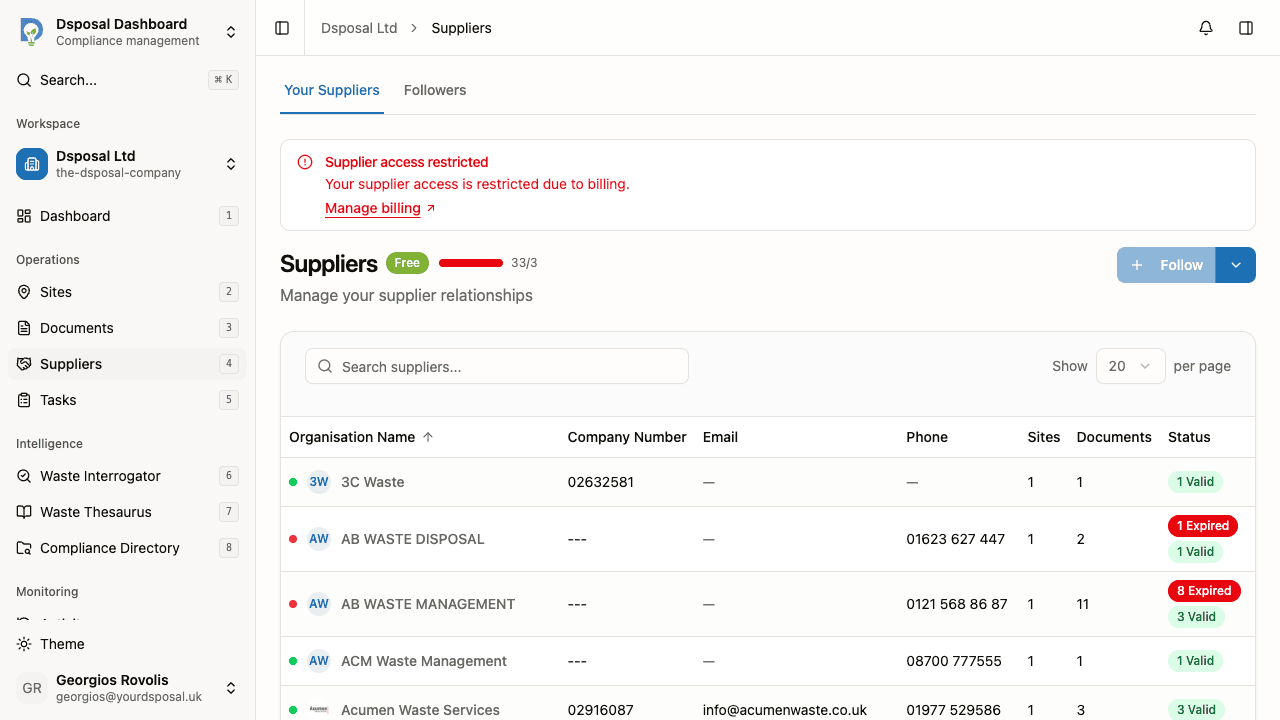
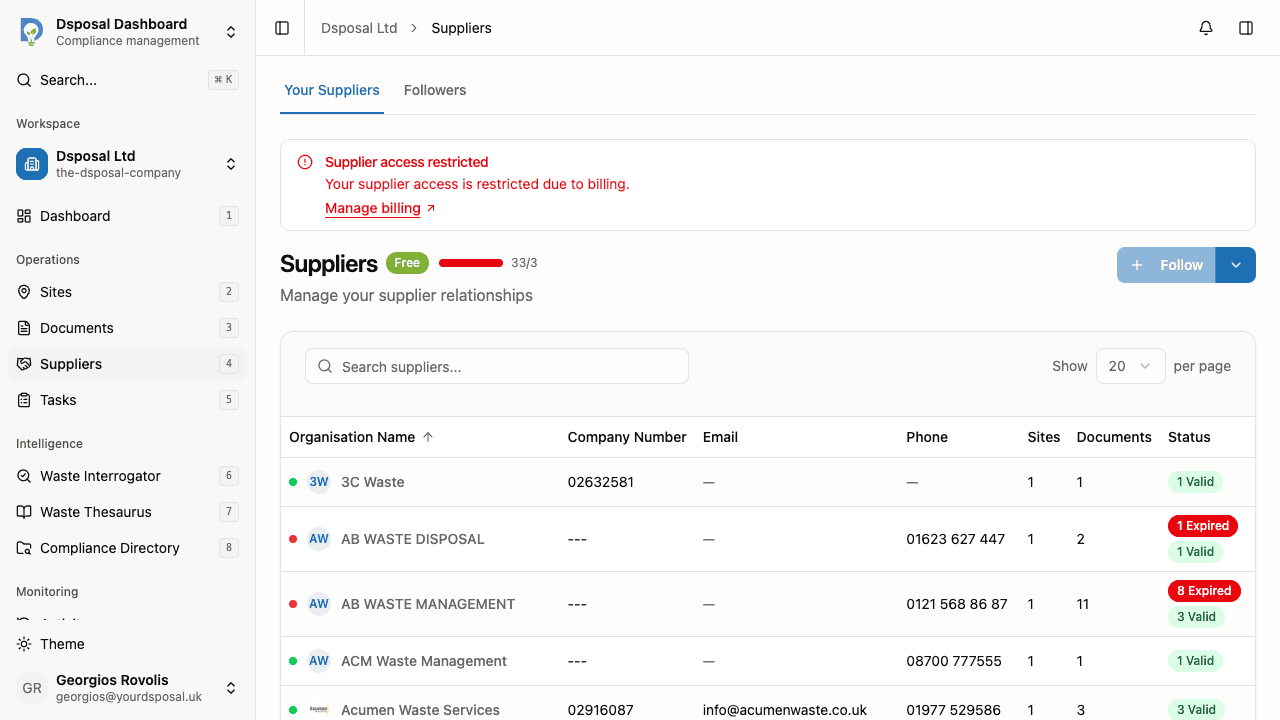
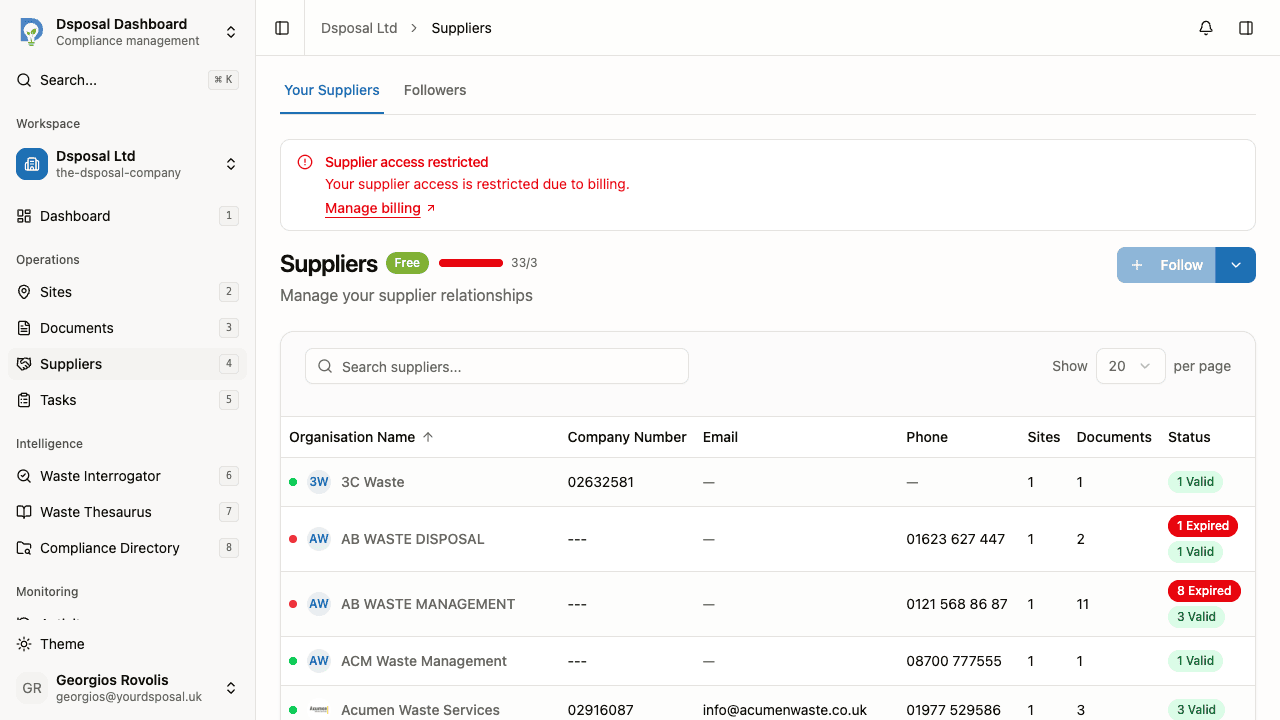
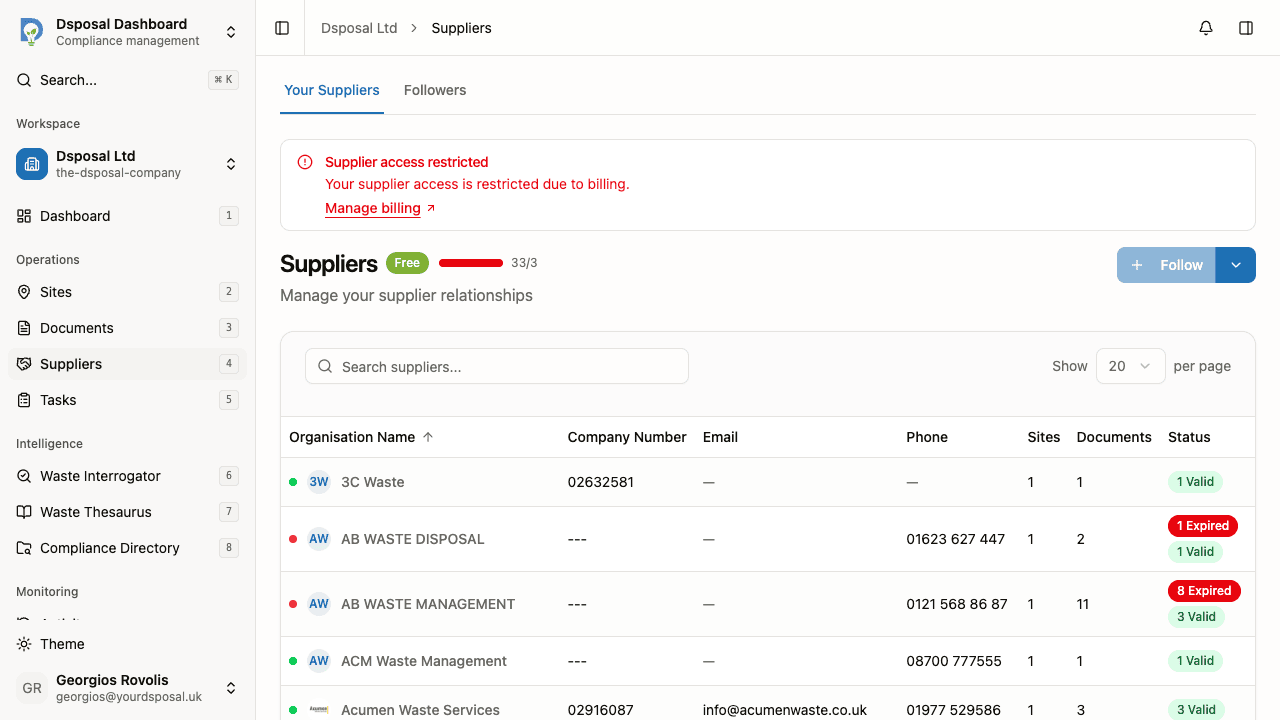
The Suppliers page in the Dashboard provides a table of all your followed suppliers. Each supplier row includes compliance indicators that give you a quick visual check.
Navigate to the Suppliers page
In the Dashboard, click Suppliers in the main navigation. You'll see a table listing all the organisations you follow.
Read the compliance indicators
Each supplier row includes a small coloured dot indicator:
- Green dot — all documents are current
- Amber dot — one or more documents are expiring soon
- Red dot — one or more documents have expired
- Grey dot — no documents are tracked for this supplier
Hover over any indicator to see a tooltip with more detail about the supplier's document status.
Viewing a supplier's documents
Open the supplier detail page
Click on a supplier name in the list to open their detail page. You'll see a profile card with the supplier's company information.
Check the Documents tab
Navigate to the Documents tab on the supplier's detail page. Here you'll see all the supplier's compliance documents — certificates, insurance policies, and registrations — with their current status.
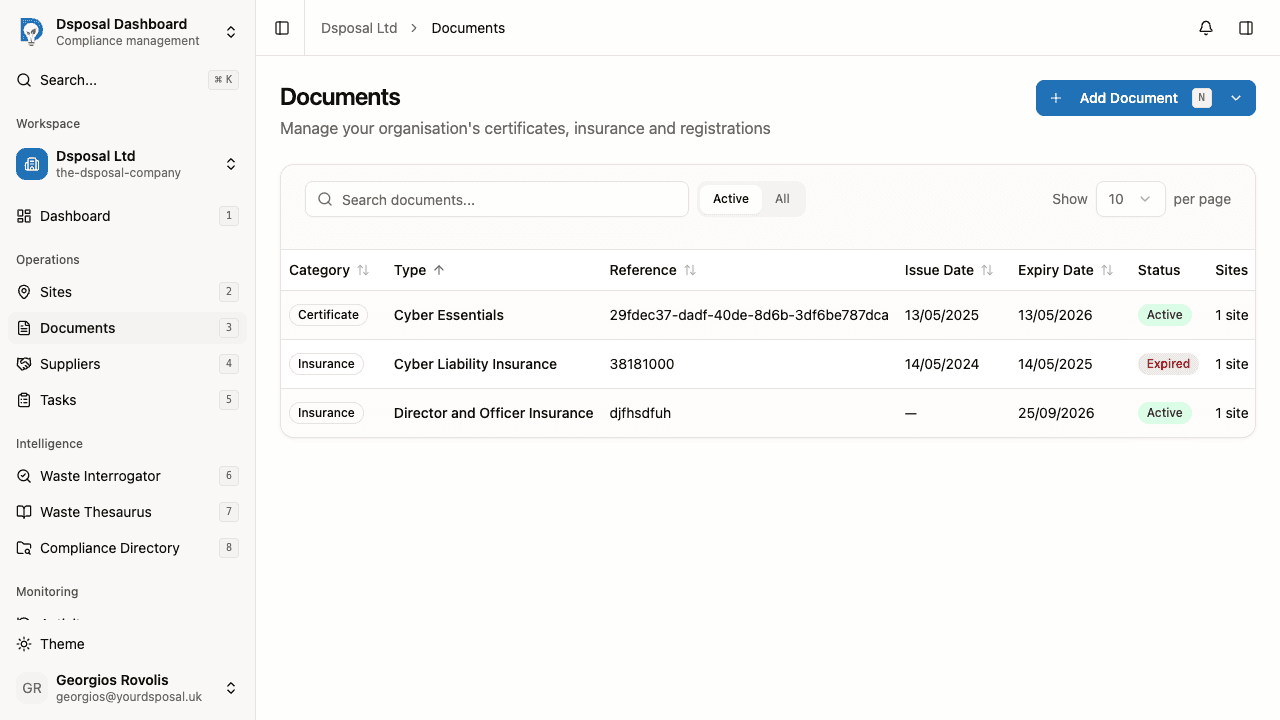
Each document shows the same colour-coded status badges used on your own Documents page:
- Green — Active
- Amber — Expiring Soon
- Red — Expired
Best practices for supplier monitoring
- Review supplier compliance weekly — make it part of your regular compliance routine
- Act on amber warnings early — don't wait until documents actually expire before reaching out
- Follow key suppliers — make sure all your critical waste service providers are being tracked
- Check the compliance dashboard daily — the supplier compliance card surfaces issues without you having to dig into individual supplier pages
- Use the compliance directory to find alternative suppliers if a current provider can't maintain compliance
Keep moving
Next steps
Explore further