

Registrations are compliance documents sourced directly from the Environment Agency's public register. Unlike certificates and insurance, registrations are fetched automatically — you search for them by permit number or company name, and Dsposal imports the official details. This guide covers how to add, view, and refresh registrations.
Understanding registrations
Registrations represent official permits and licences held with the Environment Agency. They cover various register types including:
- Waste Operations — environmental permits for waste treatment and disposal
- Carriers, Brokers & Dealers — upper and lower tier waste carrier registrations
- Waste Exemptions — registered exemptions from environmental permitting
- Installations — industrial installations with environmental permits
- End of Life Vehicles — authorised treatment facilities
- And others including Discharges to Water, Radioactive Substances, and Scrap Metal Dealers
The key difference from certificates and insurance is that registration details are read-only after import — they come from the EA's official records and cannot be edited manually in Dsposal.
Adding a registration
Open the registration form
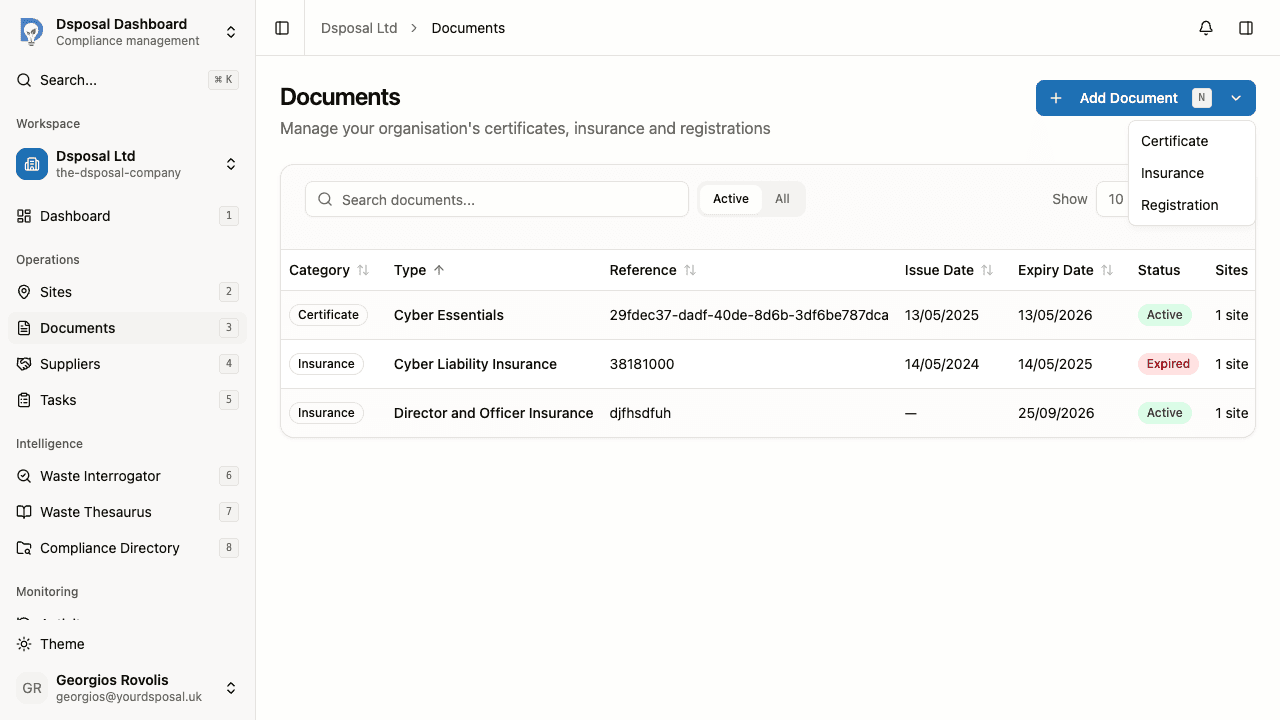
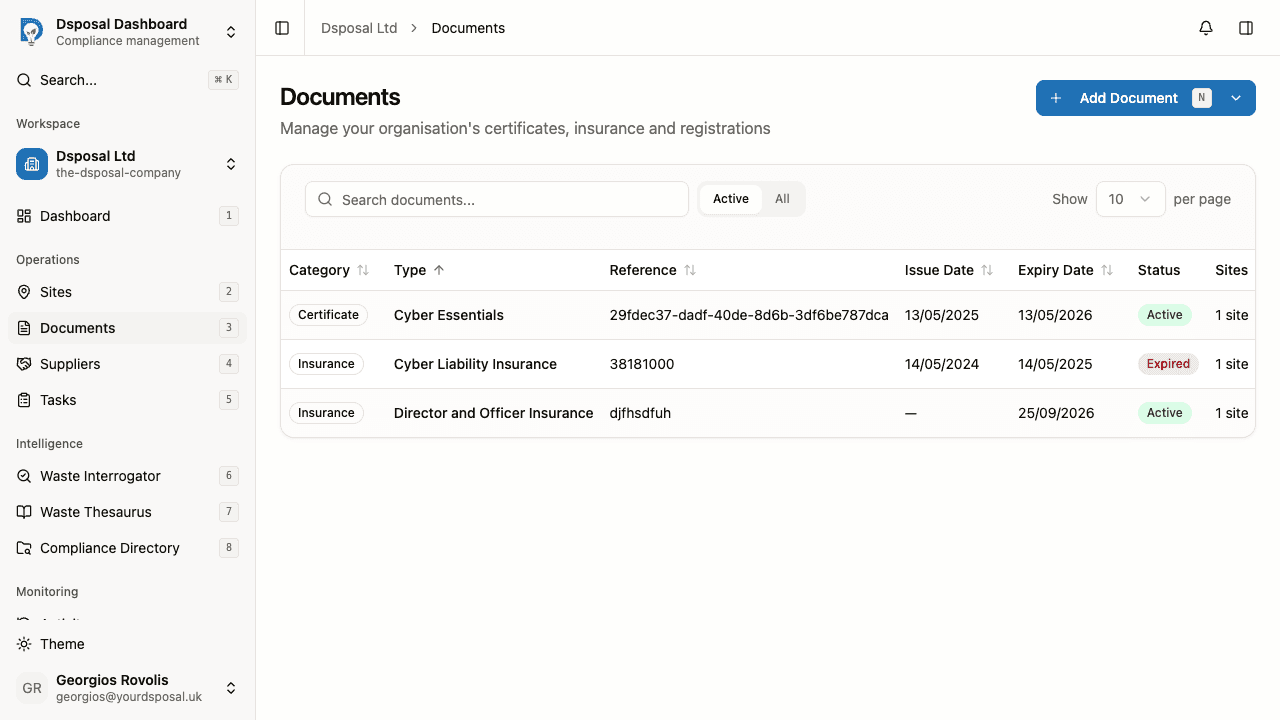
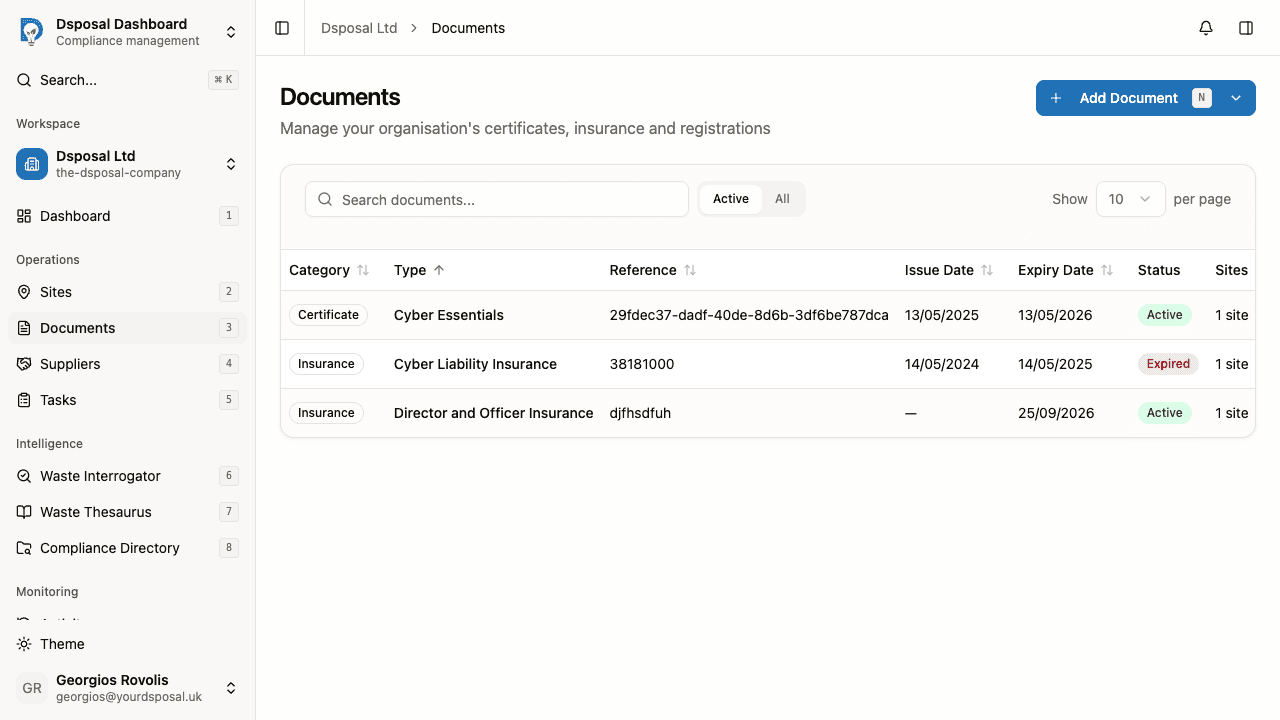
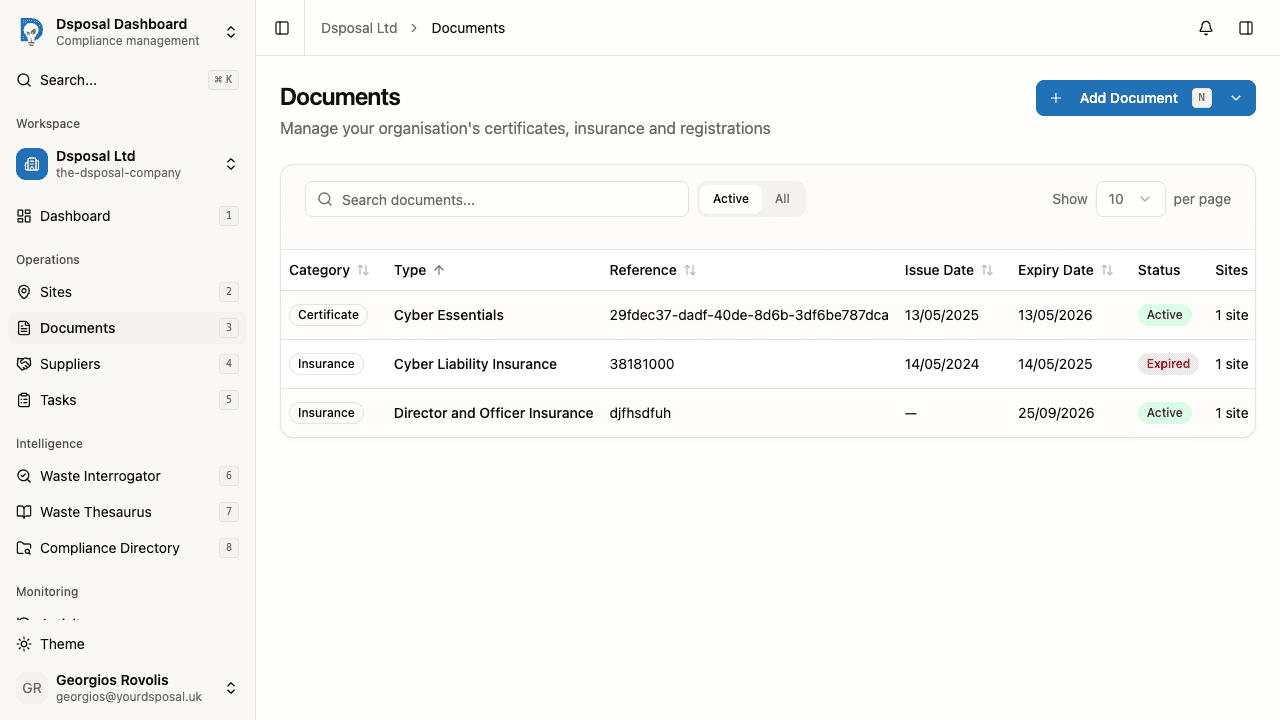
In the Dashboard, go to Documents and click the Add Document dropdown button. Select Registration from the menu.
You'll be taken to the registration search page.
Search the EA Public Register
On the search page, you'll see a search card titled Search EA Public Register. Enter a permit number (e.g., "CBDU233934") or a company name, then click Search or press Enter.
A dialog will open showing the search results from the Environment Agency's register. Each result shows the registration number, register type, holder name, and address.
Select and review the registration
Click a row in the search results to select it. Dsposal will fetch the full details from the EA register. Once loaded, you'll see a summary of the registration including:
- Registration Number and Type
- Status (e.g., Effective, Revoked, Surrendered)
- Holder name and Address
- Key dates (issue, expiry, registration, and other relevant dates)
Match to your sites
Dsposal will try to match the registration to your existing sites by postcode. If matches are found, you'll see a list of nearby sites. Select the site this registration belongs to, or:
- Link to selected site — choose an existing site from the matches
- Add site — create a new site from the registration data
- Save without linking — save the registration without linking it to any site
Optionally attach a PDF
Below the registration summary, you can upload a PDF copy of the registration document using the drag-and-drop upload zone. This is optional but useful for keeping a local copy of the official document.
Save the registration
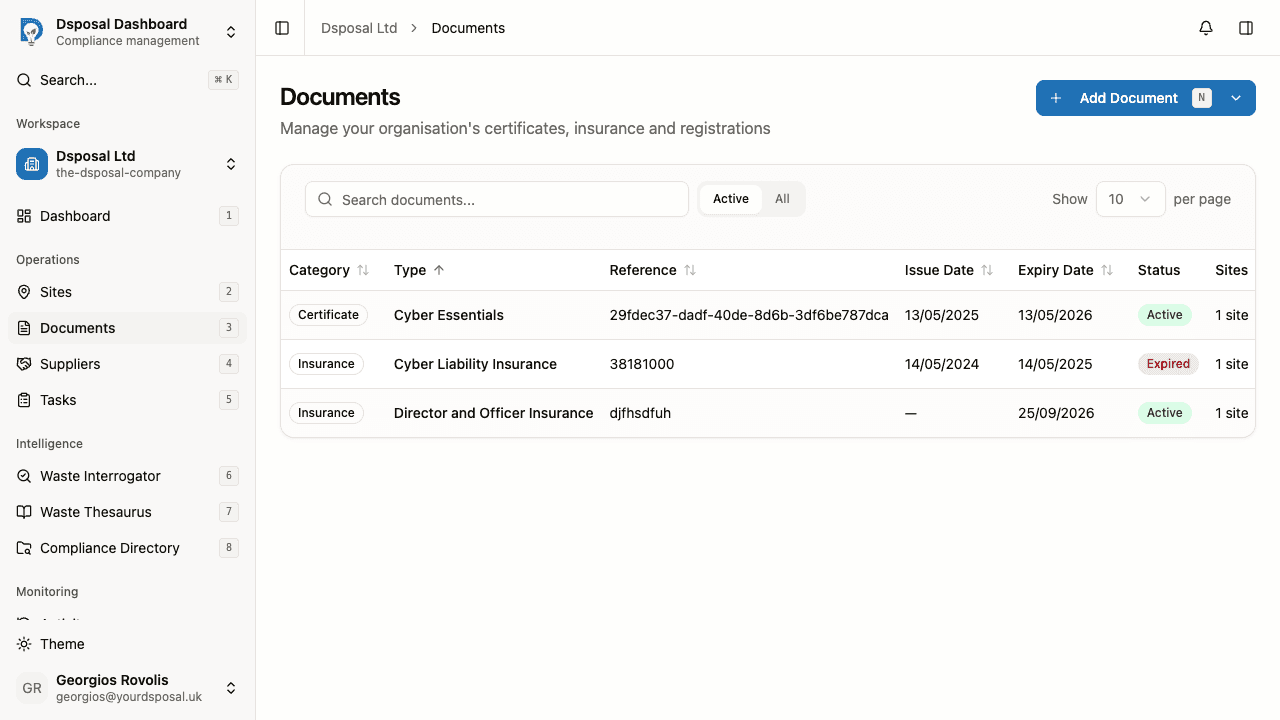
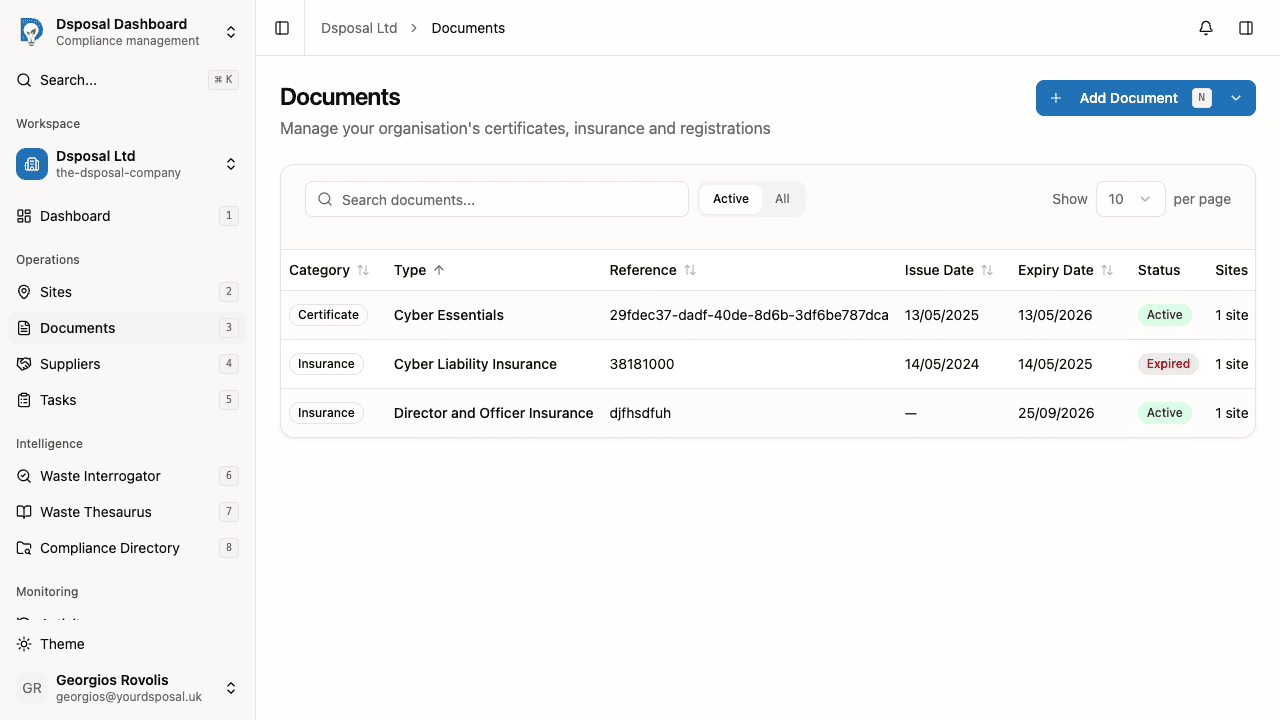
The registration is saved when you click Link to selected site, Add site (after creating the site), or Save without linking. You'll be redirected to the Documents page where the new registration appears in the table.
Viewing registration details
Registrations are view-only — unlike certificates and insurance, you cannot edit their details. To view a registration:
- Go to Documents and find the registration in the table
- Click the row or use the actions menu and select View
The detail page shows all the information imported from the EA register, organised into cards:
- General — registration number, type, status, and holder name
- Dates — all relevant dates (issue, expiry, registration, effective, and others)
- Address — the registered site address, with a map if coordinates are available
- Exemptions — any associated waste exemptions (if applicable)
- Enforcement — any enforcement actions (if applicable)
A link at the bottom lets you View on EA Public Register to see the original record on the EA's website.
Refreshing registration data
Registration data can change over time as the EA updates their records. To get the latest information:
- Open the registration detail page
- Click the Refresh from EA button in the top-right corner
- Dsposal will fetch the latest data from the EA register and update the record
Registration statuses
Registrations can have various statuses reflecting their standing with the EA:
| Status | Meaning | |---|---| | Effective | The registration is current and active | | Revoked | The registration has been revoked by the EA | | Surrendered | The holder has voluntarily given up the registration | | Closure and Aftercare | The site is in a closure and aftercare phase | | Ceased | The registration has ceased to have effect | | Expired | The registration has expired | | Cancelled | The registration has been cancelled |
What to do next
- Add certificates and insurance to complete your compliance document portfolio
- Track document expiry to monitor all your documents in one place
Keep moving
Next steps
Explore further