

Certificates are compliance documents that prove your organisation meets specific industry standards — such as CHAS, ISO 9001, or WAMITAB. Dsposal lets you upload certificates, record their details, link them to your sites, and track their expiry dates automatically.
Adding a certificate
Open the certificate form
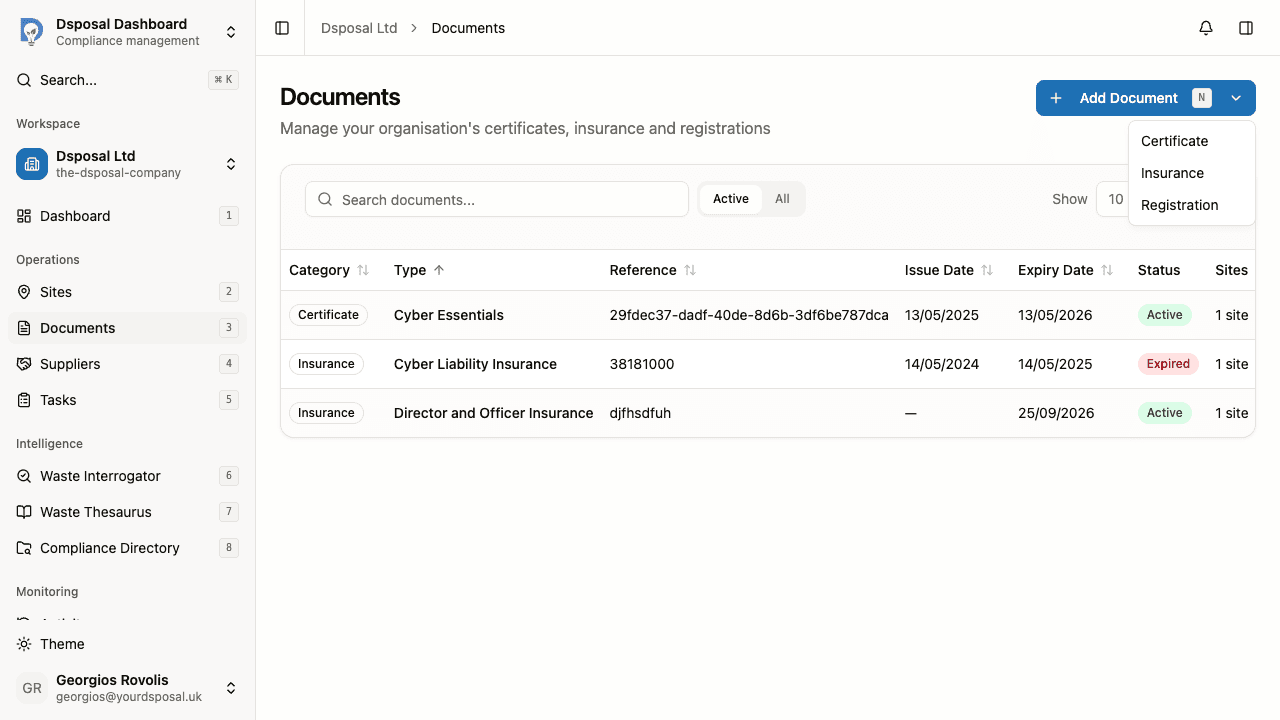
In the Dashboard, go to Documents and click the Add Document dropdown button. Select Certificate from the menu.
Upload a PDF (optional)
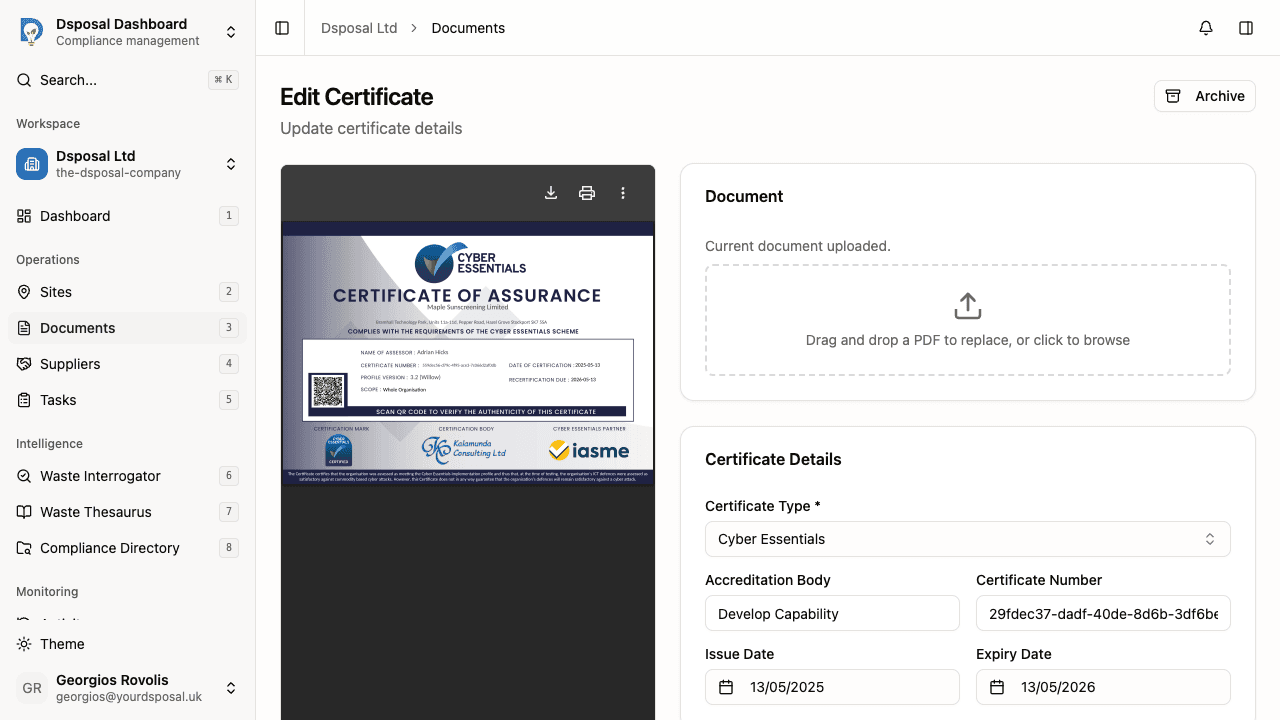
At the top of the form, you'll see a drag-and-drop zone for uploading a PDF copy of the certificate. While optional, uploading the actual document is recommended for audit trails and easy reference.
Drag a PDF file into the upload zone, or click the zone to browse for a file. Once uploaded, a preview of the PDF appears in the side panel.
Fill in certificate details
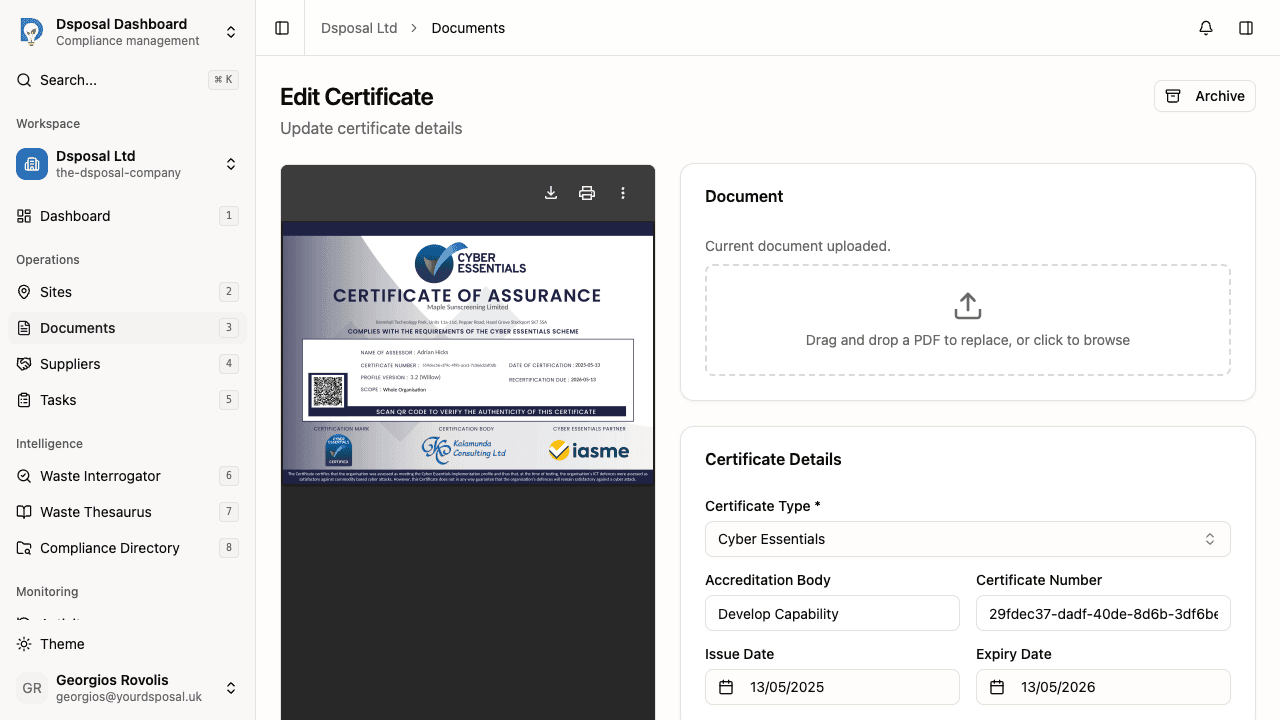
Complete the Certificate Details card:
- Certificate Type (required) — select from the dropdown. Available types include:
- CHAS, SafeContractor, British Safety Council
- ISO-related: Quality Management System, Environmental Management System, Information Security Management System, Health and Safety Management System
- WAMITAB, Vehicle Operator Licence, Fleet Operator Recognition Scheme
- Policies: Environmental Policy, Health and Safety Policy, Quality Policy, Anti-Slavery Policy
- And others such as Cyber Essentials, ICO Data Protection Certificate, and Certificate of Incorporation
- Accreditation Body — the organisation that issued the certificate (e.g., "SSIP")
- Certificate Number — the unique reference number (e.g., "CHAS-2025-001")
- Issue Date — when the certificate was granted
- Expiry Date — when the certificate expires
Link to your sites
In the Linked Sites section, click the dropdown to select which sites this certificate covers. You can search for sites by name and select multiple ones.
Selected sites appear as badges that you can remove individually by clicking the x on each badge.
Save the certificate
Click Save Certificate or press Cmd+S (or Ctrl+S on Windows) to create the record. You'll be redirected to the Documents page where the new certificate appears in the table.
Editing an existing certificate
To edit a certificate you've already added:
- Go to Documents in the Dashboard
- Find the certificate in the table and either click the row or use the actions menu (three-dot icon) and select Edit
- Update any fields and click Save Changes
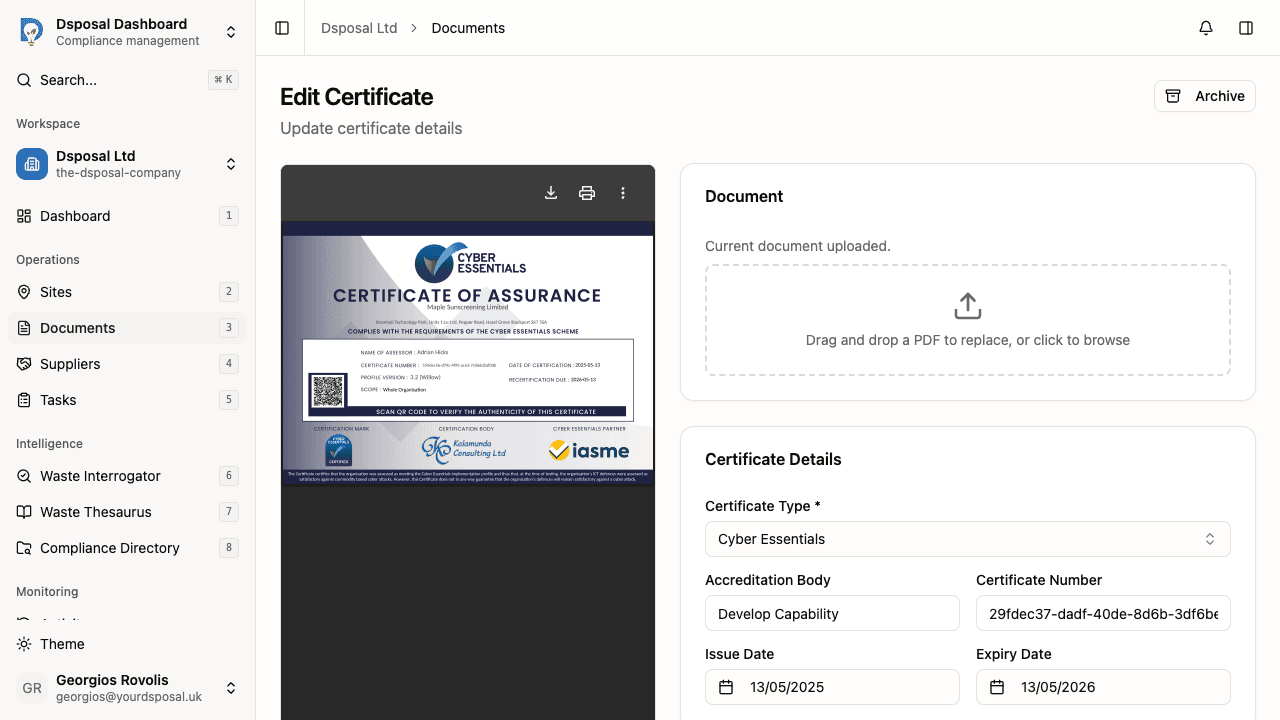
The edit form looks the same as the creation form, with all existing details pre-filled.
What to do next
- Add insurance documents to track your insurance policies alongside certificates
- Track document expiry to monitor all your compliance documents
Keep moving
Next steps
Explore further