

Dsposal supports two sign-in methods: a one-time email code and a traditional password. This guide covers the full sign-in flow, including multi-factor authentication and signing out.
Signing in
Enter your email
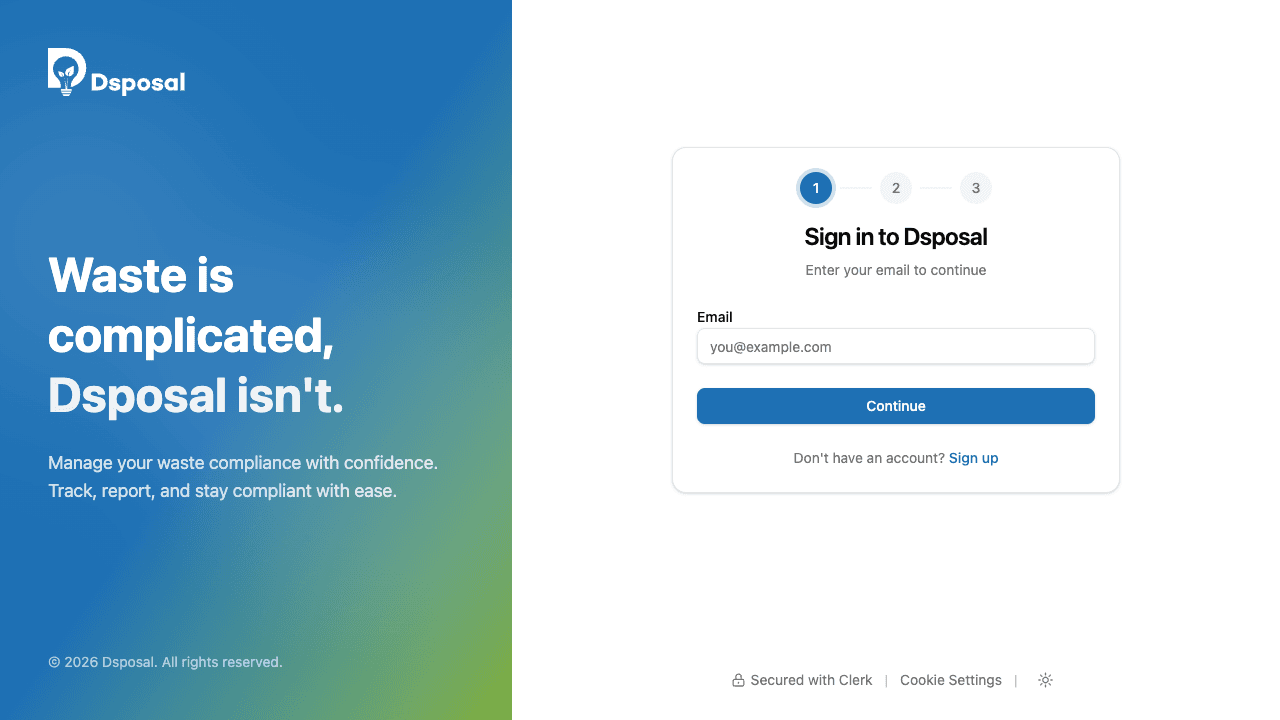
Visit auth.dsposal.uk/sign-in or click Sign in from any Dsposal page. Enter your email address and click Continue.
Choose your sign-in method
Depending on your account settings, you may see two options:
- Email me a code -- a one-time verification code is sent to your inbox
- Use password -- sign in with the password you've set on your account
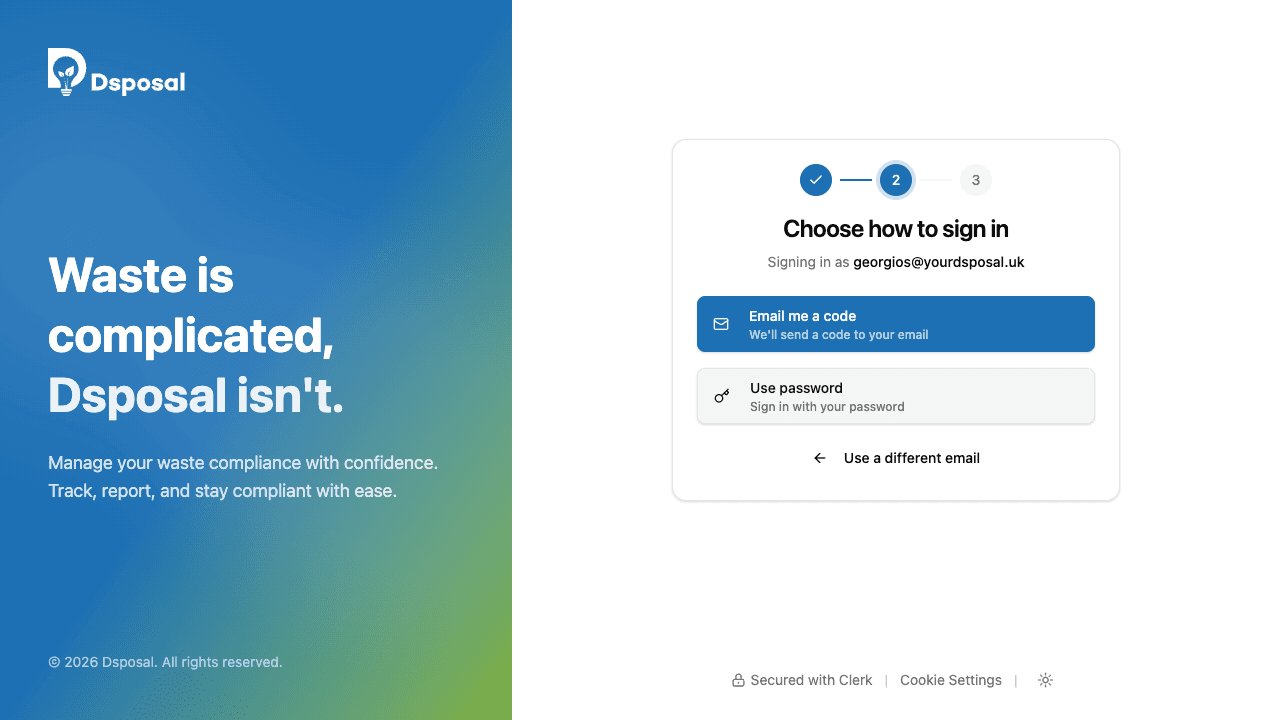
If your account only has one method available (for example, you haven't set a password), you'll skip this step and go directly to the relevant input.
Enter your code or password
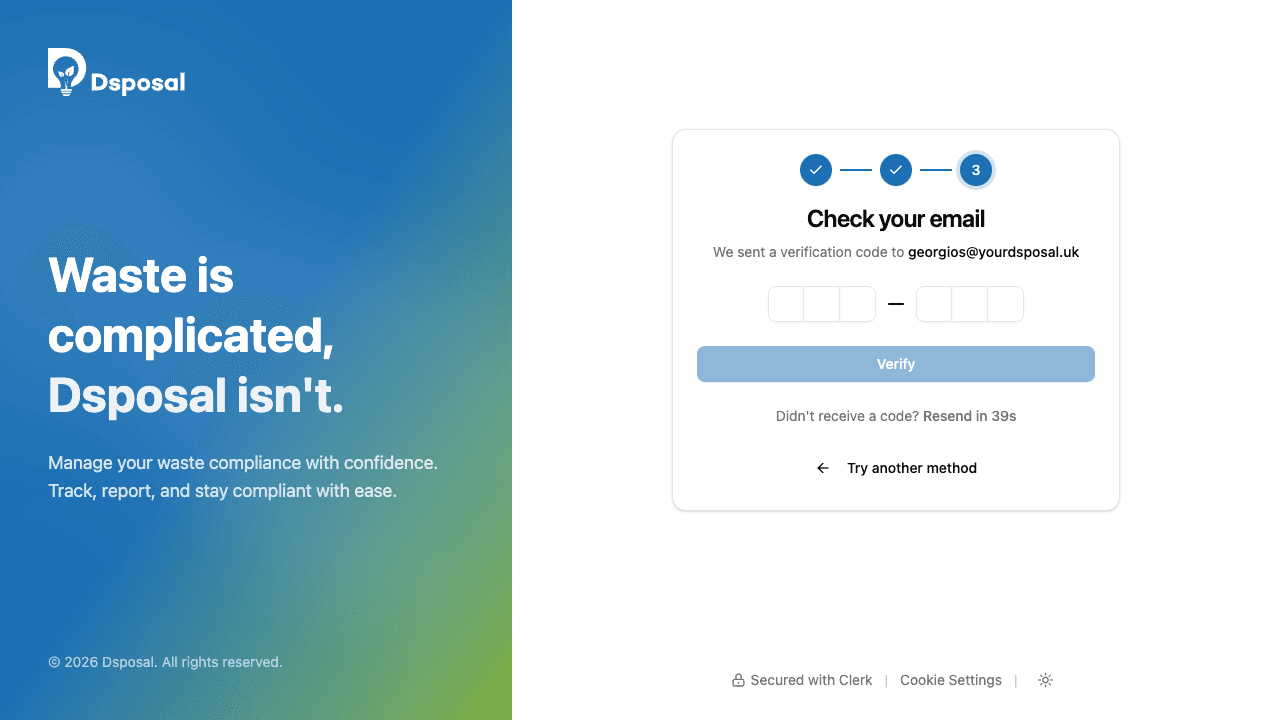
If you chose email code: Check your inbox for the 6-digit code and enter it. The code auto-submits once all six digits are entered. You can click Resend code if it doesn't arrive (60-second cooldown).
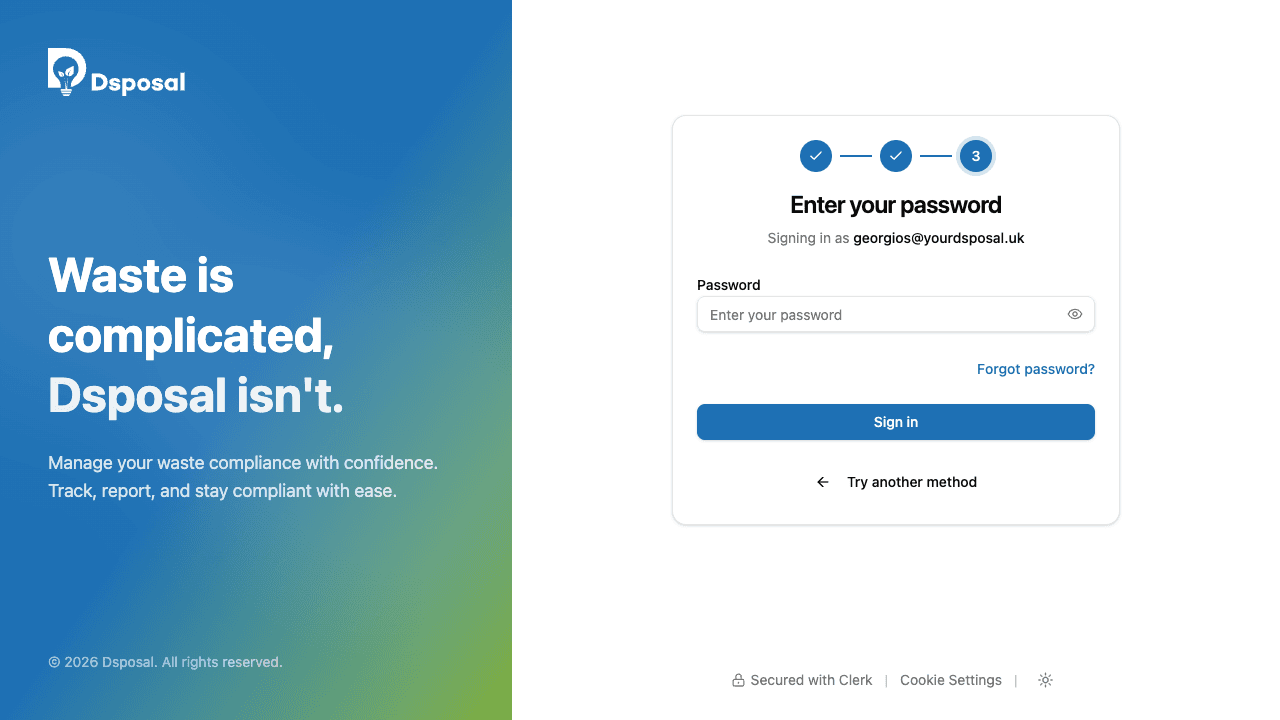
If you chose password: Enter your password and click Sign in. You can toggle password visibility using the eye icon.
Device trust verification
If you're signing in from a new or untrusted device, Dsposal may ask you to verify the device. A new 6-digit code will be sent to your email with the message "We need to verify this device." Enter the code to confirm you trust this device and complete sign-in.
Multi-factor authentication (MFA)
If your account has two-factor authentication enabled, you'll be prompted for an additional verification code after your primary sign-in step. A new code will be sent to your email -- enter it to complete the sign-in process.
Signing out
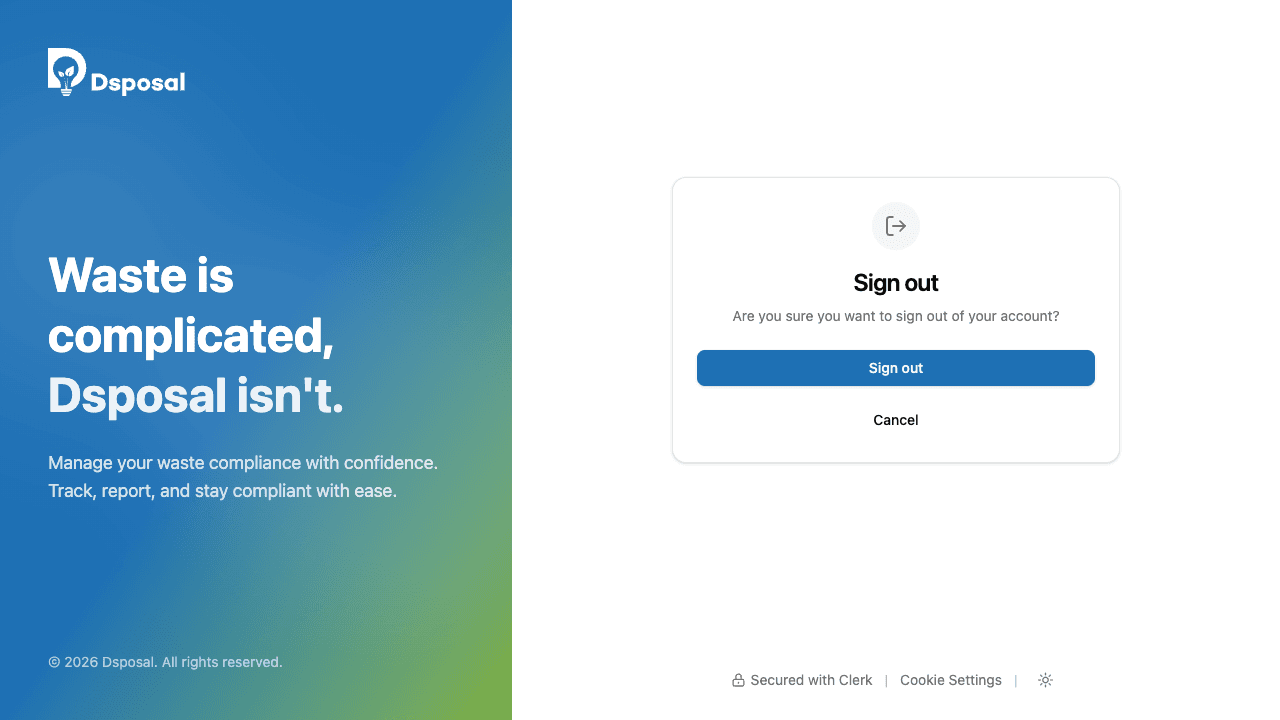
To sign out, visit auth.dsposal.uk/sign-out. You'll see a confirmation screen asking "Are you sure you want to sign out of your account?" Click Sign out to confirm, or Cancel to go back.
Keep moving
Next steps
Explore further