

Once you have followed a supplier, you can view their full profile including contact details, sites, documents, and waste data. This guide walks you through the supplier detail page.
Navigating to a supplier's profile
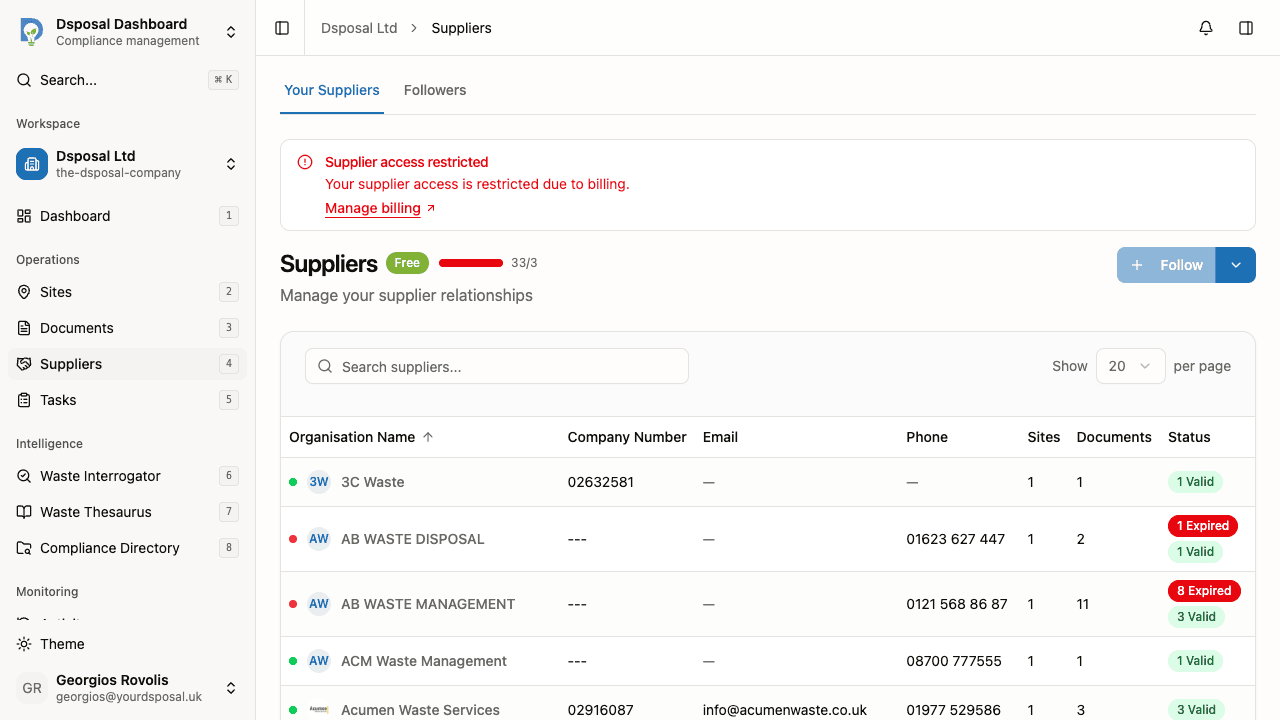
Click a supplier name
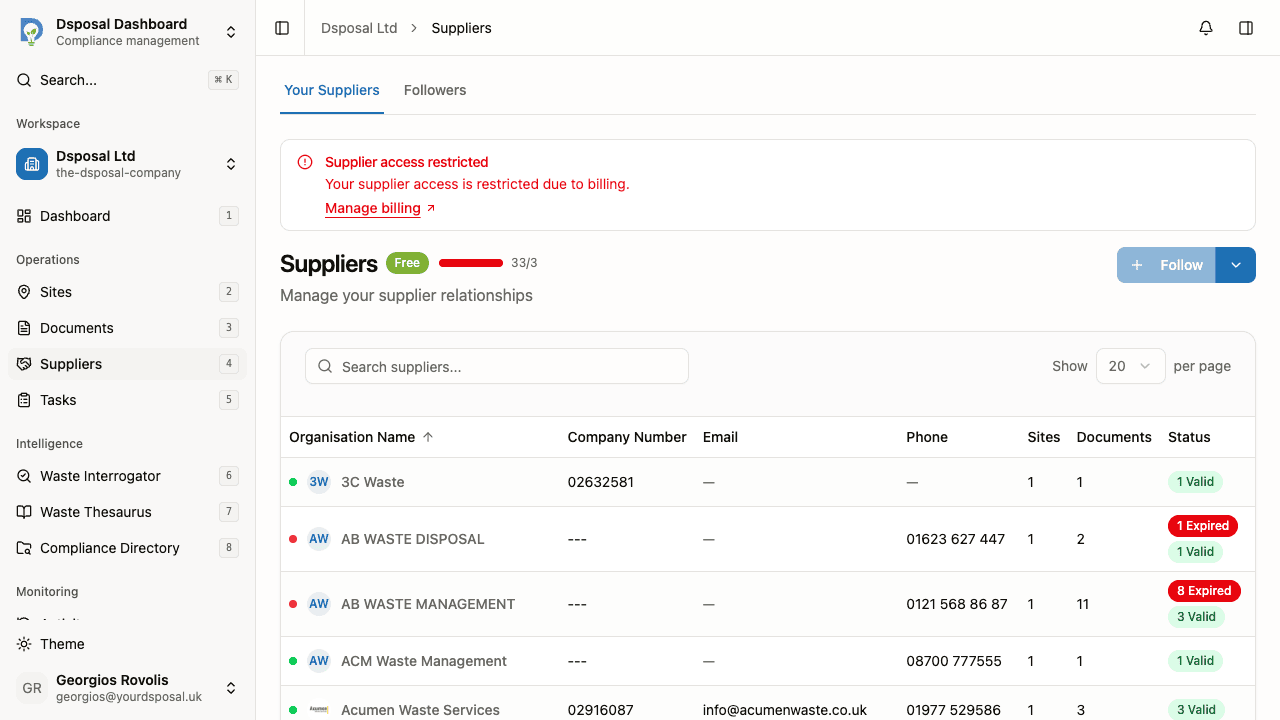
From the Suppliers list in the Dashboard, click on any supplier's name to open their detail page. You can also use the actions menu and select View Details.
Reading the supplier profile
The supplier detail page has two main sections: a profile card at the top and tabbed content below.
Profile card
The profile card shows key information about the supplier organisation:
- Logo and name — the organisation's avatar and full name
- Company number — displayed as a badge if available
- Verified badge — a green shield icon appears if the organisation has been claimed and verified by its owner
- Description — a brief overview of the organisation (if provided)
- Contact details — address, email, phone number, and website links
Contact details are interactive:
- Click an address to open it in Google Maps
- Click an email to compose a message
- Click a phone number to start a call
- Click Website to visit their site in a new tab
Map panel
Next to the profile card, a map panel shows the locations of the supplier's sites. This gives you a quick geographical overview of their operations.
Exploring supplier tabs
Below the profile card, three tabs let you explore different aspects of the supplier's data.
Sites tab
The Sites tab lists all of the supplier's waste management sites. Each row shows the site name, address, and compliance status.
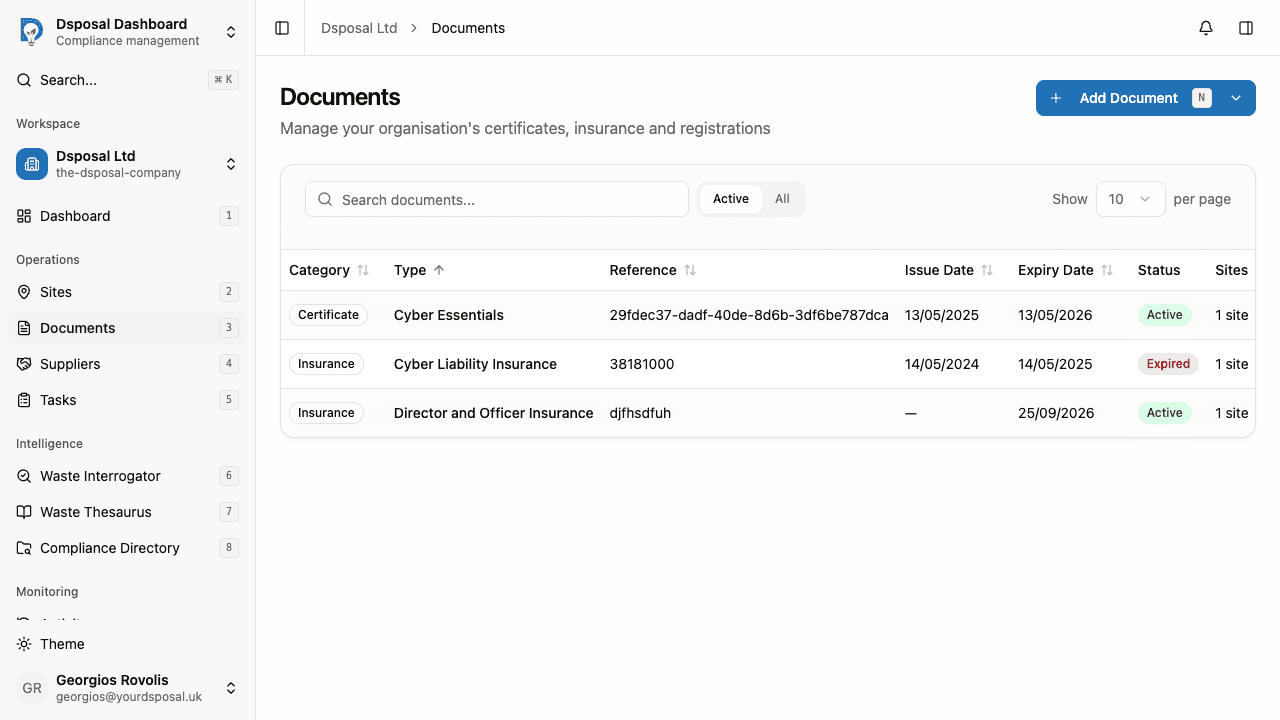
You can filter sites by:
- Followed — sites you are actively tracking
- Unfollowed — sites available to follow
- All — every site the supplier operates
Click a site name to view its full details, including services, documents linked to that site, and location information.
Documents tab
The Documents tab shows all compliance documents held by the supplier, including certificates, insurance policies, and registrations.
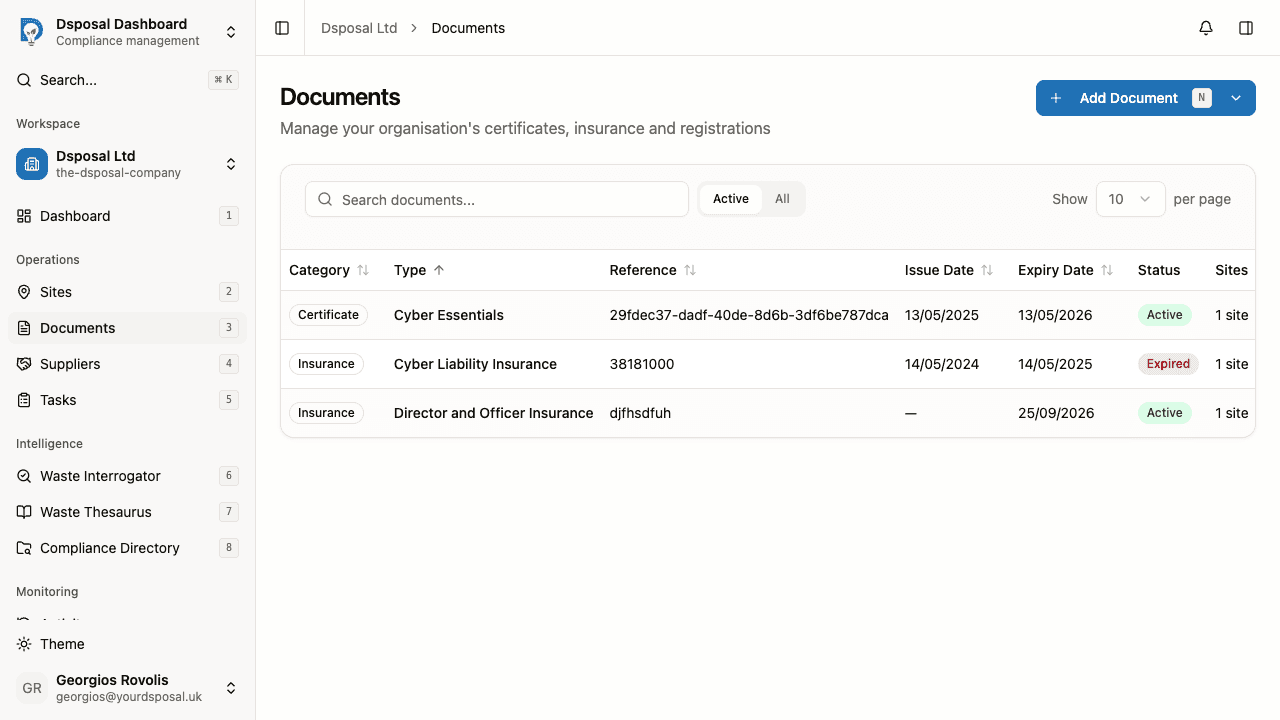
Each document shows its type, reference number, expiry date, and status. Click a document to view its full details.
Waste Interrogator tab
The Waste Interrogator tab provides embedded analytics showing the supplier's waste disposal data, if available. This includes charts and breakdowns of waste volumes, types, and disposal methods.
Supplier actions
From the supplier detail page, you can:
- Unfollow the supplier by clicking the actions button in the top right corner and selecting Unfollow. A confirmation dialog will appear before the supplier is removed from your tracked list.
What to do next
- Follow more suppliers to expand your supply chain tracking
- Monitor supplier compliance to understand compliance risks
Keep moving
Next steps
Explore further