

Organisation settings let you manage basic information about your organisation and access your company profile. This guide covers editing the organisation name, understanding the slug, and leaving an organisation.
Viewing and editing organisation settings
Navigate to Settings in the sidebar
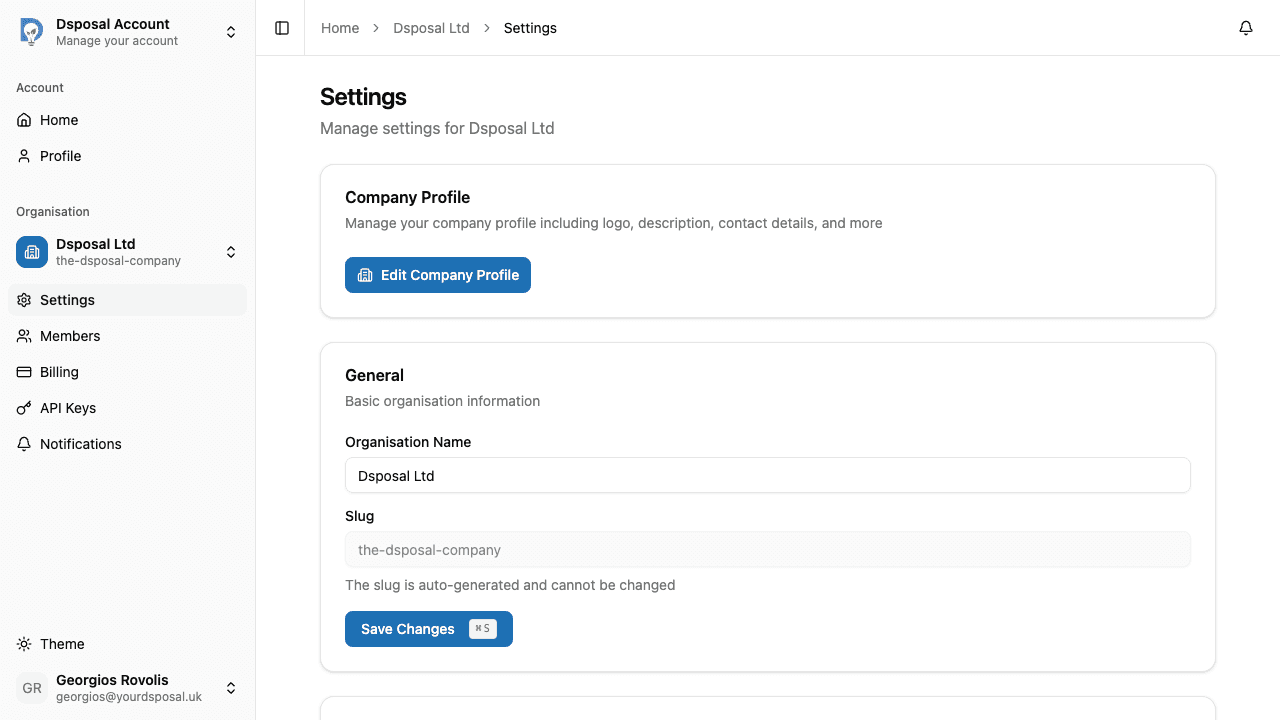
In the Account app, select your organisation and click Settings in the sidebar. You'll see the organisation's settings page.
Edit the organisation name
In the General card, you'll find two fields:
- Organisation Name -- editable by Owners, read-only for Members
- Slug -- auto-generated and cannot be changed (displayed in a greyed-out field)
Update the organisation name as needed.
Save changes
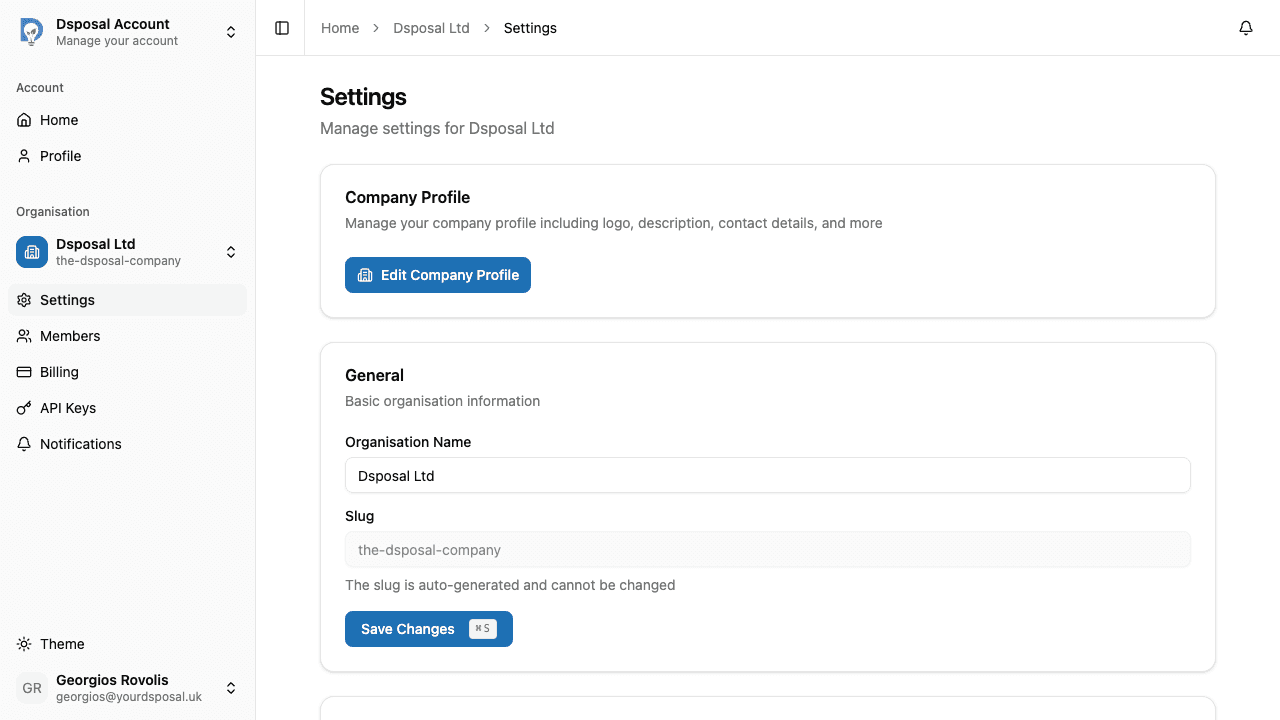
Click Save Changes to update the organisation name.
Company profile
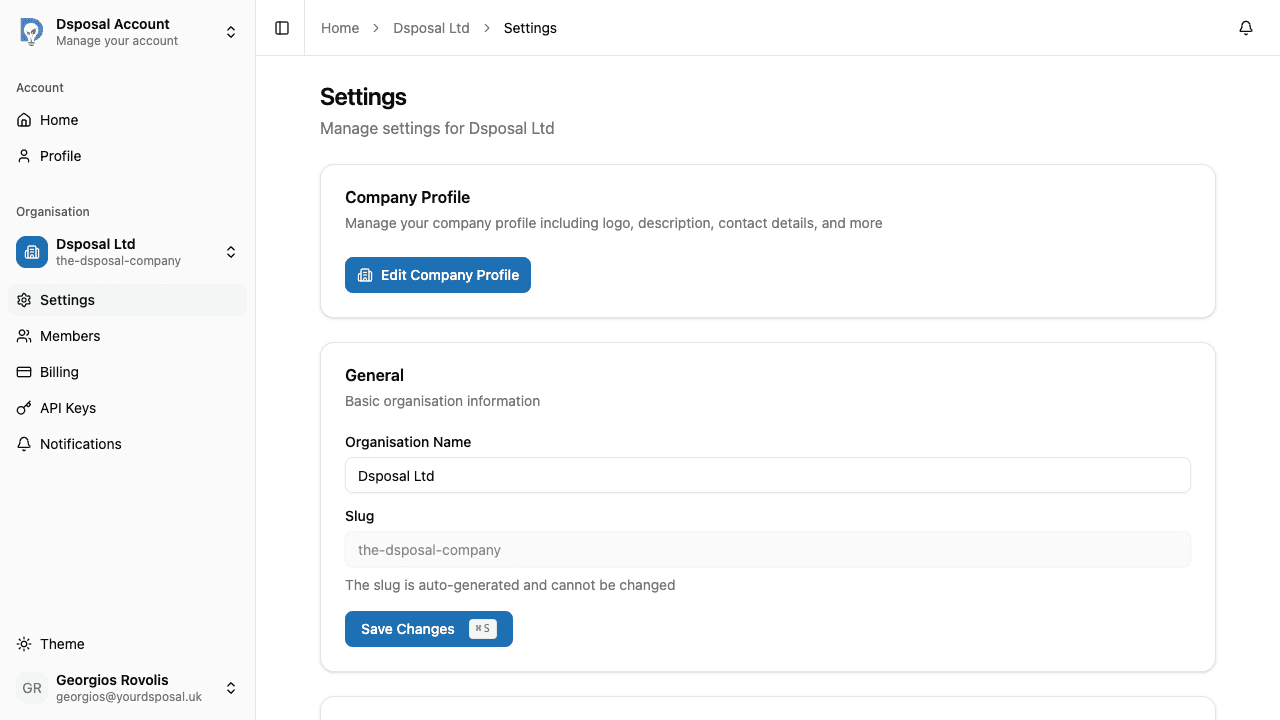
The Company Profile card provides a link to edit your full company profile in the Dashboard app. Click Edit Company Profile to open the Dashboard profile editor, where you can manage your logo, description, contact details, and more.
Leaving an organisation
If you're a Member of an organisation and want to leave, you can do so from the Danger Zone section at the bottom of the Settings page.
Scroll to the Danger Zone
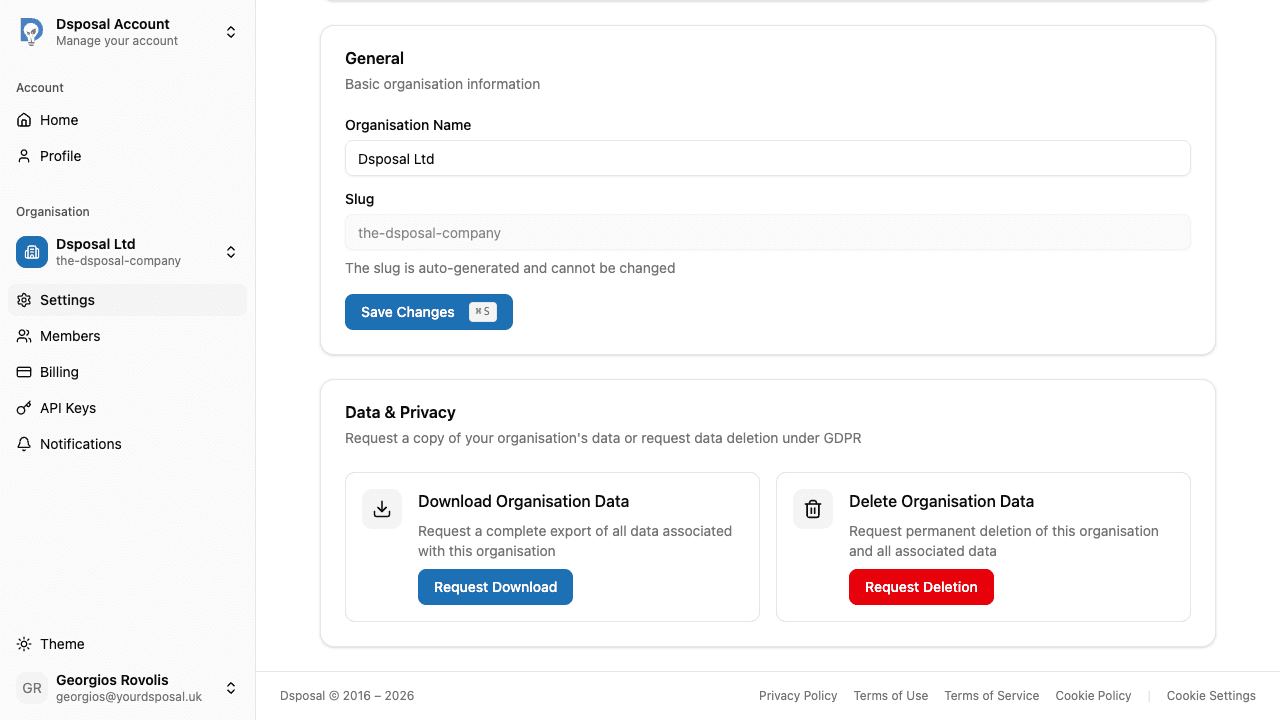
At the bottom of the Settings page, you'll see a red-bordered Danger Zone section. This is only visible to Members (Owners cannot leave their own organisation without transferring ownership first).
Click Leave organisation
Click the Leave organisation button. A confirmation dialog will appear explaining that you'll lose access to the organisation and all its data.
Confirm in the dialog
Review the warning and click Leave to confirm. You'll be removed from the organisation immediately.
Keep moving
Next steps
Explore further