

Dsposal uses two layers of access control that work together: membership types (set in Account) and app roles (set in Dashboard). This guide explains the difference and walks you through assigning roles to your team members.
How membership types and app roles work together
Membership type (Account)
Every organisation member has a membership type, which is set when they are invited or when a join request is approved. There are two types:
- Owner — full administrative access to the Account app, including billing, settings, and member management
- Member — standard access to the Account app with limited administrative capabilities
App roles (Dashboard)
App roles control what a member can do inside the Dashboard. These are the four system roles (Owner, Admin, Editor, Viewer) plus any custom roles your organisation has created. App roles are built from the 32-permission system covering Sites, Documents, Suppliers, Tasks, Roles, Members, Tags, and Compliance.
Assigning roles to a member
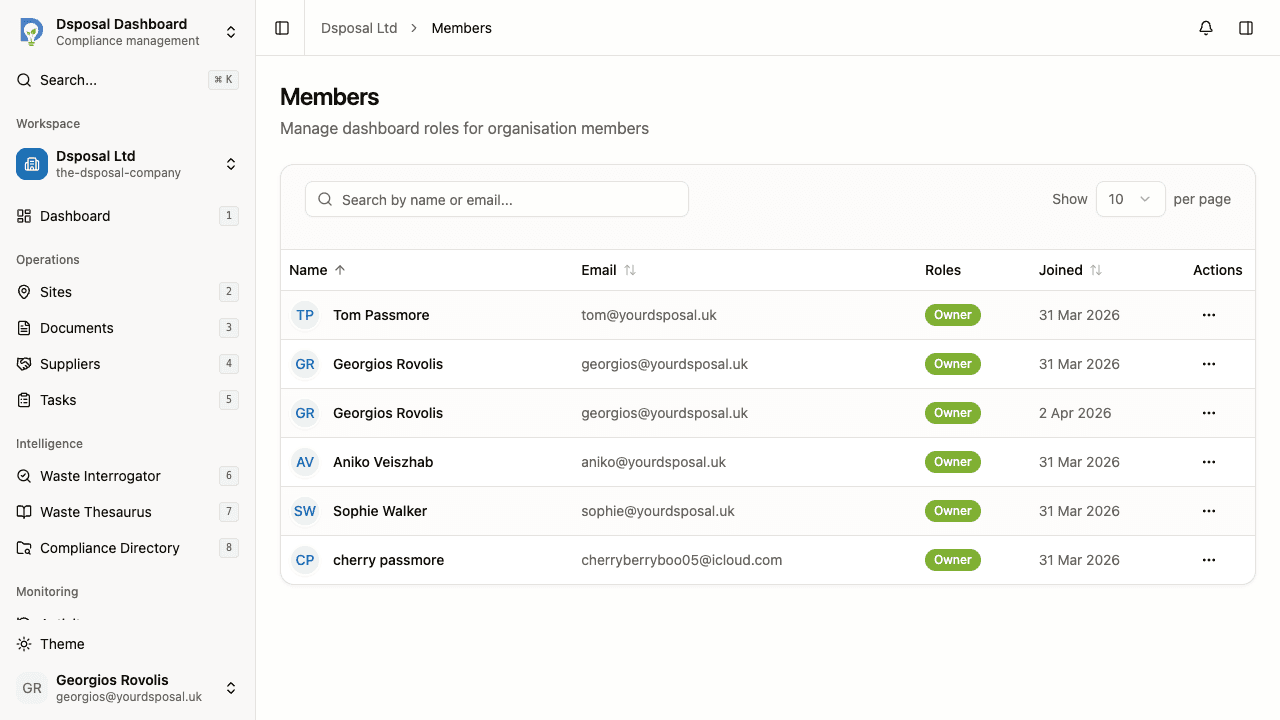
Navigate to Members in Dashboard
In the Dashboard, go to the Organisation section in the sidebar and click Members. You will see a table listing all members with their current role badges.
Open the role assignment sheet
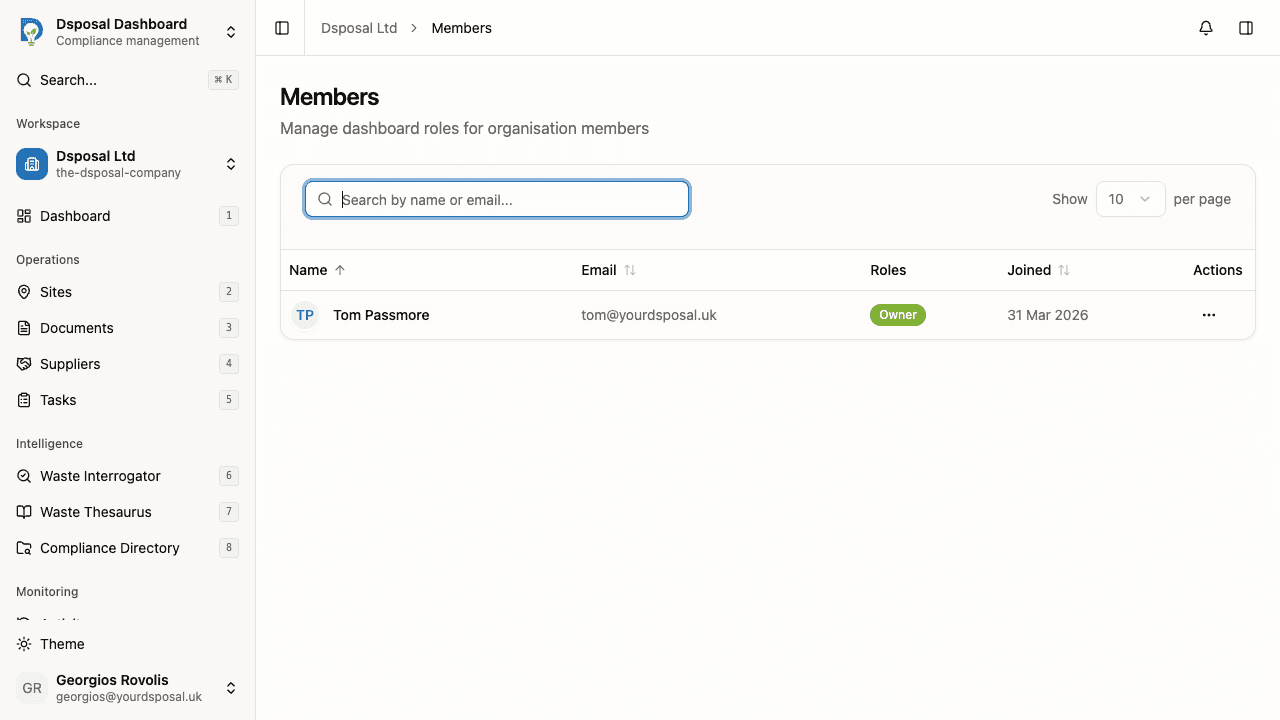
Click the three-dot actions button on the member's row and select Manage roles. A sheet opens on the right showing the member's name and email at the top, followed by a list of all available roles with checkboxes.
Check the roles to assign
Tick the checkbox next to each role you want to assign to this member. You can assign multiple roles to a single member if needed. Untick any roles you want to remove.
Changes take effect immediately — the member's permissions are updated as soon as you toggle each checkbox.
Verify the changes
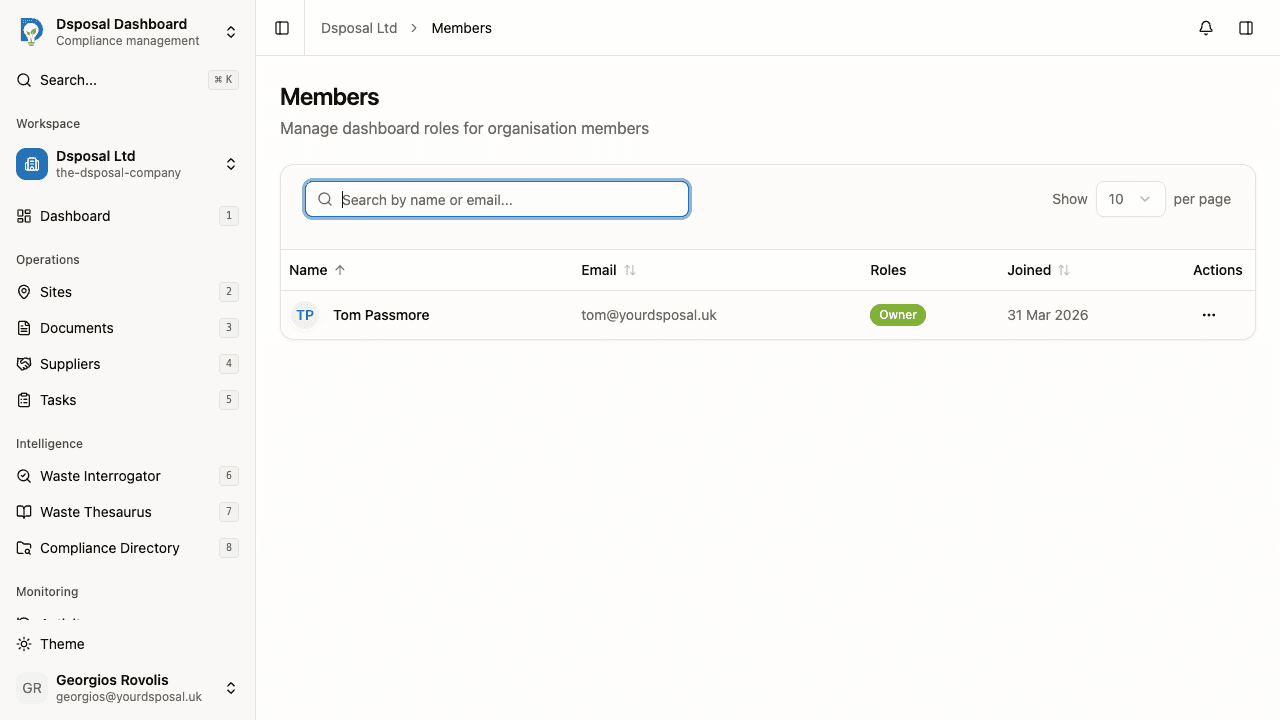
Close the sheet and check the member's row in the table. Their role badges should reflect the changes you just made.
Reading role badges
Role badges appear in the Roles column of the members table:
- Filled badges (e.g. a solid-coloured Admin badge) represent system roles
- Outlined badges represent custom roles created by your organisation
- "No roles" appears in muted text if a member has no roles assigned — they will have very limited access to the Dashboard
Best practices for role assignment
- Follow the principle of least privilege — start with a Viewer role and add permissions only as needed. It is easier to grant additional access than to revoke it after the fact.
- Use custom roles for specialised workflows — if certain team members only manage documents while others only manage sites, create targeted custom roles rather than giving everyone broad access.
- Review role assignments regularly — as team members change responsibilities, update their roles to match. The Members page makes it easy to audit who has access to what.
- Assign one role per function — while you can assign multiple roles to a member, it is clearer to create a single custom role that combines the permissions they need rather than stacking several roles.
What to do next
- Create custom roles if the system roles do not match your needs
- Manage your members to review the full team
Keep moving
Next steps
Explore further