

Each site in Dsposal can be configured with the services it provides or the materials it handles. Keeping these records accurate is important for compliance and helps other organisations understand what your site does.
Understanding services vs materials
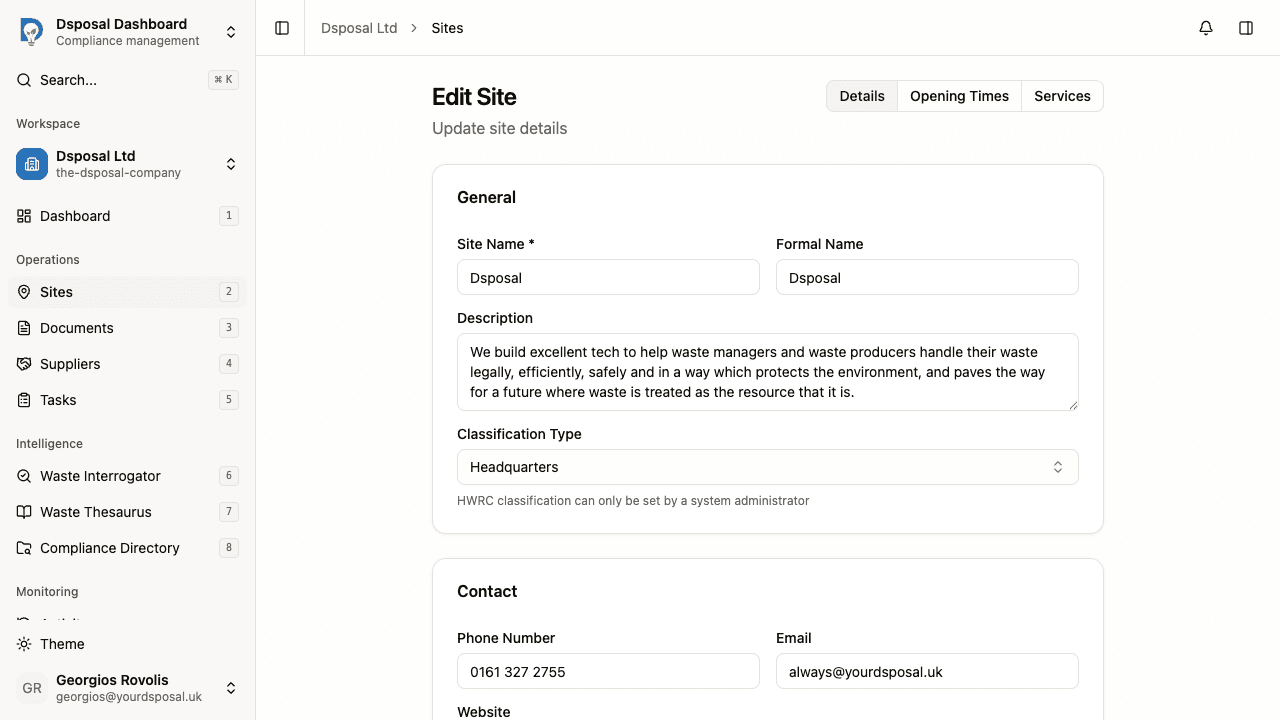
The tab you see on your site's detail page depends on the site's classification:
- Services — shown for Treatment Sites, Transfer Sites, Headquarters, Administration Sites, Satellite Sites, and Landfill Sites. Services represent the waste management activities performed at the site.
- Materials — shown for Household Waste Recycling Centres (HWRCs). Materials represent the specific waste types accepted at the site.
Configuring services or materials
Navigate to your site's Services or Materials tab
From the Dashboard, go to Sites and click on the site you want to configure. You'll see navigation tabs across the top of the page.
Click the Services tab (or Materials for HWRCs).
Browse and search the catalogue
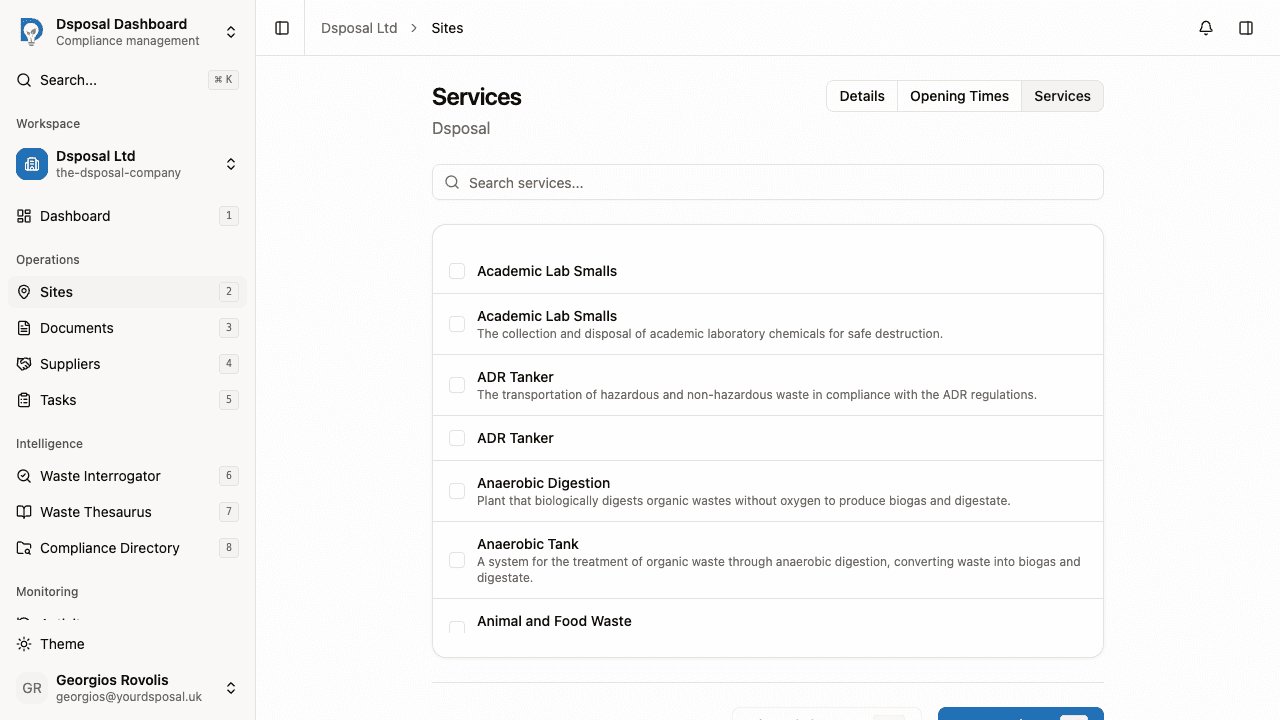
You'll see a searchable list of available services or materials. Each item shows its name and a brief description.
Use the search bar at the top to filter the list. The search matches against both names and descriptions, so you can search by keyword to find relevant items quickly.
Select your items
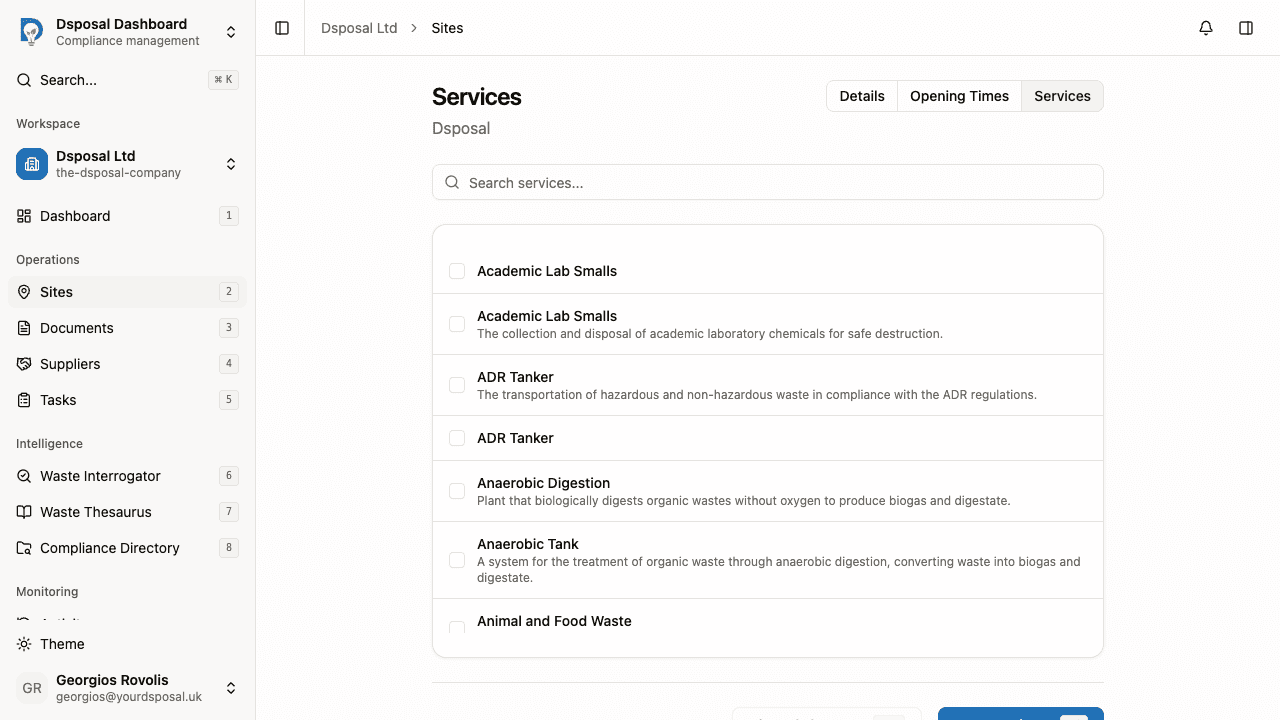
Tick the checkbox next to each service or material that applies to your site. You can select as many items as you need. Selected items are highlighted to make them easy to spot.
Save your changes
After making your selections, click Save Services (or Save Materials for HWRCs) to save your changes. You can also press Cmd+S (or Ctrl+S on Windows).
If you've made changes you don't want to keep, click Discard changes (or press Esc) to revert to the last saved state.
Tips for keeping records accurate
- Review your site's services or materials periodically, especially after operational changes
- Use the search function to quickly find specific items in long catalogues
- Services and materials are shared across the platform — you select from a standard list rather than creating custom entries
- Keeping services and materials up to date helps other organisations understand what your site offers when they search the compliance directory
Keep moving
Next steps
Explore further