

Once you've added a site, you may need to update its details, archive sites that are no longer active, or find a specific site in a long list. This guide covers editing site details, archiving and unarchiving sites, and using the search and sort tools on the Sites page.
Editing a site
Navigate to Sites and find your site
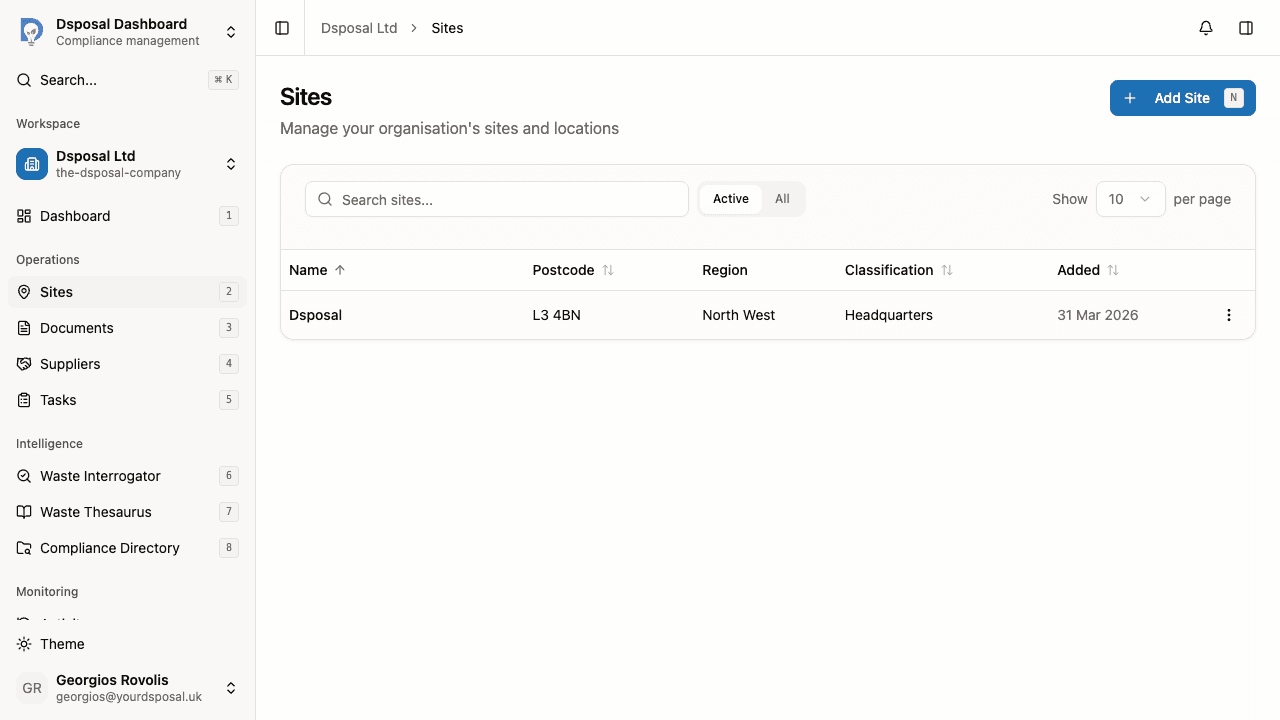
In the Dashboard, click Sites in the main navigation. You'll see a table listing all your active sites with columns for Name, Postcode, Region, Classification, and Added date.
Open the edit form
There are two ways to open the edit form:
- Click the site name directly in the table — it's a link that takes you to the edit page
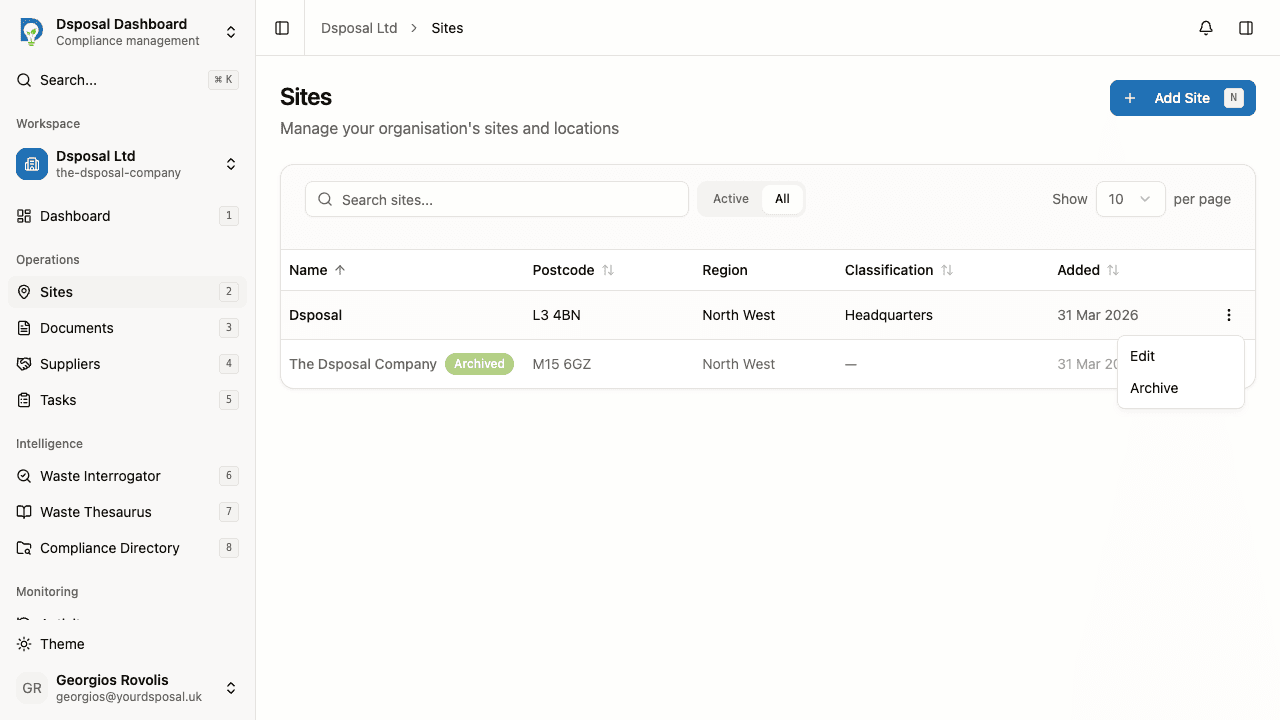
- Use the actions menu — click the three-dot menu icon on the right side of the row, then select Edit
Update the site details
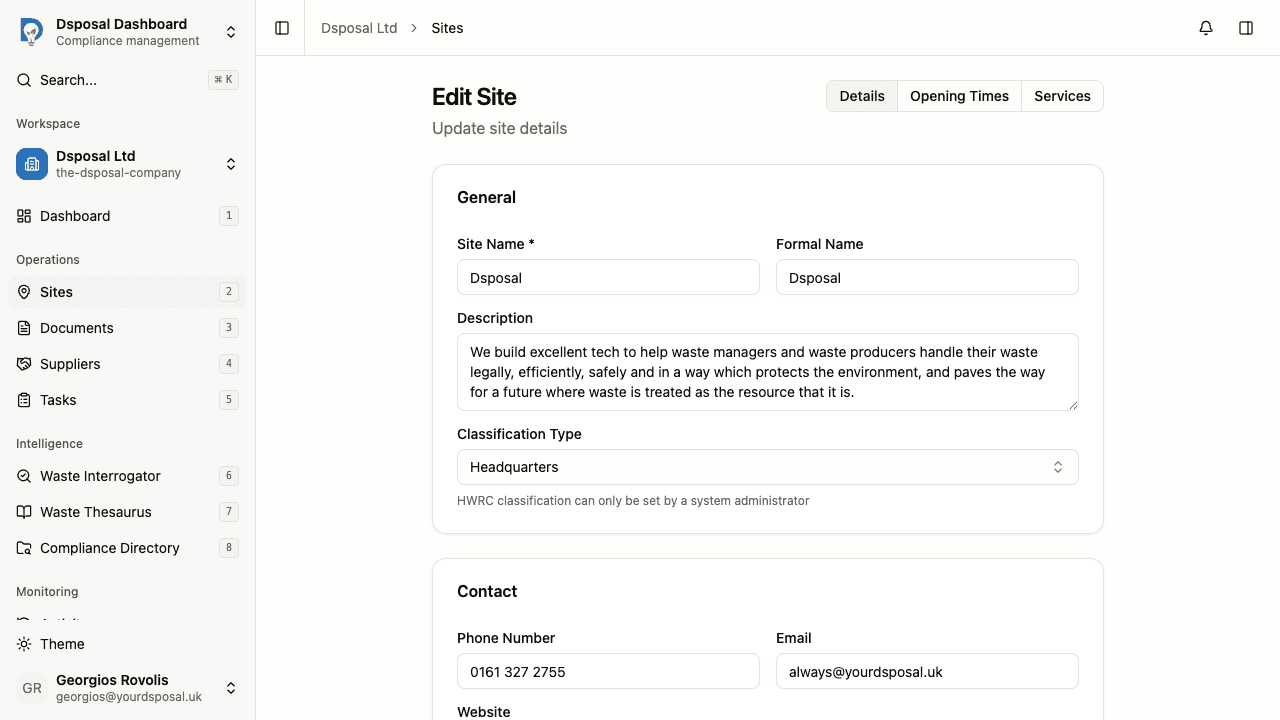
The edit form looks the same as the creation form, with all the existing details pre-filled. You can update any field across the General, Contact, and Address sections.
The edit form also shows navigation tabs at the top, giving you quick access to the site's Opening Times and Services (or Materials) pages.
Save your changes
Click Save Changes or press Cmd+S (or Ctrl+S on Windows) to save your updates. You'll be redirected to the Sites list.
Archiving and unarchiving sites
Archiving lets you hide sites that are no longer active without permanently deleting them. Archived sites can be restored at any time.
Archive a site
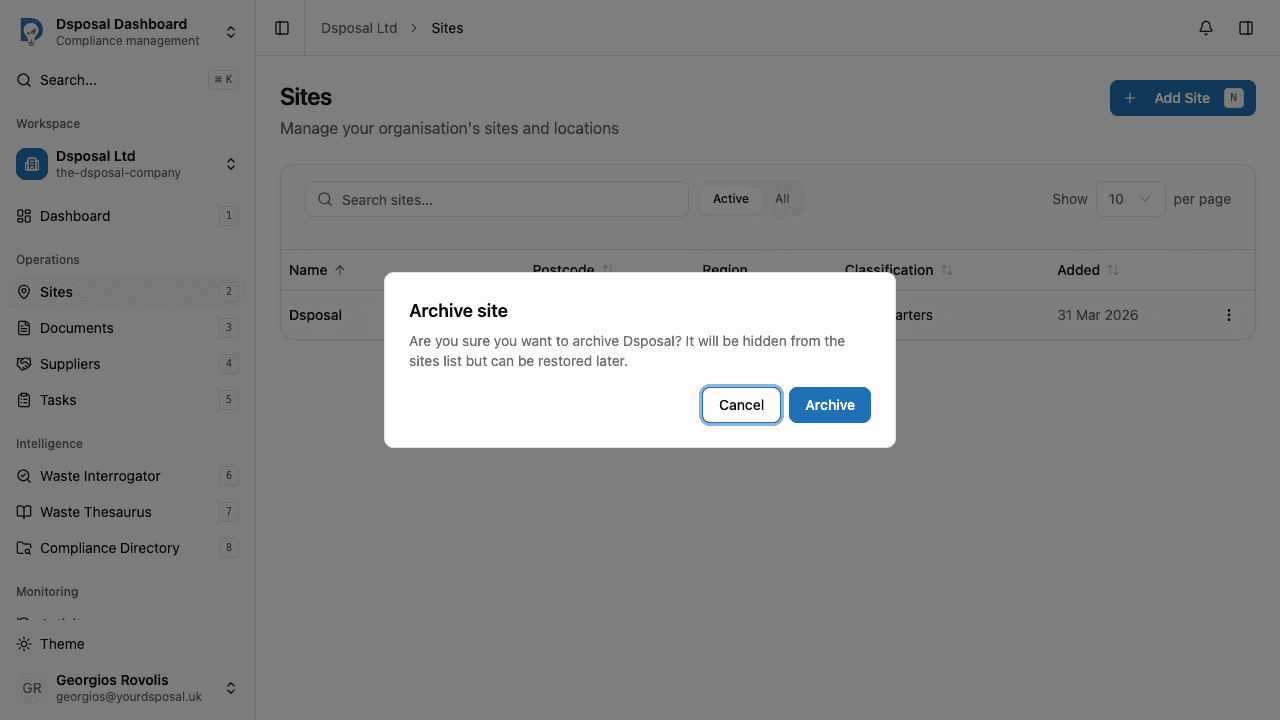
On the Sites page, click the actions menu (three-dot icon) on the site you want to archive, then select Archive. A confirmation dialog will appear asking you to confirm.
Click Archive to confirm. The site will be hidden from the default Active view.
View archived sites
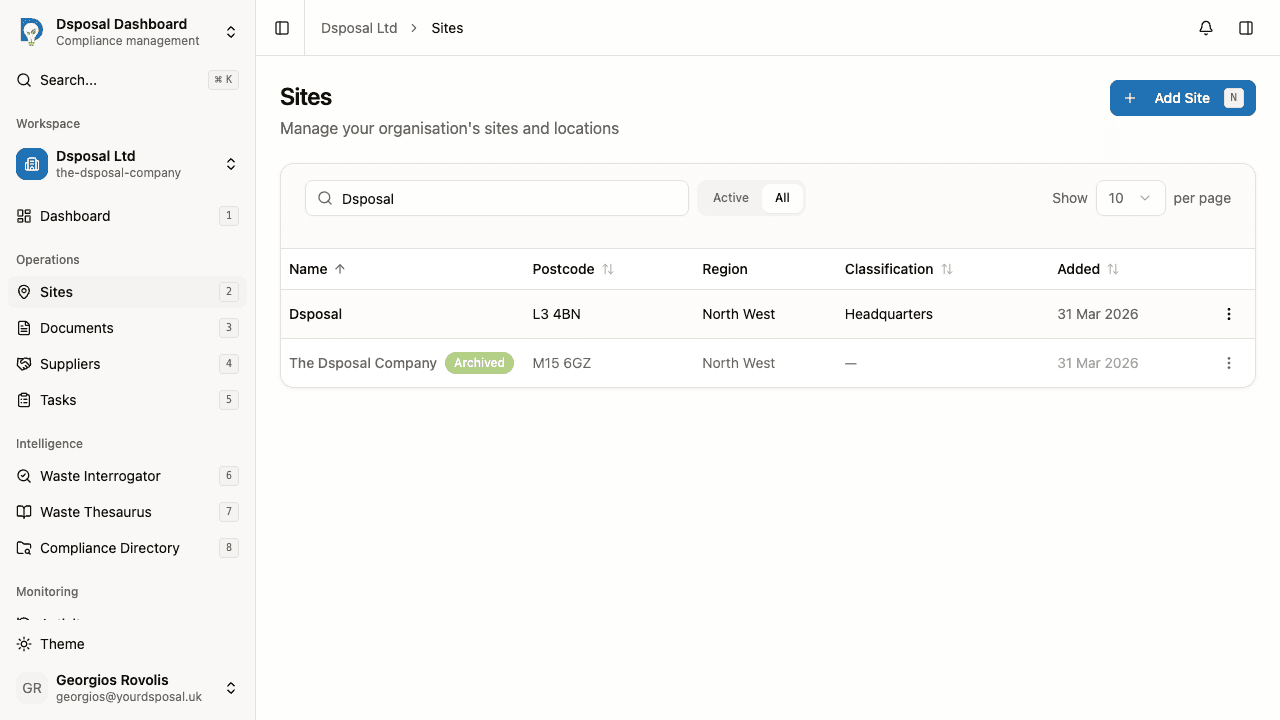
By default, the Sites page shows only Active sites. To see archived sites, click the All tab at the top of the table. Archived sites appear with an Archived badge next to their name and are slightly dimmed.
Unarchive a site
To restore an archived site, switch to the All tab, find the archived site, click its actions menu, and select Unarchive. The site will immediately return to the Active view.
Searching and sorting the sites list
Search by name or postcode
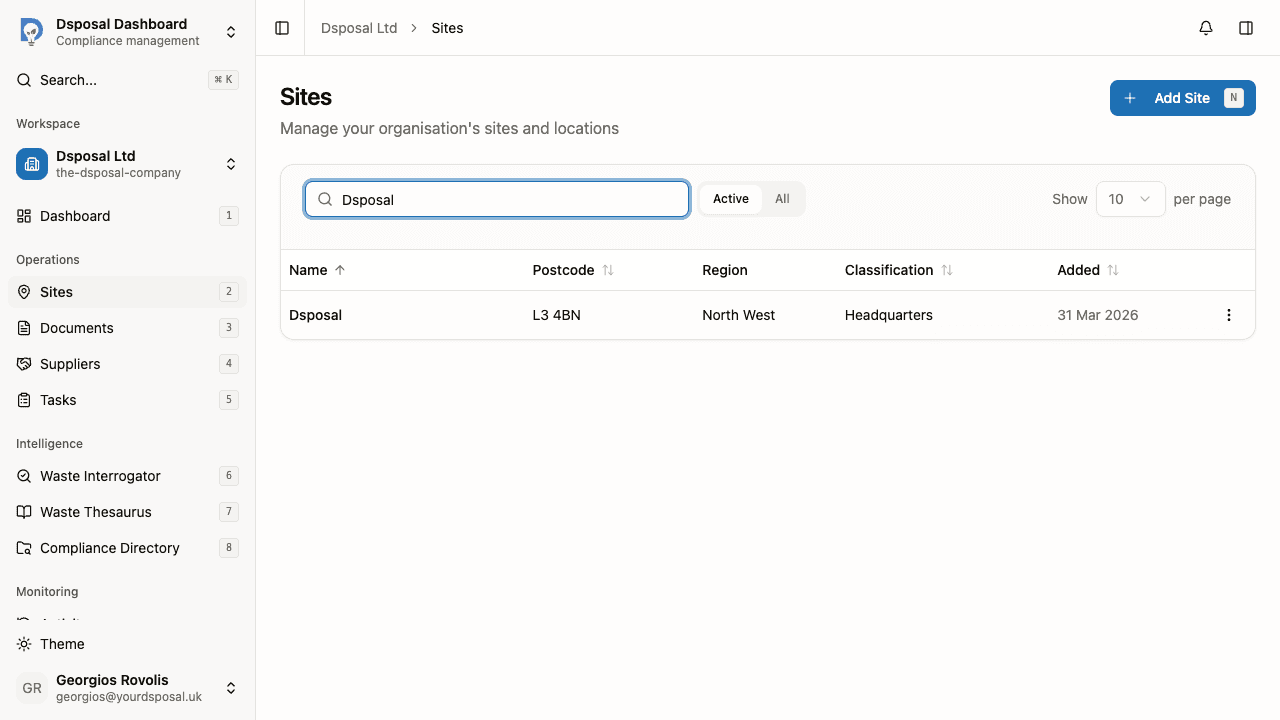
Use the search bar at the top of the Sites table to filter sites. Type a site name or postcode and the list will update as you type.
Sort by columns
Click any sortable column header — Name, Postcode, Classification, or Added — to sort the list. Click the same header again to reverse the sort direction.
Navigate between pages
If you have many sites, use the pagination controls at the bottom of the table. You can also change how many sites appear per page using the page size selector in the toolbar.
Keep moving
Next steps
Explore further