

Tags let you categorise tasks by topic, project, or priority area. Once created, tags can be applied to any task in your organisation and used to filter the task list.
What tags are for
Tags are organisation-wide labels that help you group related tasks together. For example, you might create tags like "Audit", "Renewal", "Health & Safety", or "Training" to categorise different types of compliance work.
Unlike statuses and priorities, tags are fully customisable — you choose the names and colours that make sense for your organisation.
Creating a tag
Navigate to Task Tags
In the Dashboard, open the Organisation section in the sidebar and click Task Tags. You will see a table of existing tags, or an empty state if none have been created yet.
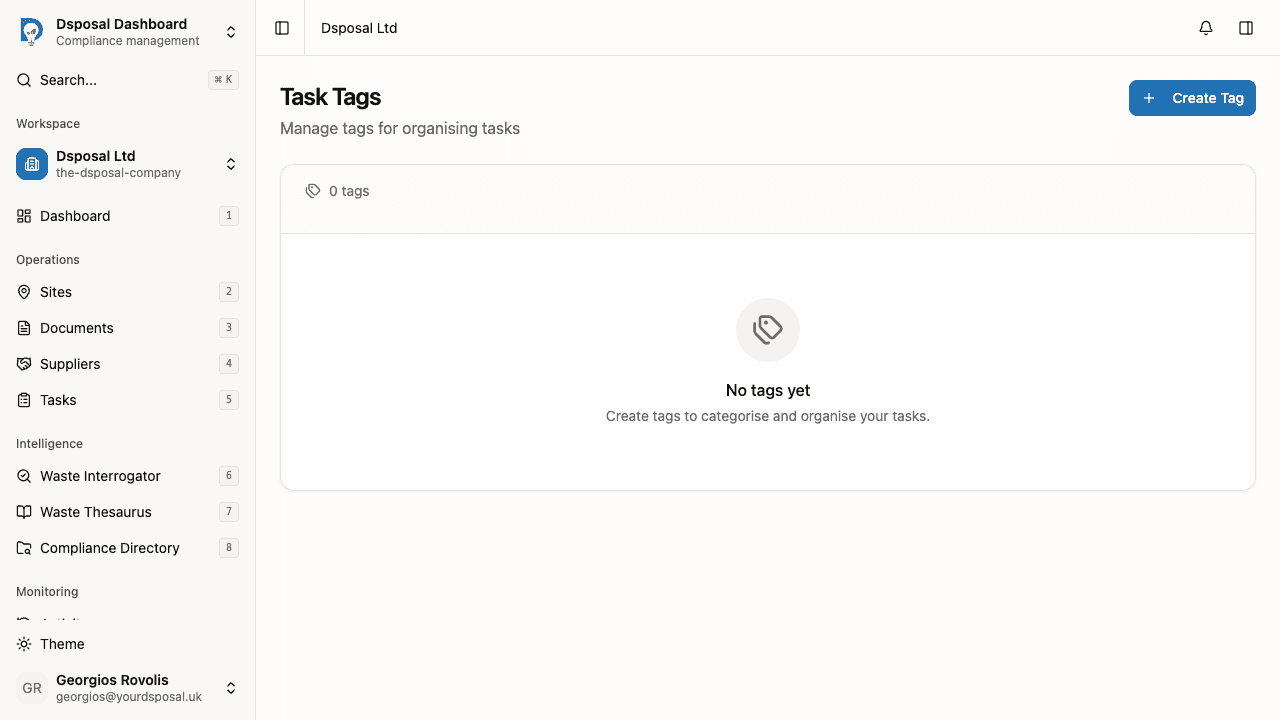
Click Create Tag
Click the Create Tag button in the top right corner. A dialog will open.
Enter a name
Type a name for your tag in the Name field. Choose something short and descriptive (e.g. "Urgent", "Review", "Follow-up").
Choose a colour
Select a colour from the colour picker. Each colour is shown as a circle — click one to select it. A ring appears around the selected colour.
As you type a name and select a colour, a live preview of the tag badge appears below so you can see exactly how it will look.
Save the tag
Click Create to save your new tag. It will appear immediately in the tags table.
Editing a tag
To update a tag's name or colour, click the pencil icon button on the tag's row in the table. The edit dialog opens with the current name and colour pre-filled. Make your changes and click Save.
Deleting a tag
To delete a tag, click the bin icon button on the tag's row. A confirmation dialog will appear warning you that deleting the tag will remove it from all tasks.
Using tags on tasks
Adding tags when creating a task
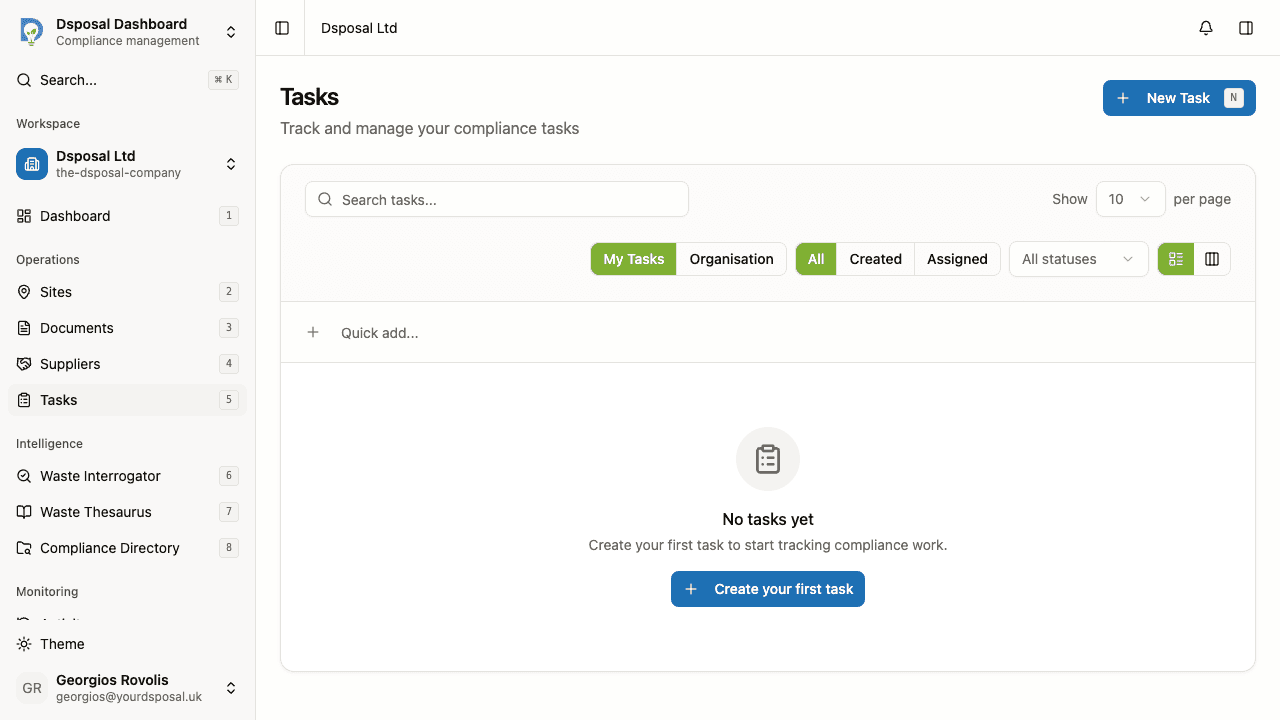
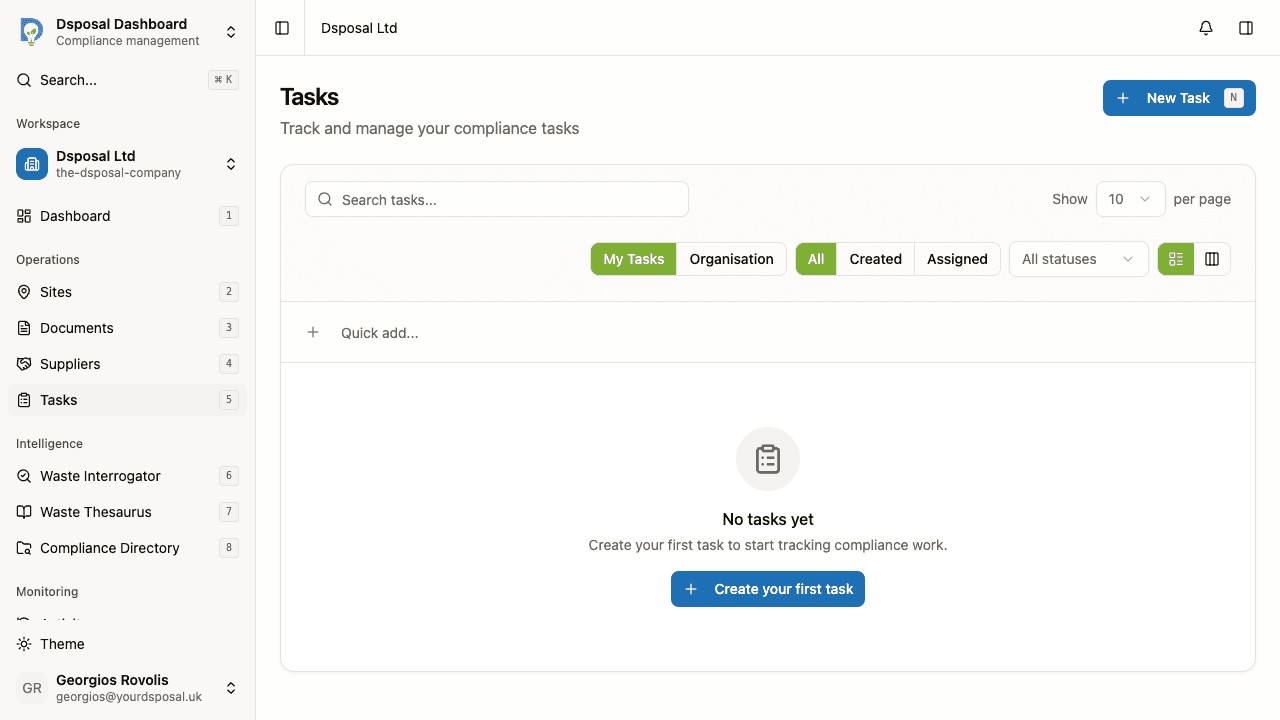
When creating or editing a task, use the Tags picker to select one or more tags. Tags appear as coloured badges on the task in both the table view and the kanban board.
Filtering tasks by tag
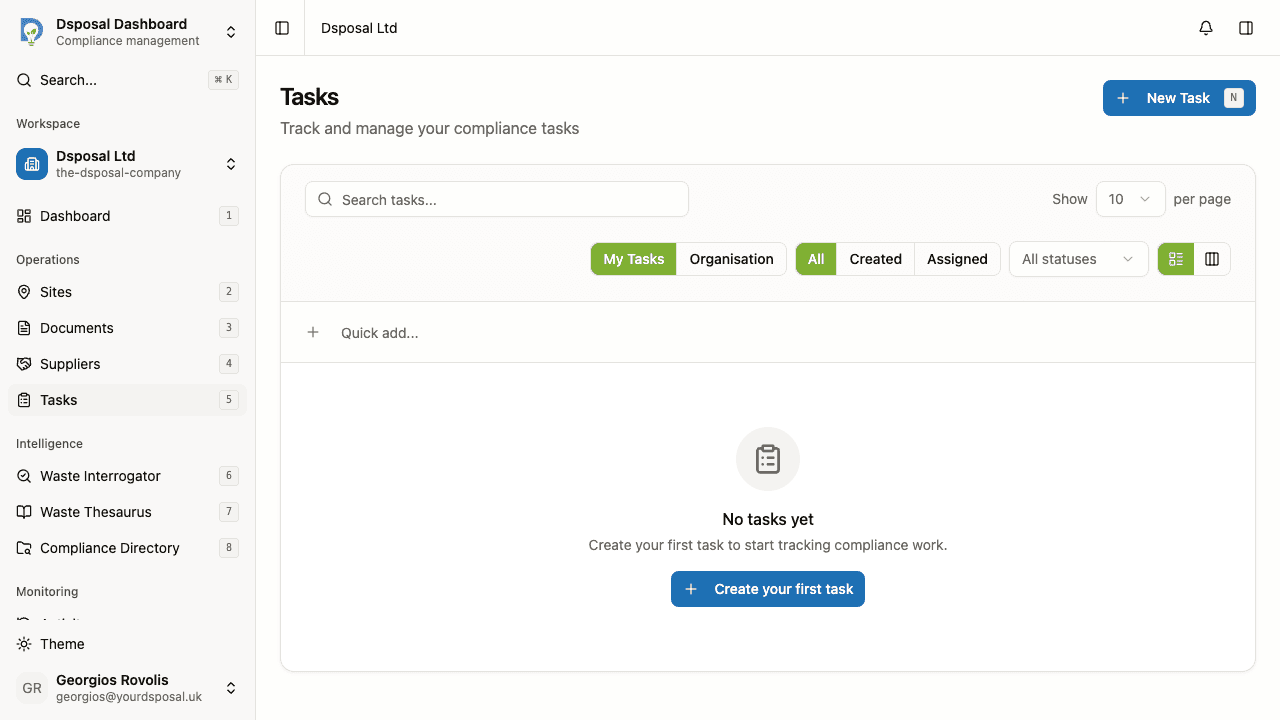
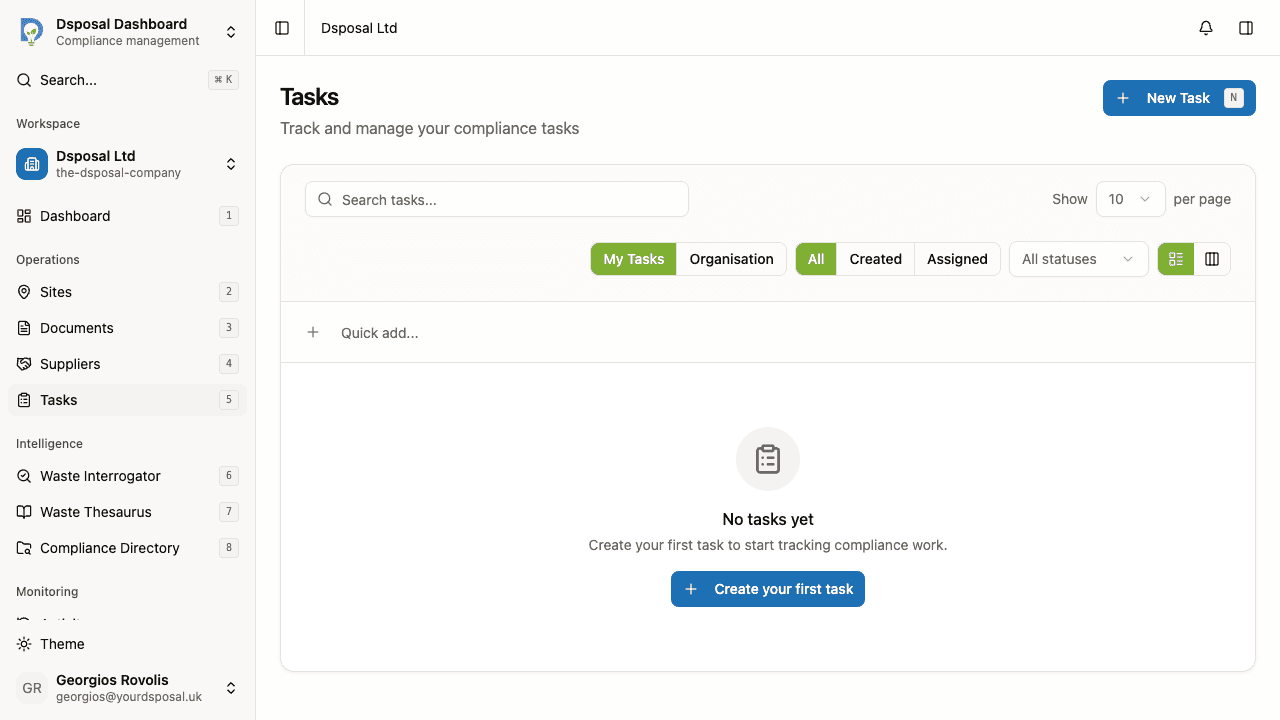
On the Tasks page, click the Tags filter button in the toolbar. A dropdown appears listing all available tags with checkboxes. Select one or more tags to filter the task list to only show tasks with those tags applied.
The button label updates to show how many tags are selected (e.g. "Tags (2)").
Best practices
- Keep tag names consistent — agree on naming conventions with your team (e.g. always use singular nouns like "Audit" rather than "Audits")
- Limit the number of tags — too many tags become hard to manage and less useful for filtering. Aim for 5-15 tags that cover your main work categories
- Review tags periodically — remove tags that are no longer relevant and merge duplicates
What to do next
- Create and manage tasks to start using your tags
- Try the kanban board to see tagged tasks on a visual board
Keep moving
Next steps
Explore further