

Dsposal offers several subscription tiers to match your organisation's needs. The Billing page in the Account app lets you view your current plan, compare available plans, upgrade, and manage your payment methods. Only Owners can access the Billing page.
Viewing your current plan
Navigate to Billing in the sidebar
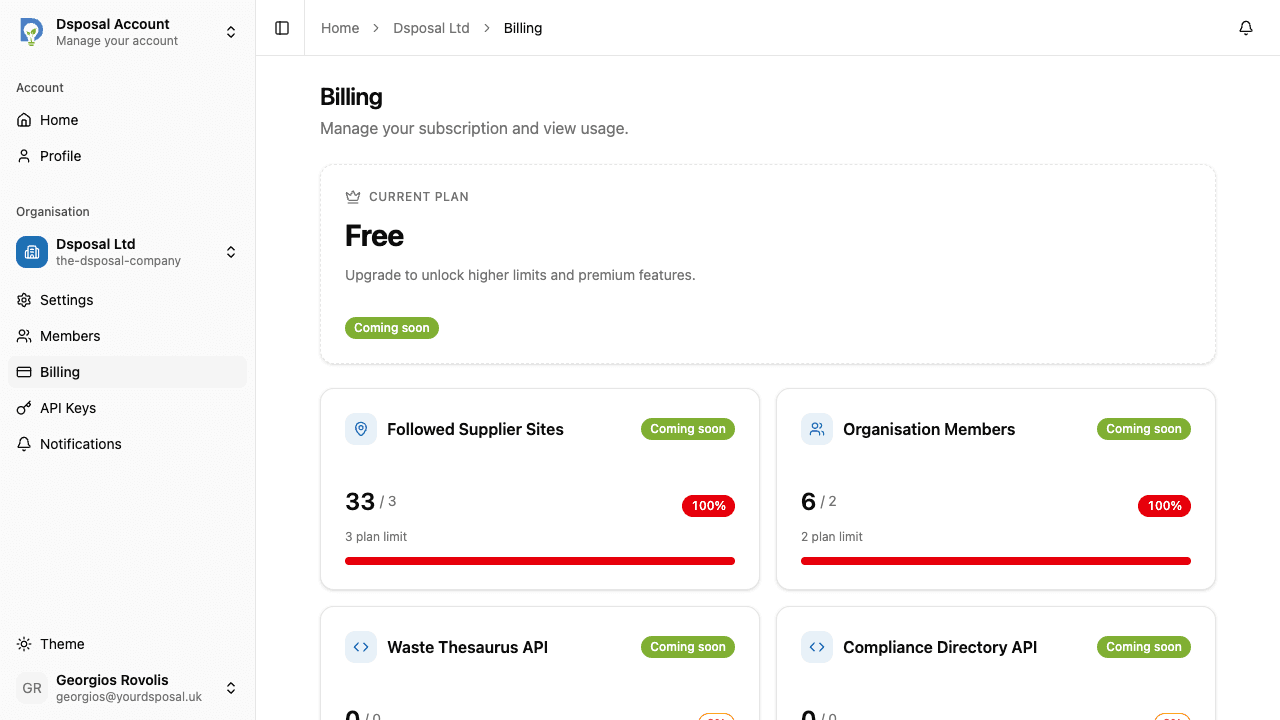
In the Account app, select your organisation and click Billing in the sidebar.
Review your current plan details
The current plan card shows:
- Plan name and price
- Billing period (monthly or annual)
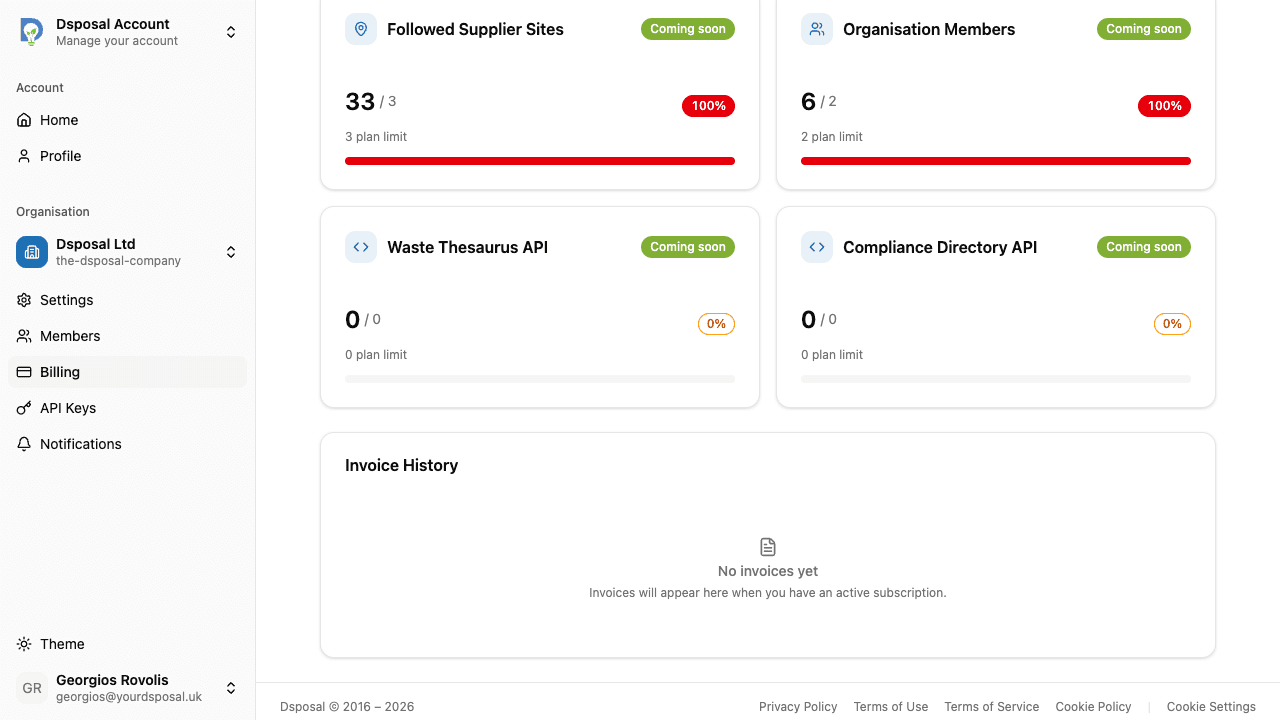
- Feature limits -- how much of each feature you're using, such as followed supplier sites, organisation members, and API access
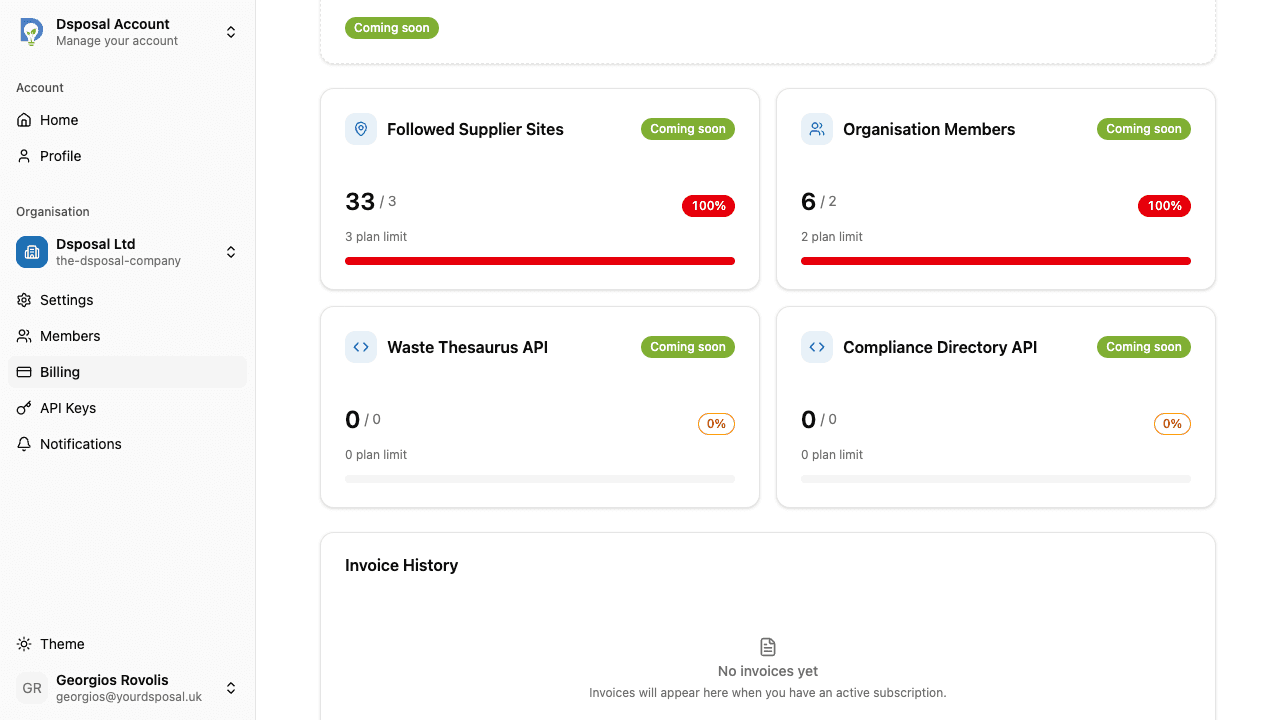
Check your feature limits
Each feature shows your current usage against the plan limit. This helps you understand whether you need to upgrade or purchase add-ons.
Available plans
Below your current plan, you'll see cards for each available plan tier, showing their features and pricing. Each plan card lists what's included, such as:
- Number of followed supplier sites
- Number of organisation members
- API access availability
Upgrading your plan
Click Upgrade on the desired plan
Find the plan you want to switch to and click its Upgrade button. A dialog will appear showing the cost details.
Review proration and costs
The upgrade dialog shows:
- The plan you're upgrading to
- The prorated cost (adjusted for any remaining time on your current billing period)
- The total amount to be charged
Confirm the upgrade
Click Confirm to process the upgrade. Your plan will be updated immediately and you'll see the new limits take effect right away.
Managing payment methods
Click Manage Payment Method on the Billing page to be redirected to the Stripe customer portal. From there, you can update your card details, change your billing address, and manage your payment method securely.
Viewing invoice history
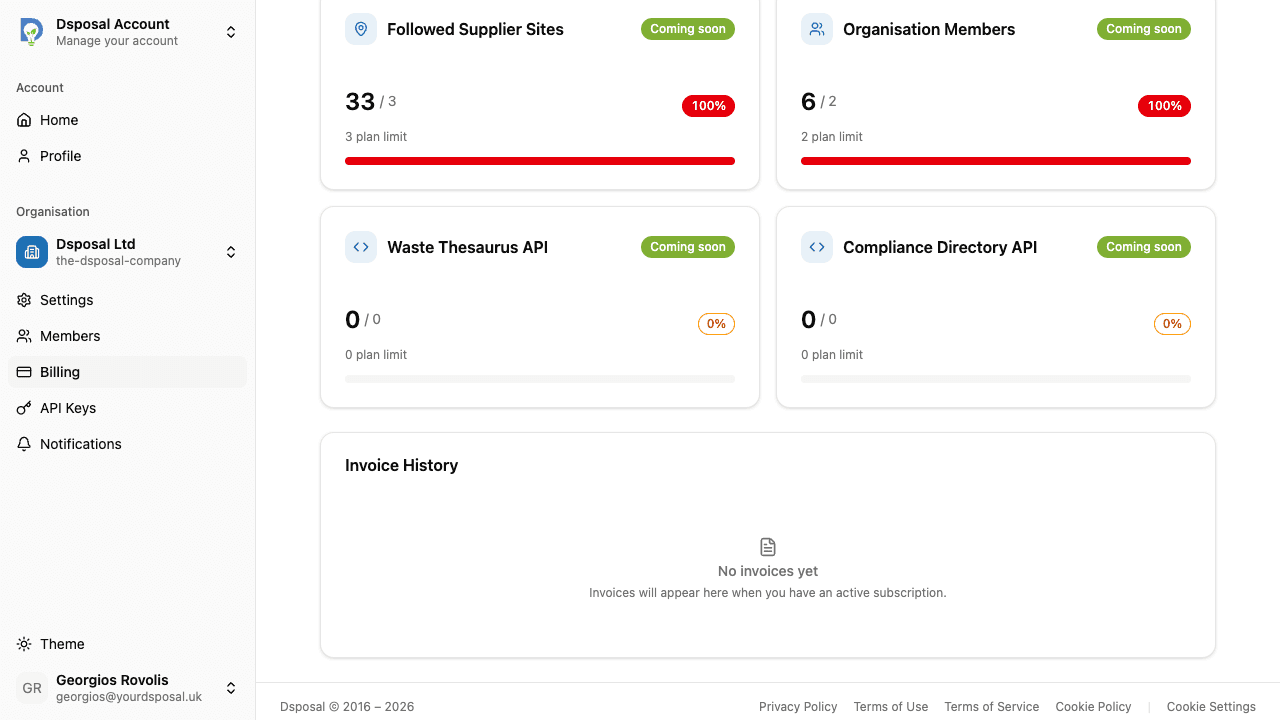
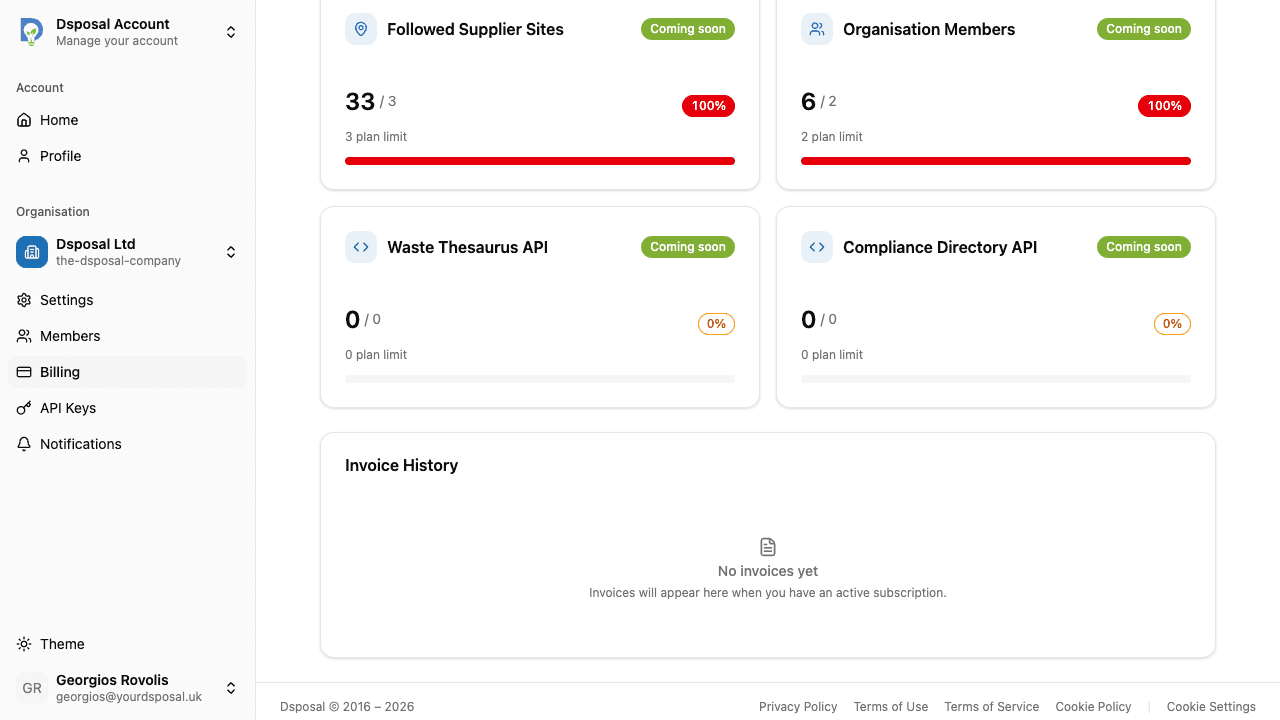
The Invoice History section at the bottom of the Billing page shows a list of your past invoices. Each invoice includes the date, amount, and status. You can click to download individual invoices as PDFs for your records.
Cancelling pending changes
If you've recently made a billing change that hasn't taken effect yet, you may see a pending change banner. Click Cancel to revert the pending change and keep your current plan.
Keep moving
Next steps
Explore further