

Once your organisation is set up in Dsposal, you can invite colleagues to join and collaborate. This guide covers sending invitations, choosing membership types, and managing your team.
Sending an invitation
Go to the Members page
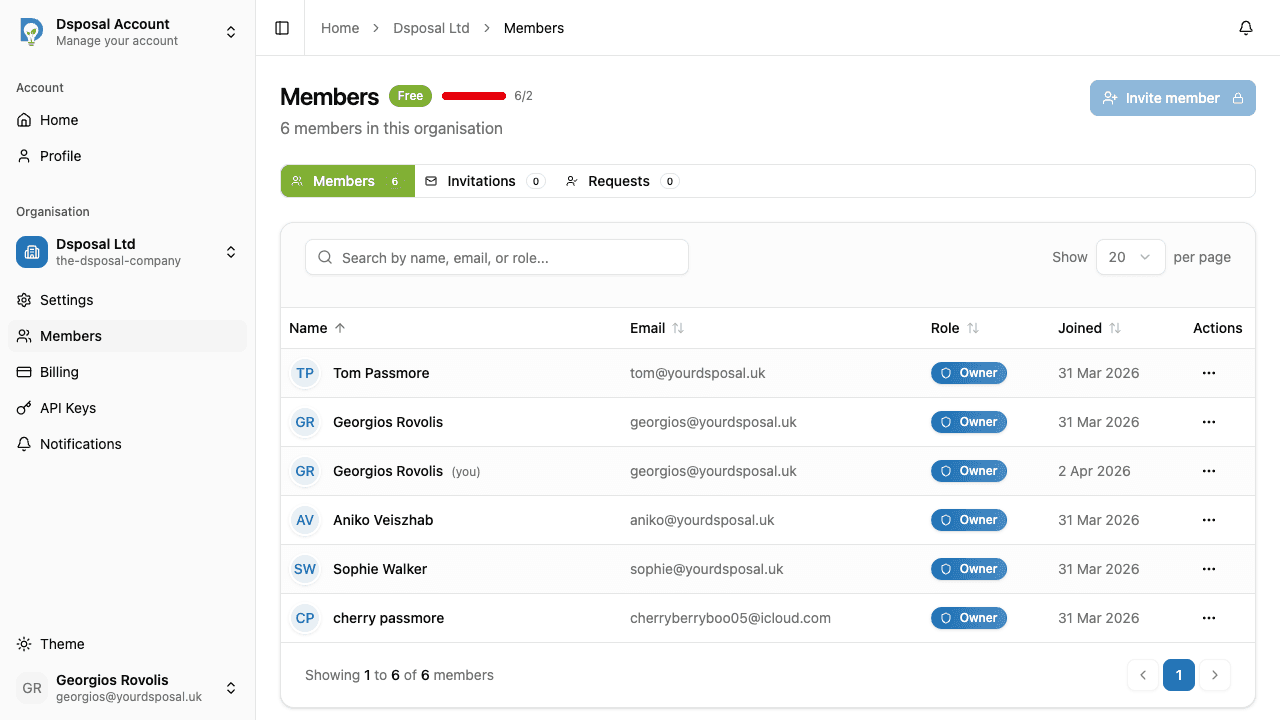
From the Account app, navigate to your organisation and click Members in the sidebar. You'll see a list of current members and any pending invitations.
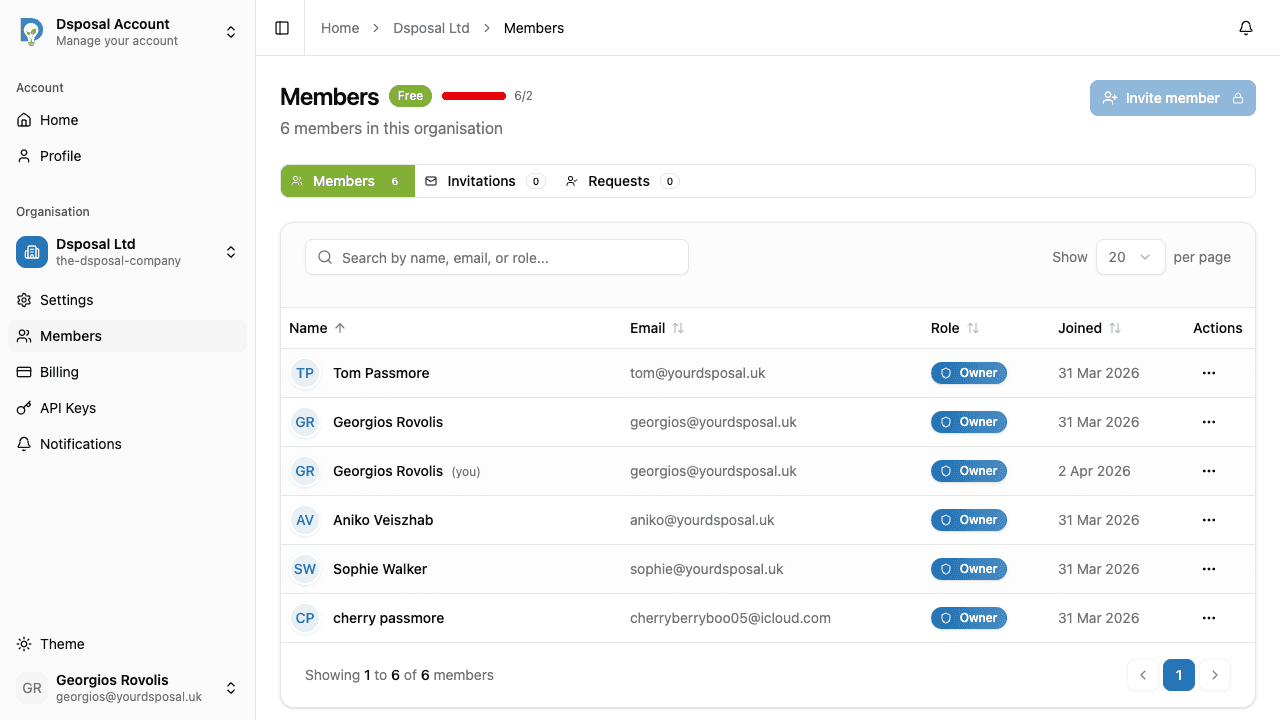
Open the invite modal
Click the Invite member button to open the invitation form.
Enter their email and choose a membership type
Fill in your colleague's Email address and select their membership type:
- Member -- standard access to the organisation. Can view and use organisation resources but cannot manage members or settings.
- Owner -- full control over the organisation. Can manage members, change settings, and promote or demote other members.
Each option is displayed as a card with a clear description to help you choose.
Send the invitation
Click Send invitation to dispatch the invite. Your colleague will receive an email with a link to join.
How invitations work for recipients
When someone receives an invitation, what happens next depends on whether they already have a Dsposal account.
If they already have a Dsposal account
They'll see a Pending Invitations banner when they sign in to Account. The banner shows the organisation name, who invited them, their invited role, and an expiry countdown. They can click Accept to join immediately or Decline to reject.
If they're new to Dsposal
The email contains a sign-up link that pre-fills their email address and streamlines the registration process. Their email is verified automatically through the invitation ticket, so there's no separate OTP step. After completing sign-up, the invitation is accepted automatically.
Managing your team
From the Members page, you can use the actions menu (three-dot icon) on any member or pending invitation to:
- Resend invitation -- re-send the email for pending invites
- Revoke invitation -- cancel a pending invite before it's accepted
- Change membership -- switch between Owner and Member roles
- Remove member -- remove someone from the organisation entirely
Keep moving
Next steps
Explore further