

Following a supplier in Dsposal lets you track their compliance documents, sites, and overall status. This is essential for meeting your duty of care obligations as a waste producer.
What following a supplier means
When you follow a supplier organisation, Dsposal automatically tracks their:
- Sites — all registered waste management sites they operate
- Documents — certificates, insurance policies, and registrations
- Compliance status — whether their documents are valid, expiring soon, or expired
You receive notifications when a followed supplier's documents change status, helping you stay on top of your supply chain compliance.
Following a supplier
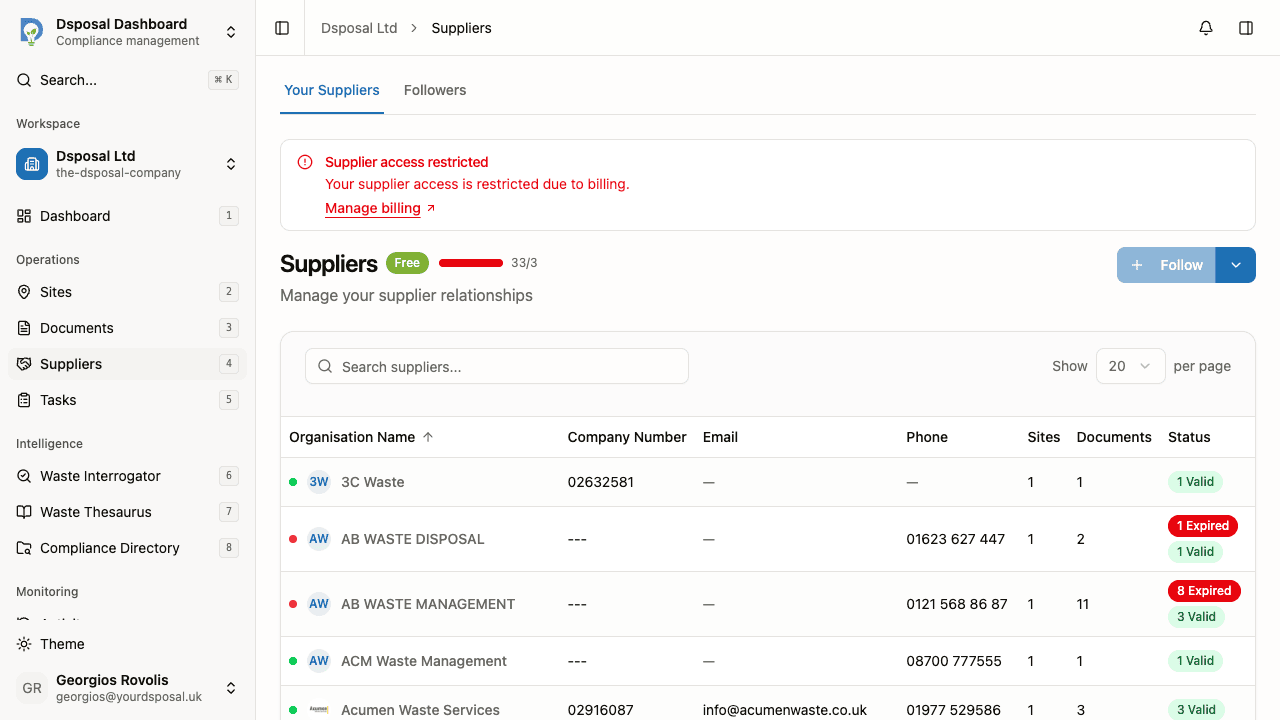
Navigate to Suppliers
In the Dashboard, click Suppliers in the sidebar. You will see the suppliers list with any organisations you are already following.
Click Follow
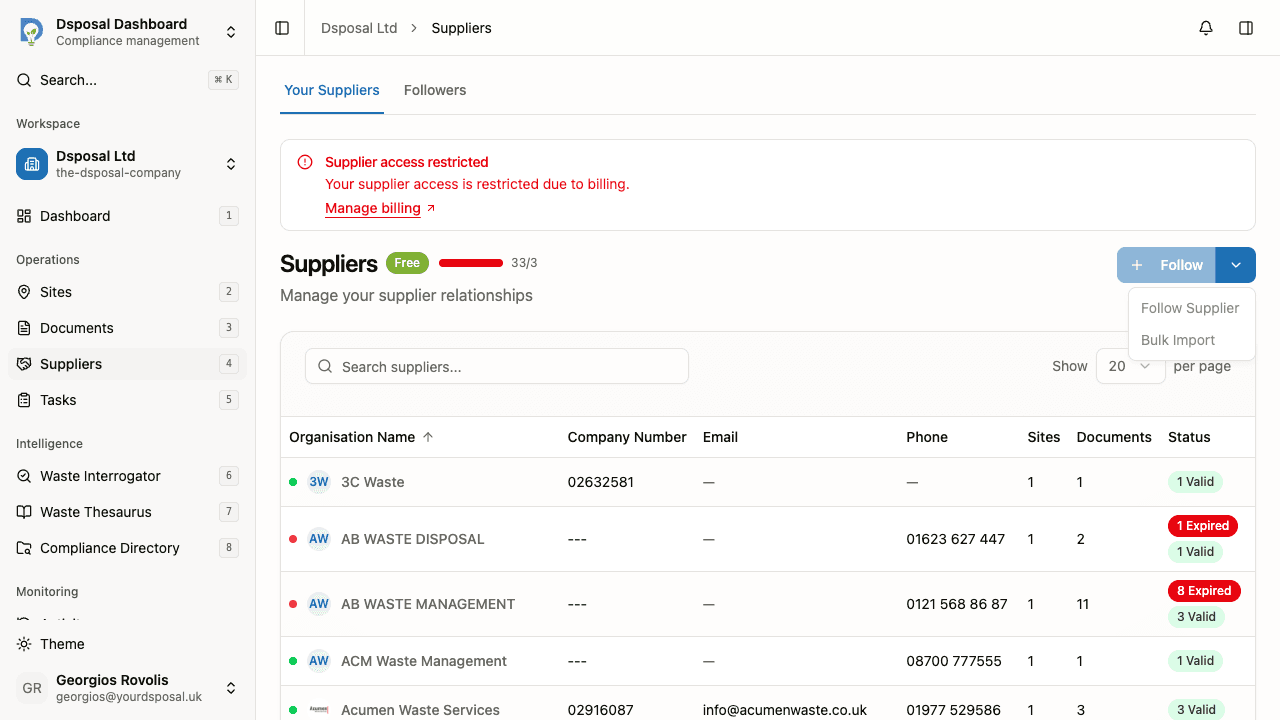
Click the Follow button in the top right corner. A sheet slides open on the right side of the screen.
Search for the organisation
Type the supplier's name in the search field. Results appear as you type. The search looks across all organisations registered in Dsposal.
Select and follow
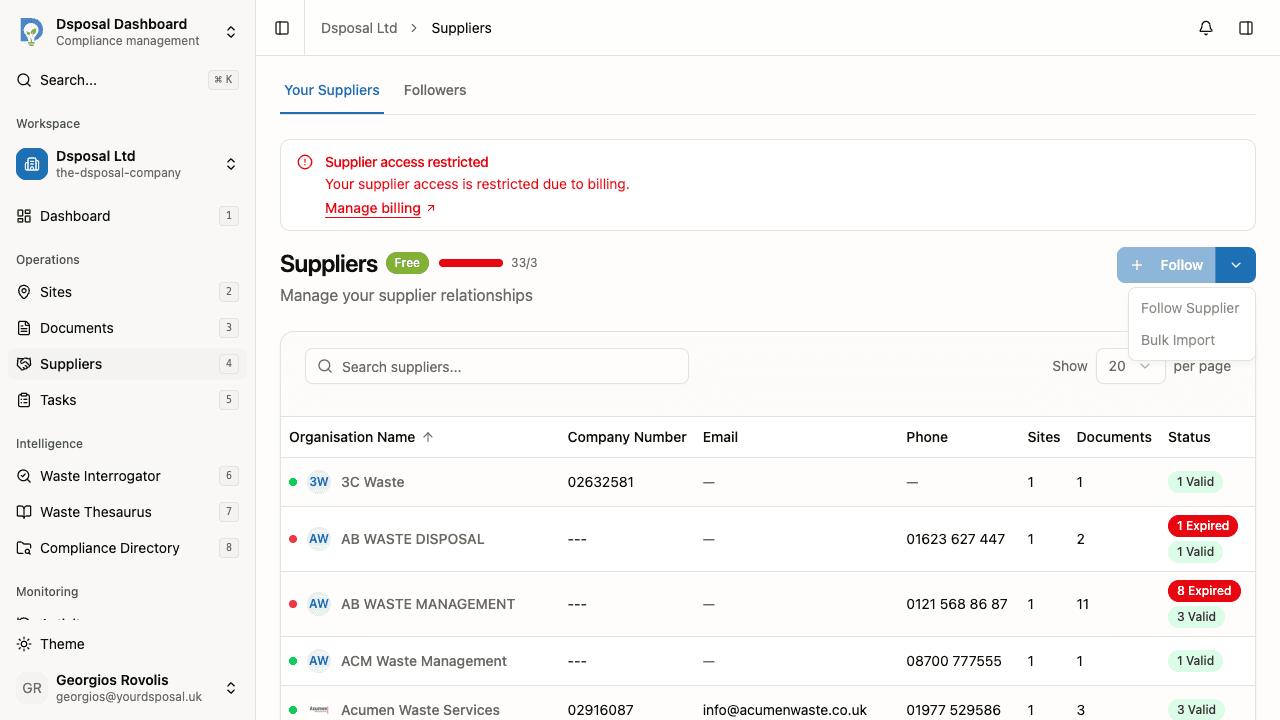
Click on the organisation you want to follow. Their sites will be added to your supplier tracking automatically.
Managing your supplier list
Searching suppliers
Use the search field at the top of the supplier table to filter by organisation name. Results update as you type.
Sorting
Click the Organisation Name column header to sort alphabetically. Click again to reverse the sort direction.
Reading compliance status
Each supplier row shows compliance information at a glance:
- Compliance indicator — a coloured dot next to the supplier name shows their overall compliance health
- Status badges in the Status column break down documents by state:
- Valid (green) — documents that are current and up to date
- Expiring Soon (amber) — documents approaching their expiry date
- Expired (red) — documents that have passed their expiry date
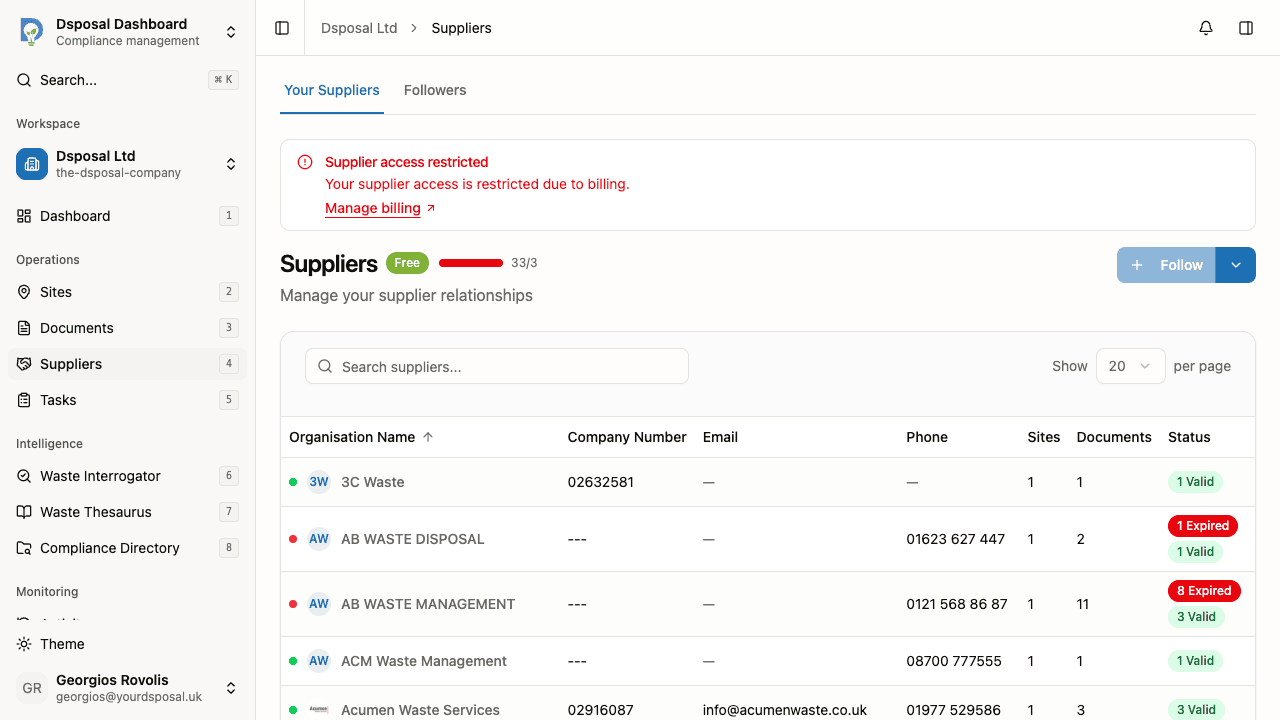
The table also shows the number of Sites and Documents for each supplier, along with their contact details (company number, email, phone).
Unfollowing a supplier
To stop tracking a supplier, click the three-dot actions button on their row and select Unfollow. A confirmation dialog will ask you to confirm.
Plan limits and billing
The number of supplier sites you can follow depends on your subscription tier. A usage indicator next to the page title shows your current usage and limit (e.g. "12/25").
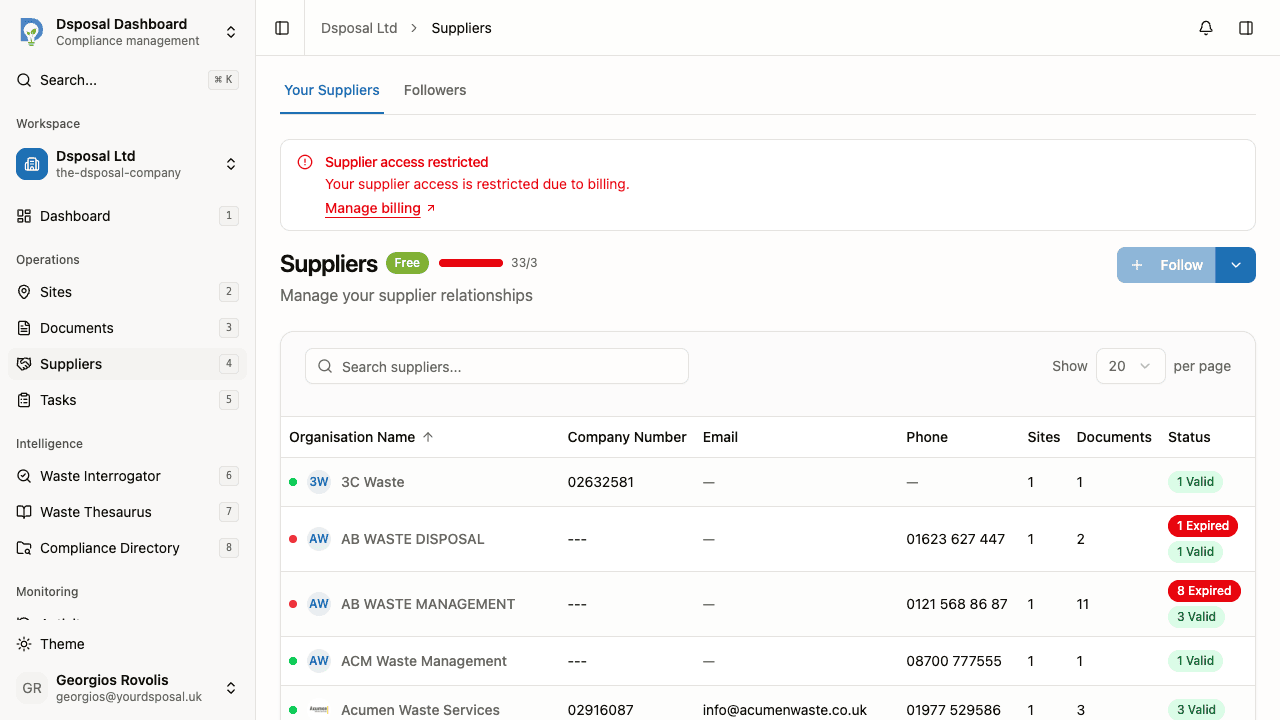
If you reach your limit:
- The Follow button becomes disabled
- A banner appears suggesting you upgrade your plan
- Existing followed suppliers continue to be tracked
What to do next
- View supplier details to explore a supplier's sites and documents
- Track your followers to see who is following your organisation
Keep moving
Next steps
Explore further