

The Members page in the Dashboard gives you a complete view of everyone in your organisation. From here you can search for specific people, see which roles they hold, and update their role assignments.
Viewing your team
Navigate to Members
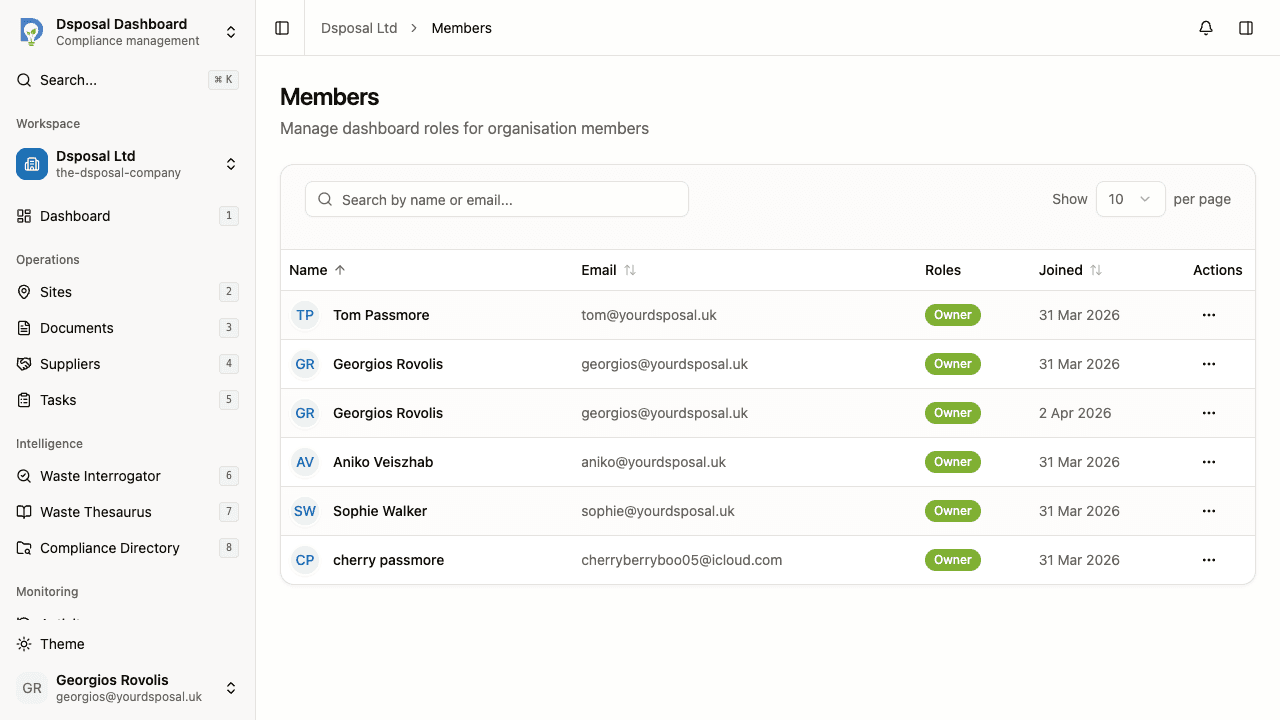
In the Dashboard, open the Organisation section in the sidebar and click Members. You will see a table listing every member of your organisation.
Each row shows the member's name, email address, their assigned roles (displayed as badges), and the date they joined.
Search for a member
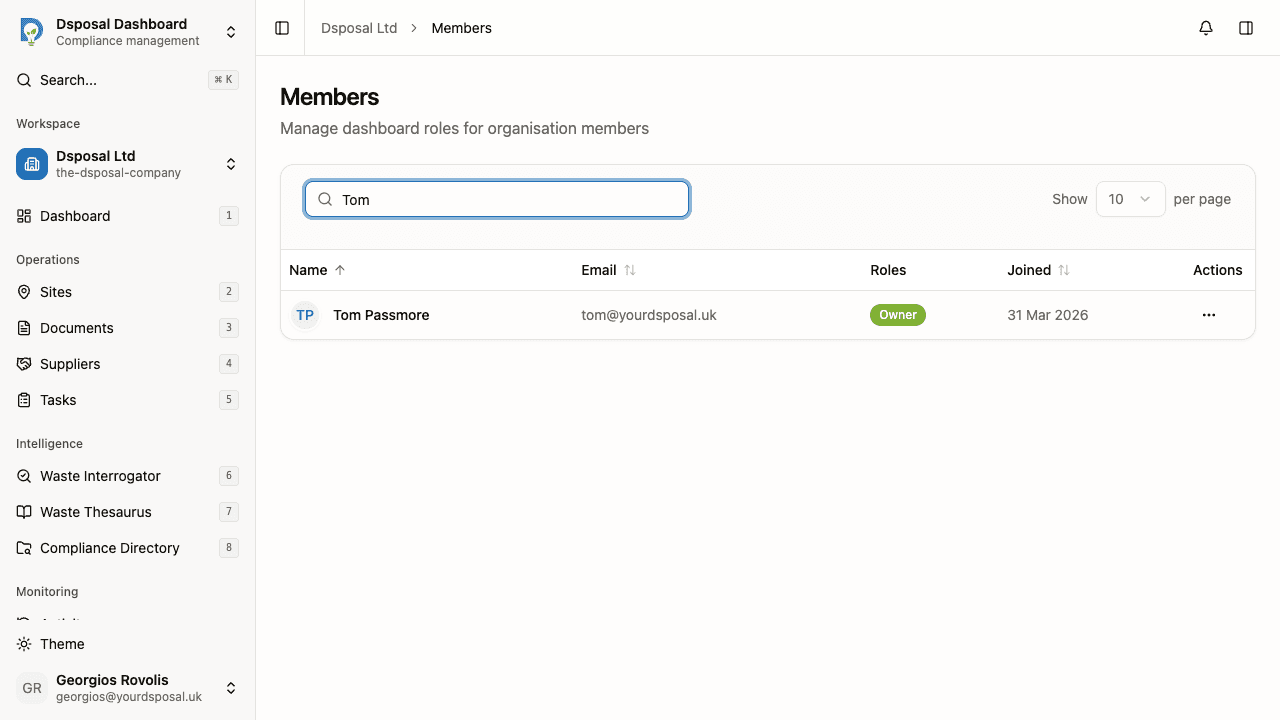
Use the search field at the top of the table to find a specific person. You can search by name or email address. Results update as you type.
Sort and paginate
Click any column header (Name, Email, or Joined) to sort the table. Click the same header again to reverse the sort direction.
If your organisation has more than one page of members, use the pagination controls at the bottom of the table to navigate between pages. You can also change how many rows appear per page.
Changing a member's roles
Open the actions menu
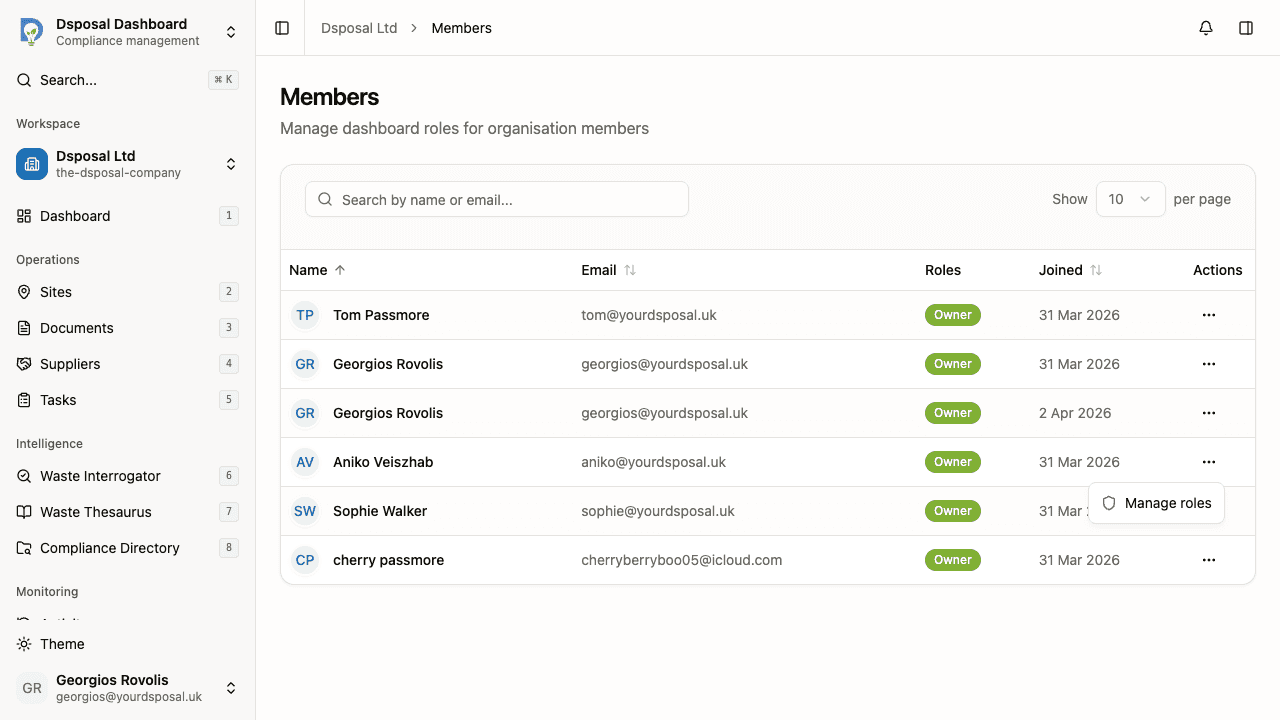
Find the member whose roles you want to update and click the three-dot actions button on the right side of their row.
Select Manage roles
Click Manage roles from the dropdown menu. A sheet slides open on the right side of the screen showing the member's name and email, along with a list of all available roles.
Assign or remove roles
Check the box next to each role you want to assign. Uncheck any roles you want to remove. Changes are saved automatically as you toggle each checkbox.
Understanding role badges
Each member's row displays badges for every role they currently hold. If a member has no roles assigned, you will see a "No roles" label instead.
- Filled badges indicate system roles (e.g. Admin, Viewer)
- Outlined badges indicate custom roles created by your organisation
What to do next
- Create and manage roles to define what each team member can access
- Learn about assigning roles for best practices on role assignment
- Invite new team members to grow your organisation
Keep moving
Next steps
Explore further