

Tasks help you track compliance work across your organisation. You can create tasks quickly from the task list, or use the full creation sheet for detailed tasks with descriptions, priorities, assignees, and due dates.
Creating a task
Quick create
The fastest way to add a task is using the quick create input at the top of the task list.
Type a title
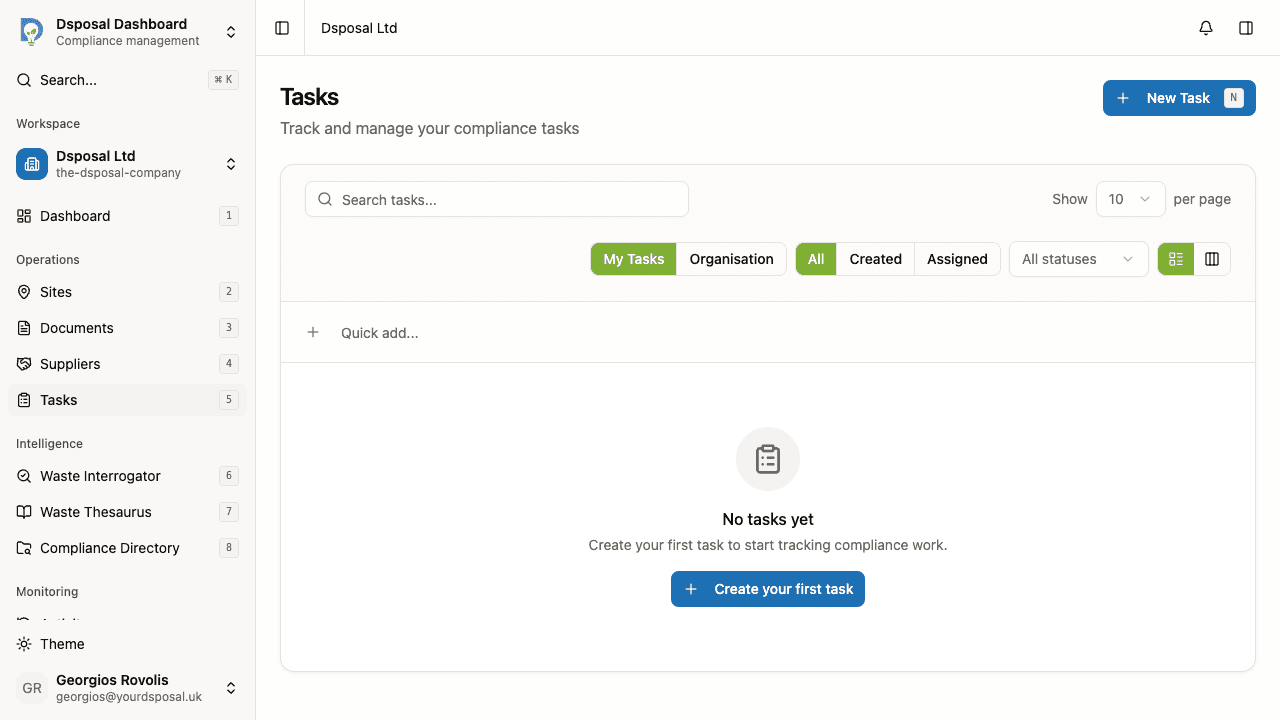
At the top of the task list, you will see a text input with a + icon and "Quick add..." placeholder text. Type your task title and press Enter to create it instantly.
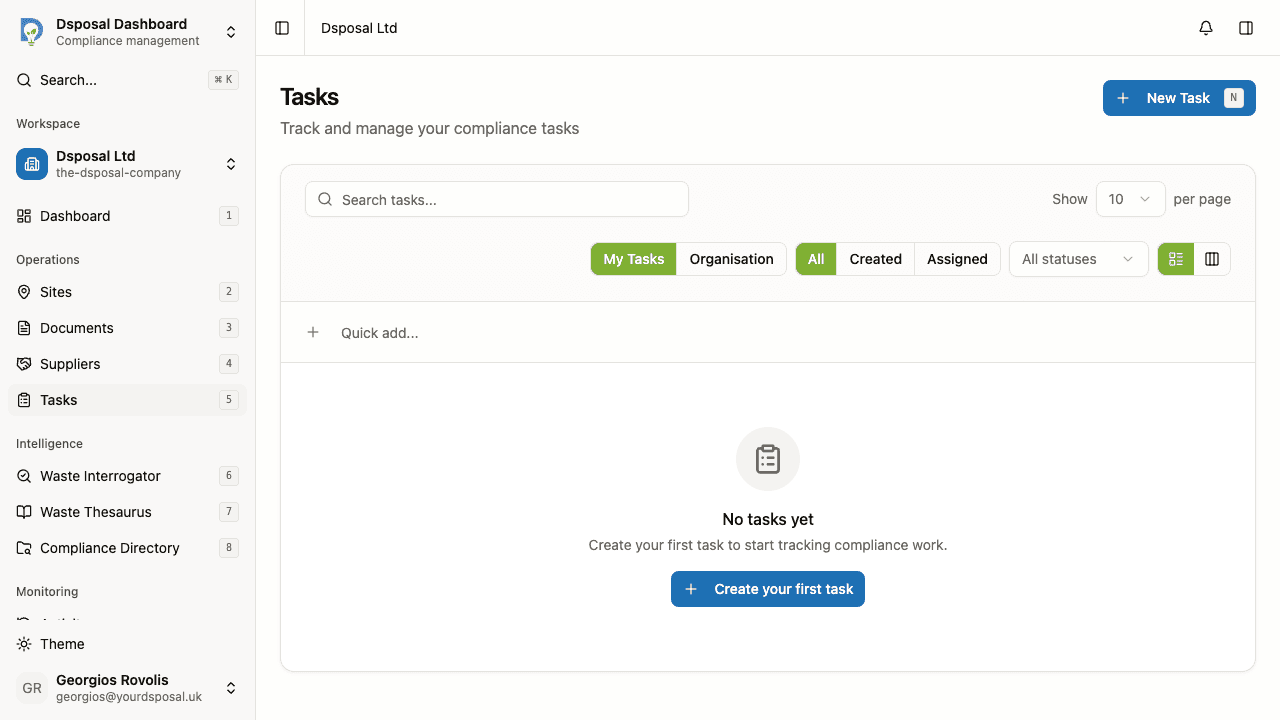
The task is created with a default status of To Do and Medium priority. You can edit these details later.
Use More options for additional detail
After typing a title, a More options link appears next to the input. Click it to open the full task creation sheet with your title pre-filled.
Full create
For tasks that need more detail, use the full creation sheet.
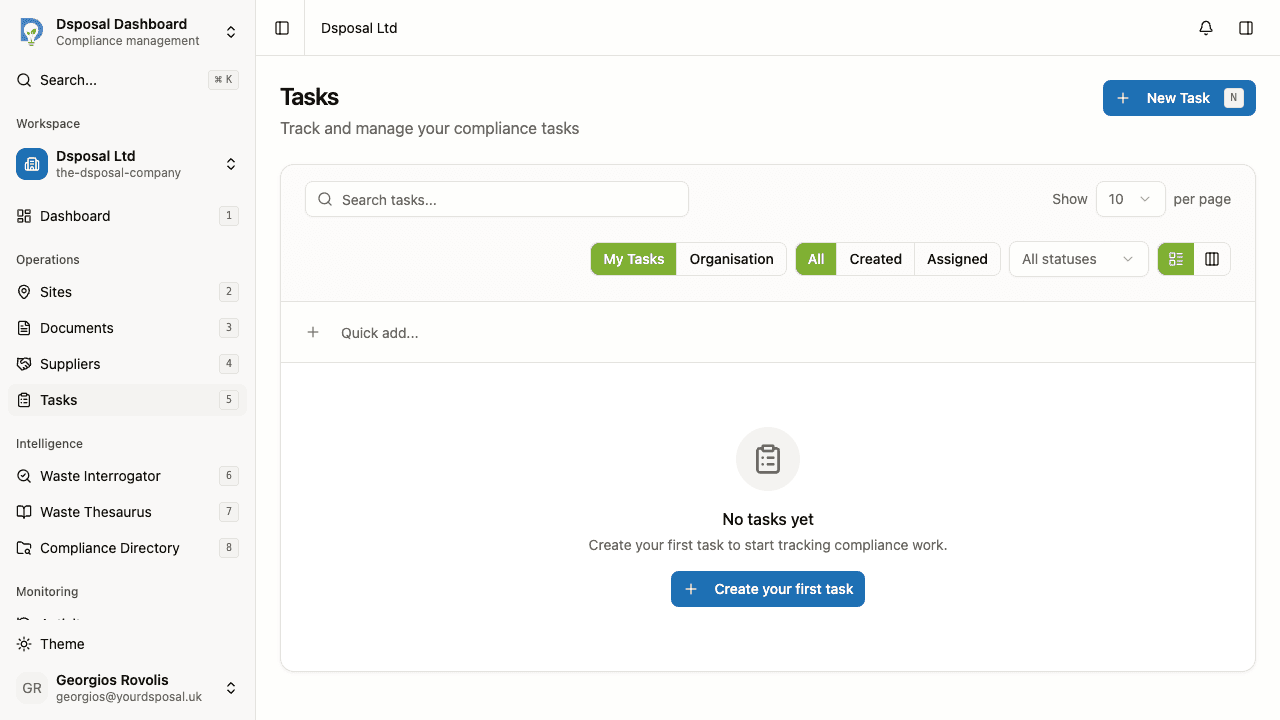
Click New Task
Click the New Task button in the top right corner of the Tasks page. You can also press the N keyboard shortcut to open the creation sheet.
Fill in the task details
The creation sheet includes the following fields:
- Title (required) — a short, clear description of what needs to be done
- Description — a rich text editor for detailed notes, instructions, or context
- Priority — choose from Urgent, High, Medium, or Low
- Status — defaults to To Do; can also be set to In Progress
- Assignee — search for and select a team member to assign the task to
- Due date — pick a date by when the task should be completed
- Tags — add one or more tags to categorise the task
- Linked entity — optionally link the task to a Site, Certificate, Insurance, Registration, or Supplier
Save the task
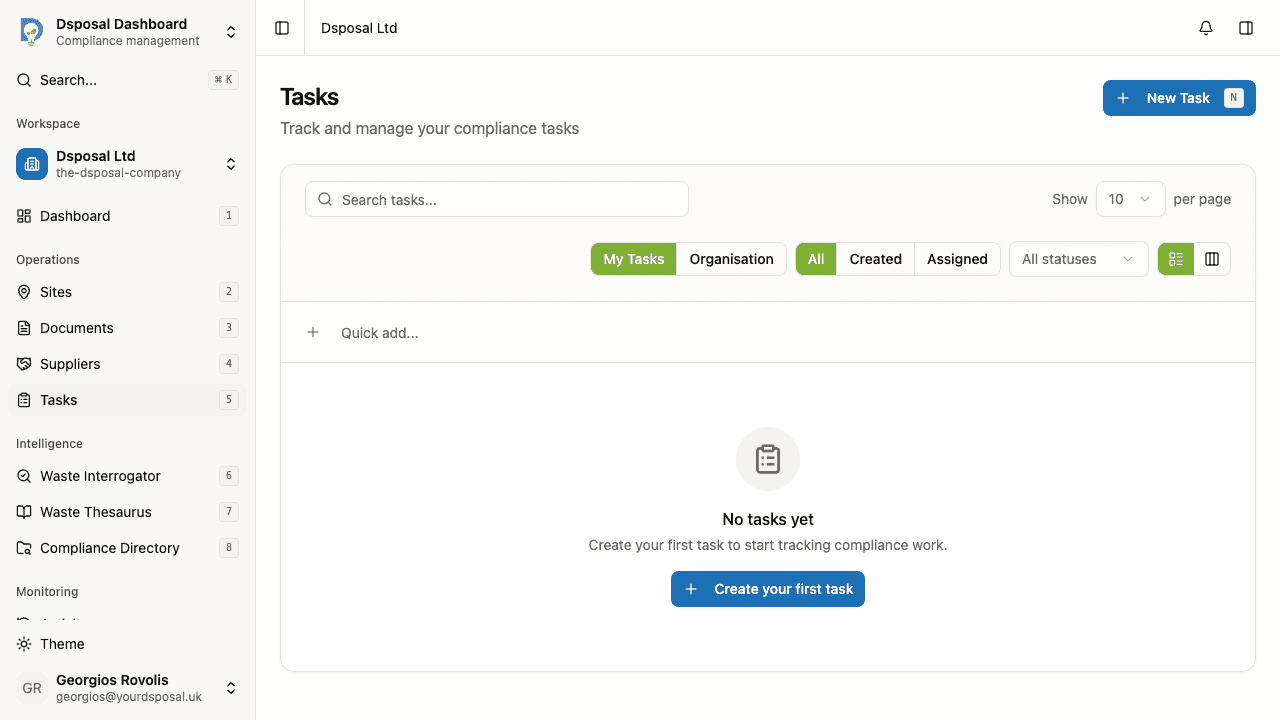
Click Create or press Cmd+S (Mac) / Ctrl+S (Windows) to save the task. It will appear in your task list immediately.
Viewing and filtering tasks
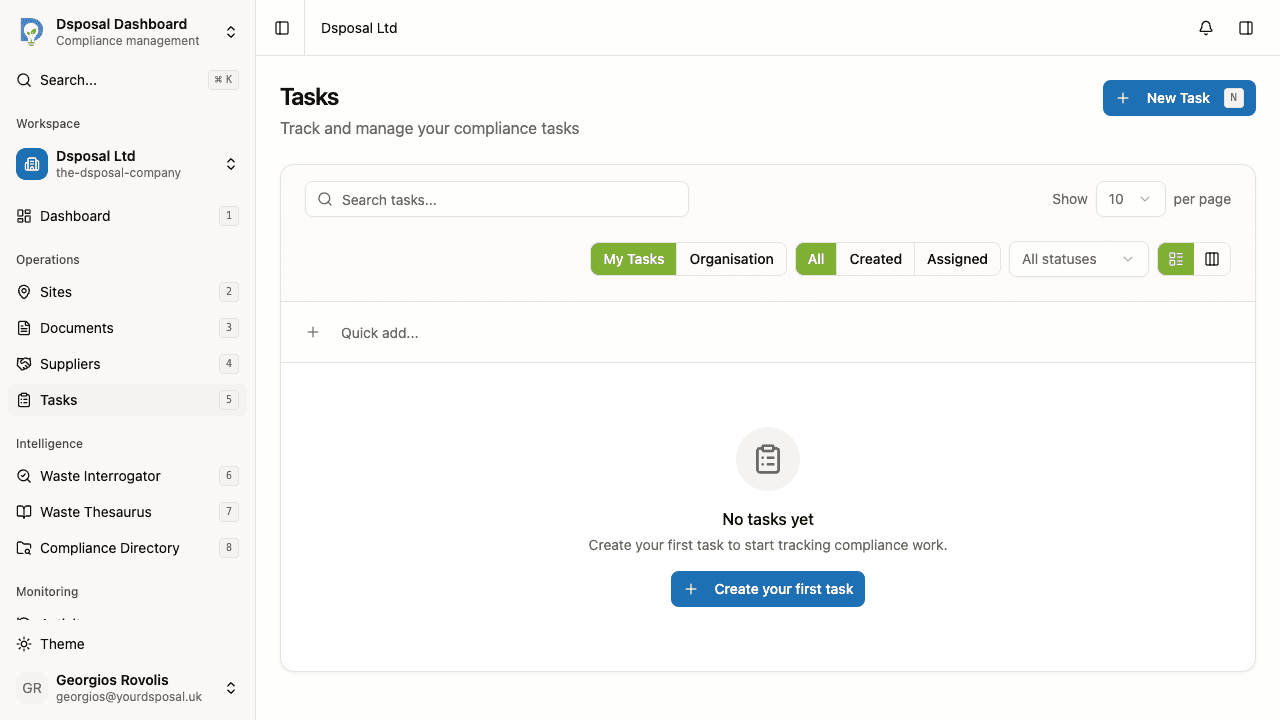
Tab toggle: My Tasks vs Organisation Tasks
At the top of the task list, toggle between two views:
- My Tasks — shows tasks you created or that are assigned to you
- Organisation — shows all tasks across the organisation
My Tasks sub-filters
When viewing My Tasks, you can further filter by:
- All — everything related to you (created by you or assigned to you)
- Created — tasks you created
- Assigned — tasks assigned to you by others
Status filter
Use the status dropdown to show only tasks in a specific state:
- To Do — tasks not yet started
- In Progress — tasks currently being worked on
- Done — completed tasks
- Cancelled — tasks that were cancelled
Tag filter
If your organisation uses tags, click the Tags button to open a multi-select dropdown. Choose one or more tags to filter the list to only tasks with those tags applied.
Search
Use the search field to find tasks by title. Results update as you type with a short delay.
Sorting
Click any sortable column header (Title, Priority, Due Date, or Created) to sort the table. Click the same header again to reverse the sort order.
Editing a task
Click any task row to navigate to the task detail page, where you can edit all fields inline. Changes are saved automatically.
Quick completing a task
Hover over a task row to reveal a circle icon on the left. Click it to instantly mark the task as Done. A toast notification appears with an Undo option in case you marked it by mistake.
Priority levels
Tasks use four priority levels, each with a distinct colour:
| Priority | Colour | When to use | |----------|--------|-------------| | Urgent | Red | Immediate action required — compliance deadlines at risk | | High | Orange | Important tasks that should be addressed soon | | Medium | Blue | Standard priority for regular compliance work | | Low | Grey | Nice-to-have tasks with no pressing deadline |
Overdue tasks
When a task's due date passes without being completed, the due date turns red and displays a warning icon. This makes it easy to spot tasks that need immediate attention.
What to do next
- Try the kanban board view for a visual way to manage tasks
- Set up task tags to categorise and filter your tasks
Keep moving
Next steps
Explore further