

The Security card on your Profile page lets you manage your password. Depending on how you signed up, you may already have a password set, or you may be using email code sign-in only.
Changing your password
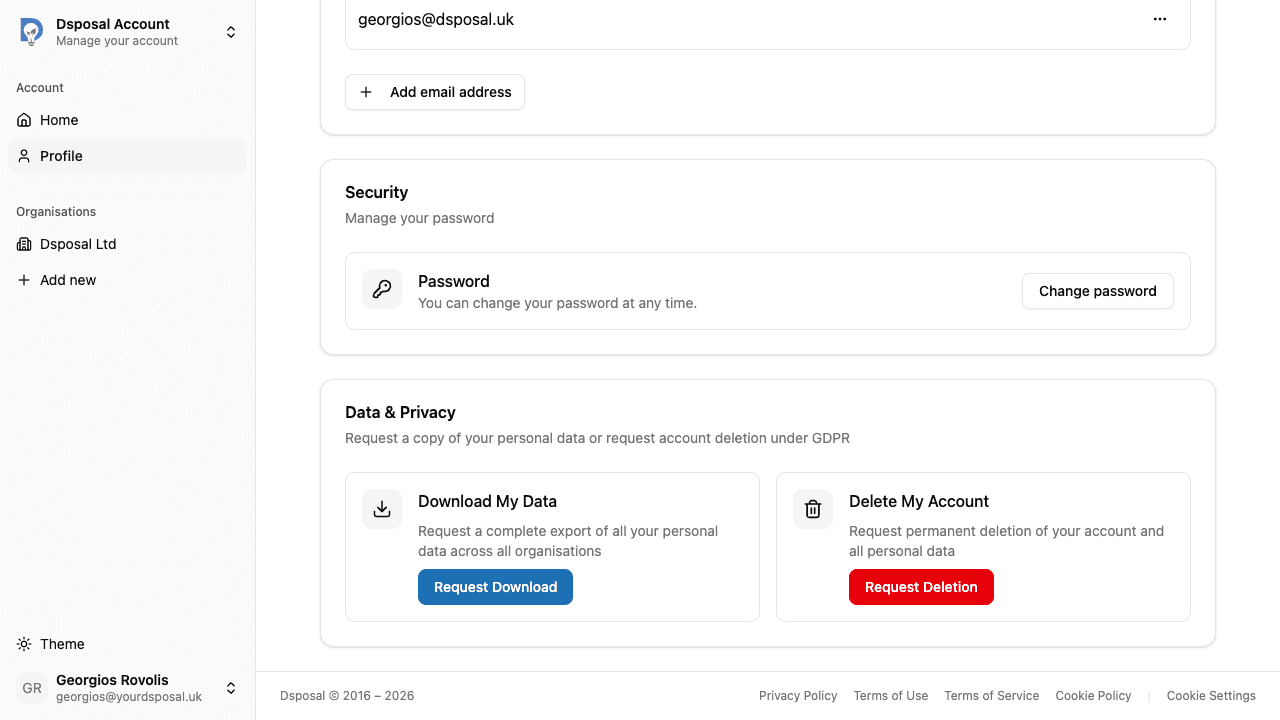
If you already have a password set, you'll see a Change password button in the Security card.
Navigate to the Security card on your Profile
In the Account app, click Profile in the sidebar and scroll down to the Security card. You'll see a description confirming "You can change your password at any time."
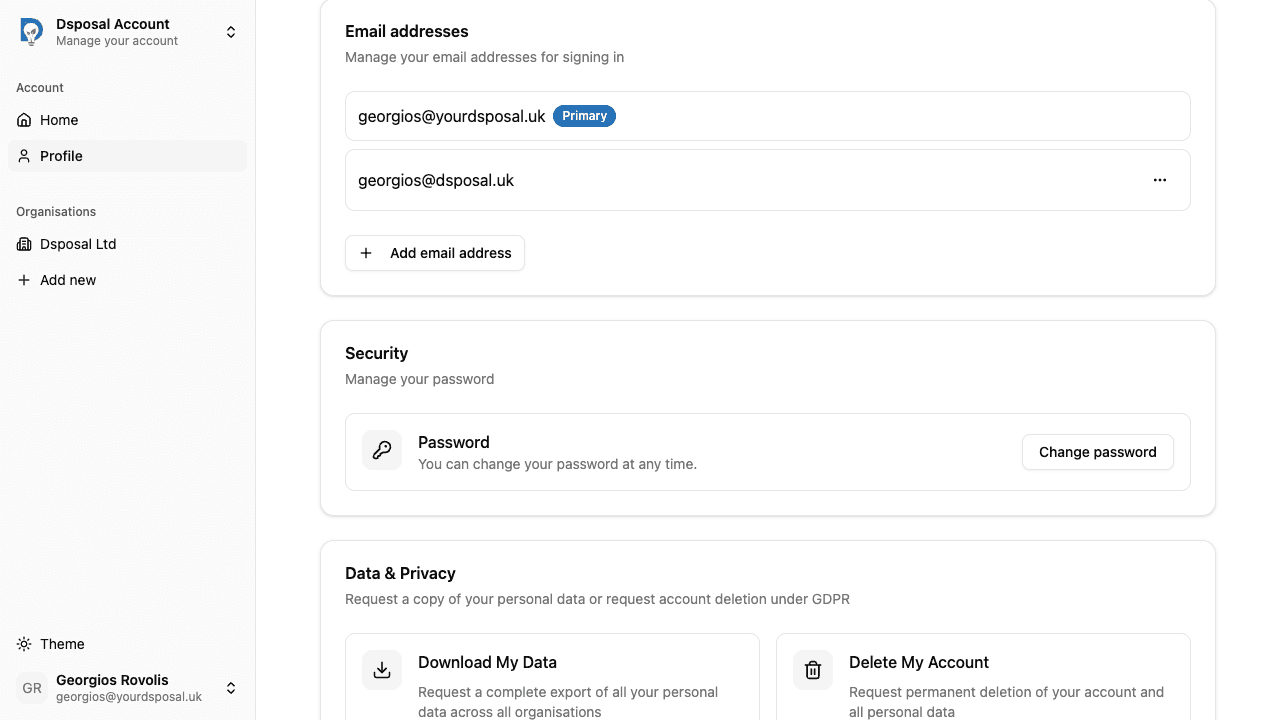
Click Change password
Click the Change password button to open the password change form.
Enter your current and new password
Fill in your current password and your new password, then confirm the new password. Click Change password to save.
Setting a password
If you signed up using email code only (without a password), the Security card will display "You signed up without a password. Add one to sign in with email and password." alongside a Set password button.
Click Set password in the Security card
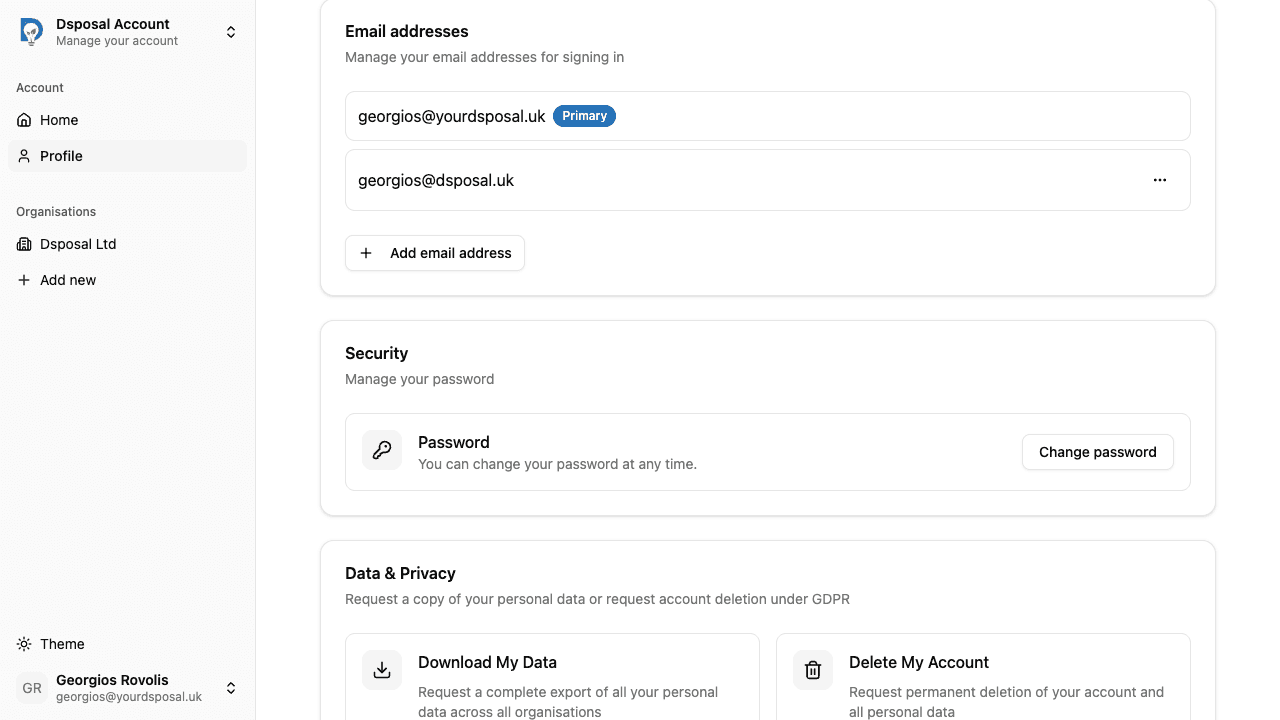
Click the Set password button to open the password creation form.
Enter and confirm your new password
Choose a new password (minimum 8 characters) and confirm it, then click Set password to save.
Multi-factor authentication
Multi-factor authentication (MFA) adds an extra layer of security to your account. When MFA is enabled, you'll be asked for an additional verification code after entering your primary sign-in credentials.
Currently, Dsposal supports email-based MFA, where a verification code is sent to your email address as the second factor during sign-in.
Keep moving
Next steps
Explore further